How to Avoid Data Loss While Working From Home
Keep your home network secure by ditching default passwords and using strong, unique ones for your router. Stick to company-approved, encrypted devices—they’ve got your back. Watch out for sneaky phishing emails; if it feels off, it probably is. Turn on MFA and only give access to what you need. Handle data like your favorite snack: keep it safe, labeled, and never share it with strangers. There’s more where that came from.
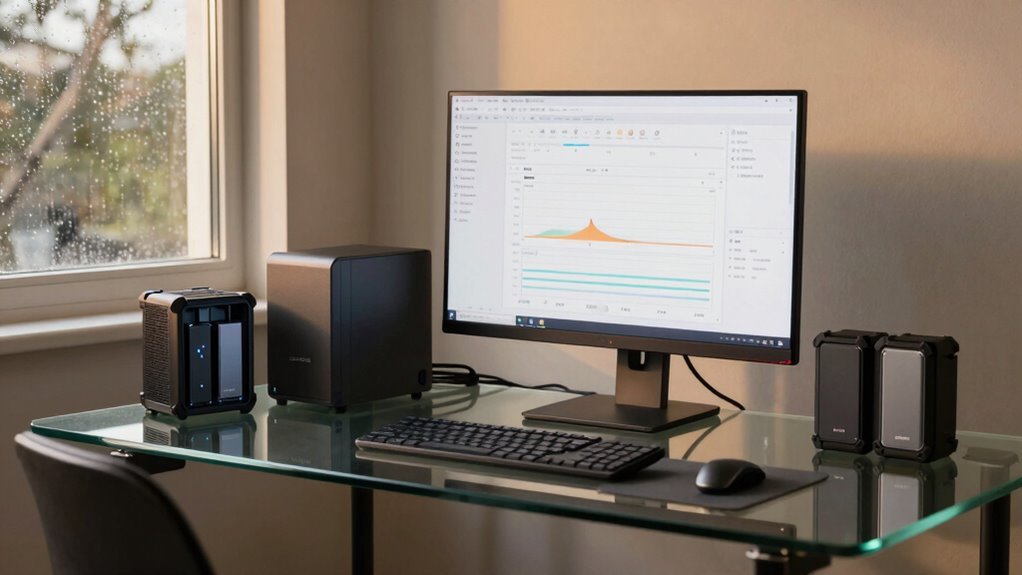
Secure Your Home Network to Protect Company Data
You’ve got your coffee, your laptop, and your comfy chair—now let’s make sure your home network isn’t secretly auditioning to be the villain in your workday.
Hackers launch about 10 attacks a day on home networks, so don’t hand them the keys.
Ditch those default router passwords and names—yeah, “admin” and “password123” won’t cut it.
Pick strong, unique ones instead.
Turn on automatic updates so your router and devices stay patched and protected.
Got smart gadgets? Toss them on a separate network—keep work devices in their own safe zone.
And please, enable WPA2 encryption and a firewall; think of them as your network’s bodyguards.
Skip UPnP—it’s like leaving your front door unsecured for convenience.
A little setup now saves a huge data disaster later.
Your company’s info will thank you—no capes required.
Home network devices face an average of 10 attacks daily, making proactive security essential.
Use Company-Approved Devices and Encryption Tools
Keeping your work devices locked down doesn’t have to feel like guarding a dragon’s treasure—just stick to the gear your company says is okay.
Use only approved devices so you’re protected from the start.
These gadgets are enrolled in management tools that keep them updated, encrypted, and safe.
Your company tracks them like a hawk—knowing the model, OS, and even their “trust score” so only healthy devices get access.
Full-disk encryption runs in the background, guarding data if your laptop goes rogue.
Need access to sensitive files?
Only compliant, encrypted devices get the green light.
Work happens in secure containers that block sneaky copy-paste tricks to personal apps.
Even your cloud files stay protected with managed, encrypted sync.
If something slips—like a missed update—an alert pops up, and you’re guided to fix it fast.
Data loss is the #1 security concern surrounding BYOD, making it critical to follow strict device and encryption policies.
Play it smart, stay compliant, and let the tech do the heavy lifting.
Recognize and Avoid Common Cyber Threats Like Phishing

Ever wonder how cybercriminals sneak into systems without breaking a single window?
They don’t need to—we just trick *you* with phishing.
Hackers love remote workers: isolated, on personal devices, maybe sipping coffee in pajamas while clicking a sketchy link.
Yikes.
Phishing causes 36% of data breaches—yep, more than malware or ransomware.
And with AI, fake emails now sound scarily real, spiking attacks by 49%.
You’ll see sneaky spear phishing, scammy texts (smishing!), even fake calls (vishing!).
Over 3 billion phishing emails flood inboxes daily—Google blocks 100 million a day, but some still slip through.
Gen Z and Millennials click most often, but hey, anyone can get duped.
Stay sharp: hover over links, double-check sender emails, and pause before clicking.
If it feels off, it probably is.
Your inbox is a jungle—wear digital bug spray and stay safe!
300% surge in cybercrime since remote work went mainstream has made these threats even more frequent and sophisticated.
Implement Strong Access Controls and Authentication
When you’re working from home, your coffee might be brewing, but so are hackers looking for weak spots in your access routine. Lock things down with smart access controls and solid authentication.
| Tip | Why It Helps | Pro Move |
|---|---|---|
| Turn on MFA | Blocks 99% of automated attacks | Use an authenticator app, not texts |
| Give least privilege | Less damage if accounts get hit | Review access every quarter |
| Check device health | Stops hackers from using outdated tech | Auto-block unpatched devices |
| Use Zero Trust | No more “trust once” logins | Limit access per app, not whole network |
| Automate access | Fewer forgotten logins or exits | Sync roles to permissions |
Stay sharp, lock in, and keep your work life as secure as your favorite playlist.
Follow Data Handling Policies to Prevent Accidental Leaks

While you’re juggling spreadsheets in your pajamas and grabbing coffee between Zoom calls, it’s easy to forget that everyday actions can accidentally spill sensitive data—so let’s make protecting information as routine as locking your front door.
Label files clearly as Public, Internal, or Confidential, and treat confidential info like your Netflix password—don’t share it over personal email or Dropbox.
Use only company-approved tools, and let DLP systems block risky moves like copying sensitive docs to unsecured devices.
Encrypt everything important, back it up automatically, and never toss old files without securely wiping them first.
If you suspect a leak, report it fast—no panic, just protocol.
Stick to the rules, attend your annual training, and keep data safe like a pro.
Think of yourself as the office security guard, even if your “office” is a kitchen table.
Frequently Asked Questions
How Often Should I Update My Home Wi-Fi Password?
You should update your home Wi-Fi password every 3 to 6 months—think of it like changing your toothbrush, but way more exciting.
If you’ve shared it with guests or spotted sketchy devices online, change it immediately.
Skip the “12345” nonsense and use a strong, unique combo of letters, numbers, and symbols.
Your router’s not a museum—keep it fresh, secure, and way less inviting to hackers.
Can I Let Family Members Use My Work Laptop?
No, you shouldn’t let family members use your work laptop—it’s a no-go.
You’d risk malware, data leaks, or accidental deletions, and honestly, Aunt Linda probably doesn’t need your corporate files to check her emails.
Plus, company rules usually forbid it.
Instead, hand them their own device with a cheerful “Nice try!”
Keep work tech for work stuff, and everyone stays safer, happier, and out of IT’s hotline queue.
What Should I Do if My Personal Device Is Lost?
You lose your phone, you act fast—you locate it, lock it, wipe it if needed.
You call your carrier, you notify your team, you shut down access.
You change passwords, cancel cards, un-trust that gadget for MFA.
You encrypt anything sent, you monitor accounts like a hawk.
And hey, at least the thief doesn’t know your coffee order… probably.
Stay sharp, stay safe, stay one step ahead!
Are Public Wi-Fi Networks Ever Safe for Work?
No, public Wi-Fi’s never truly safe for work—you’re basically shouting your passwords in a crowded room.
Hackers lurk nearby, keen to steal data while you sip lukewarm coffee.
Even with a VPN, risks stick around like gum on a shoe.
Skip banking, avoid logging in, and never download sensitive files.
Use your phone’s hotspot instead—your info will throw a thank-you party.
Stay sharp, stay secure, and save the logins for home.
How Do I Report a Suspected Data Leak at Home?
You spot a leak?
Don’t panic—act fast!
Check your devices for strange pop-ups or missing files, then unplug from the internet.
Text or call your IT team right away, or if you’re on your own, file a report at ic3.gov—they’ll take it seriously.
Jot down what happened, like a digital detective.
Then laugh it off—cyber crooks hate someone who’s quick, sharp, and caffeinated!
You’ve got this.
Conclusion
You’ve got this! Think of your home office like a fortress—lock the gates with strong passwords, guard your network like it’s the crown jewels, and keep company data safer than your favorite snack stash. Avoid sketchy links like you’d avoid a Monday morning without coffee. Stay sharp, stay secure, and make data drama a thing of the past. Safety’s not boring—it’s your superpower!