Essential Ports to Look for in a USB Hub
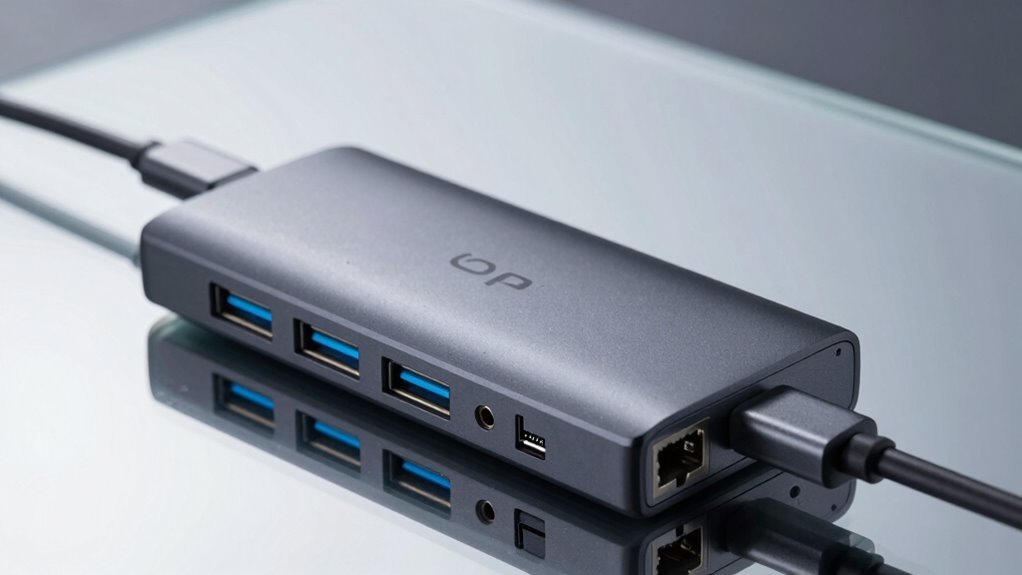
You’ll want a USB-C port for fast charging and slick data transfers, plus a few USB-A ports for your trusty old devices—they’re like the dependable friends who never ghost. Toss in HDMI for crisp 4K display action, an Ethernet port for rock-solid internet, and SD card slots for quick photo grabs. Look for strong power delivery to juice up laptops, and remember, smart bandwidth means everything runs smoothly. Oh, and there’s a whole lot more where that came from.
USB-C (Type-C) Ports

You’ve probably noticed that USB-C port—small, oval, and impossible to plug in wrong thanks to its reversible design. You just flip it, jam it in, and boom—no more three tries to get it right.
It’s got 24 smart pins that talk to each other, so your devices figure out power, data, and even video—automatically.
You can charge your laptop at up to 100 watts (or more with new PD specs), transfer files crazy fast (hello, 40 Gbps with USB4!), and even run an 8K monitor if you’re feeling fancy.
The magic happens through clever tech like power negotiation and alternate modes, all while staying safe and cool.
Best part? One cable does it all—no more dongle soup.
Just plug, go, and let USB-C work its multitasking miracles.
Seriously, it’s like your port grew up and got a PhD.
This versatility is built on a foundation of E-Marker chips that communicate capabilities between devices and cables.
USB-A Ports (Legacy Type-A)
While USB-A gets all the spotlight for being sleek and smart, don’t count out the trusty USB-A port just yet—it’s the dependable workhorse that’s been powering your gadgets for years.
You’ve probably used it a hundred times: plug in your mouse, keyboard, or flash drive, and boom—works like a charm.
These rectangular ports come in black, blue, or even red, each color telling you how fast they are—black for 480 Mbps, blue for 5 Gbps, red for up to 20 Gbps.
They’re backward compatible, so older devices still play nice.
Though they can’t handle 240W charging, they still deliver solid power for most needs.
Found on almost every computer and hub, USB-A ports are like that old friend who’s always there when you need them—unfancy, but totally reliable.
And hey, at least you’ll never plug one in upside down… after the third try.
USB-A ports max out at 20 Gbps with USB 3.2 Gen 2×2, making them suitable for high-speed data transfer but not the fastest option available.
HDMI and Display Output Ports

Imagine this: your laptop’s tiny screen suddenly becomes a massive, crystal-clear 4K canvas, all thanks to a little HDMI port on your USB hub. You plug in, and boom—your movie night just got cinematic.
With HDMI 2.0, you’ll get buttery-smooth 4K at 60 Hz, plus rich 7.1 audio and HDR for colors that pop.
Even HDMI 1.4 delivers solid 4K at 30 Hz, great for slideshows or casual binge-watching.
Just make sure your laptop supports DisplayPort Alt Mode over USB-C—no magic tricks here!
The hub handles everything plug-and-play, no drivers needed.
Mirror your screen or extend it to a second display like a pro.
Whether you’re using a MacBook, Dell XPS, or Surface, as long as it’s Thunderbolt 3/4 or USB4-ready, you’re golden.
It’s like giving your laptop a blockbuster upgrade—all from one sleek little box.
Who knew productivity could look this dazzling?
The JCH451 supports HDMI display output with 4K resolution at 30 Hz, making it ideal for high-quality visuals without needing extra power.
Ethernet (RJ-45) Port
When your WiFi starts ghosting you in the middle of an important download, the RJ45 Gigabit Ethernet port on your USB hub swoops in like a connectivity superhero.
You plug in, and boom—rock-solid internet at speeds up to 1Gbps, thanks to that RealTek RTL8153 chipset doing the heavy lifting.
No more buffering, dropped Zoom calls, or crying over failed uploads.
It’s plug-and-play, needs no extra power, and works with your laptop, tablet, even your Nintendo Switch.
Whether you’re in a sketchy hotel or a crowded café, this little hero keeps you online while the USB 3.0 ports handle your mouse, drive, and keyboard with zero lag.
Built tough with aluminum and a nifty strain relief, it’s lightweight, travel-friendly, and packs status lights so you’re never guessing.
Say goodbye to spotty WiFi drama—your wired win is here.
SD and Microsd Card Slots

You’ve just locked in a rock-solid internet connection with your hub’s Ethernet port, so why let your workflow hit another snag pulling files from cameras or gadgets?
Skip the hunting-for-an-adapter dance and grab a hub with built-in SD and microSD slots—they’re total game-changers.
You can zip through memory card transfers in seconds, whether you’re offloading photos or grabbing videos.
Here’s why you’ll love them:
- Read both SD and microSD cards, up to a whopping 2TB each
- Enjoy UHS-I speeds up to 104MB/s—fast enough to keep your creativity flowing
- Swap cards hot and ready, no fussy software or drivers needed
- Work smoothly with all major formats, from SDXC to MMC
It’s like giving your computer a memory upgrade… with superpowers and zero drama.
Power Delivery and Charging Capabilities
Plug in and power up—your devices just got a turbocharged lifeline.
With USB Power Delivery, you’re not just charging; you’re supercharging.
Modern hubs deliver up to 240W using USB PD 3.1 EPR, so your laptop, tablet, and phone charge fast—no more juggling chargers like a circus act.
You’ll see voltages jump to 28V, 36V, or 48V for serious power, while older gear still gets its 5V to 20V sweet spot.
Need to juice multiple devices? No problem.
Power splits smartly between ports—some get top billing, others share the spotlight.
And hey, cables matter: use 5A e-marked ones for anything over 60W.
The best part? Power flows both ways, so your hub can give or take, like a good friend with a power bank.
Just don’t plug your toaster in… yet.
Bandwidth and Data Transfer Considerations

Ever wonder why your super-fast SSD slows to a crawl when you plug in your webcam and external drive at the same time?
It’s all about bandwidth sharing! Your hub splits its total speed among all devices, so more gadgets mean less speed for each.
To keep things zipping smoothly:
- Pick USB 3.0 (5 Gbps) or higher for drives and cameras—don’t let a slow hub bottleneck your gear.
- Go for USB 3.2 Gen 2×2 (20 Gbps) or USB4 (40 Gbps) if you’re editing 4K video or juggling multiple SSDs.
- Choose full-duplex USB4 to stream, transfer, and back up all at once—no more “tug-of-war” slowdowns.
- Match your hub to your fastest device—even one speedy gadget deserves room to shine!
Think of it like a highway: more lanes (and fewer traffic cops) mean everyone gets where they’re going fast!
Frequently Asked Questions
Can a USB Hub Work Without Drivers on All Operating Systems?
Yes, you can plug in most USB hubs and they just work—no drivers needed on Windows, macOS, or Linux.
Your system already speaks USB, so it’ll auto-detect the hub like it’s greeting a long-lost friend.
Just connect and go!
Sure, fancy features might need extra software, but basic splitting?
That’s out-of-the-box magic.
Think of it as plug-and-play, no PhD required.
Easy, right?
Do All USB Hubs Support Simultaneous Use of All Ports at Full Speed?
No, you can’t use all ports at full speed at once—think of it like a water hose splitting into five streams; more devices mean less flow for each.
Your hub shares bandwidth, so heavy users like external drives slow down others.
Plug in too much, and yes, your mouse might lag mid-game.
It’s teamwork, not a solo sprint, and someone’s always feeling the squeeze!
Will My Hub Overheat When Charging Devices While Transferring Large Files?
Yeah, your hub can get pretty toasty when charging devices and moving big files at the same time—those tasks crank up the heat.
Think of it like running and texting: it works, but things heat up fast.
If it’s just warm, you’re good.
But if it’s hotter than a fresh pizza, slow down.
Give it space to breathe and avoid stacking gadgets.
A cool hub’s a happy hub!
Are All USB-C Hubs Compatible With Macbook and Windows Laptops?
No, not all USB-C hubs work perfectly with both MacBooks and Windows laptops.
You’ll run into issues if the hub doesn’t match your laptop’s port specs or power needs.
Some hubs charge your MacBook just fine but struggle with Windows display outputs, or vice versa.
Always check for Power Delivery, video support, and OS-friendly chipsets—otherwise, you might end up with a fancy paperweight.
How Do I Know if My Hub Supports Fast Charging for Smartphones?
You’ll know your hub’s a speed demon if it’s got ports labeled “2.4A” or “fast-charge,” whispering sweet volts to your phone.
Check for red or yellow jacks—they’re like pit crews for your dying devices.
Peek at the specs: if it boasts 5V/2.4A and BC 1.2, you’re golden.
No label? It’s probably a charging snail, not a sports car.
Conclusion
You’ve got this! A great USB hub packs power, ports, and personality—think of it as a Swiss Army knife on caffeine. With USB-C and USB-A, you’re covered for gadgets galore. Add HDMI for screen magic, Ethernet for rock-solid Wi-Fi backup, and SD slots for photo lovers. Charging? Yep, Power Delivery keeps everything juiced. Bandwidth? Smooth as a buttered dolphin. Grab one, and boom—your laptop just became a superhero.