How to Improve Video Call Quality at Home
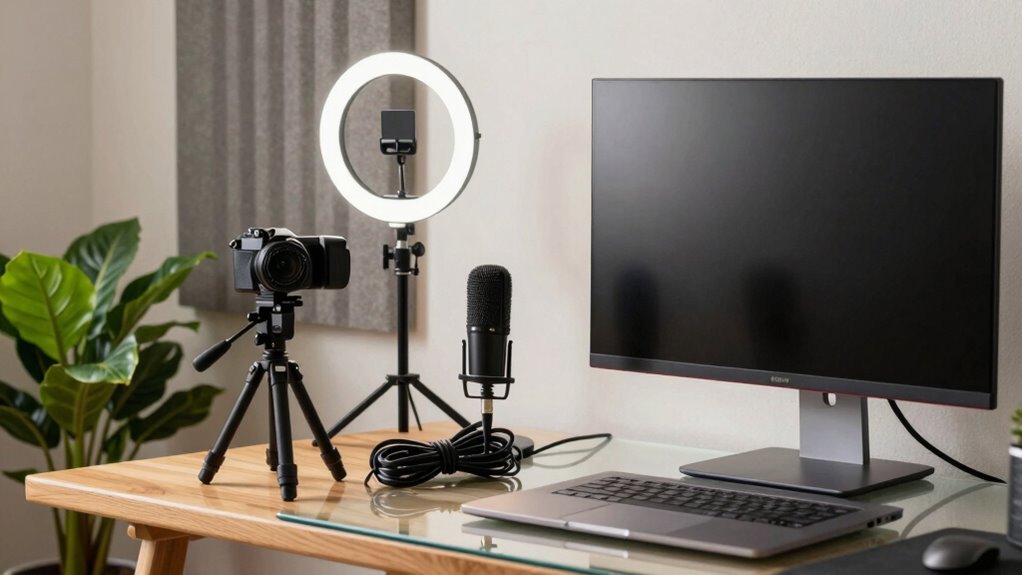
Want to look and sound like a pro on video calls? Ditch the fuzzy audio and frozen screen by plugging into Wi-Fi with a wired connection and closing those 47 browser tabs. Position your camera at eye level, light your face with a lamp or ring light, and wear a headset to sound crystal clear. Tame echo with a rug, mute when you’re not talking, and for the love of bandwidth—pause that 4K download. You’ll wow your coworkers before the meeting even starts—wait until you see what else you can upgrade.
Optimize Your Internet Connection for Smooth Video Calls
Ever feel like your video calls are stuck in slow motion, with everyone freezing mid-sentence like glitchy robots?
That’s your internet begging for help.
You’ll need at least 1.2–3.8 Mbps up and down for clear HD video, more if you’re sharing screens or in group calls.
Living with others?
Aim for 50–100+ Mbps down and 10–25+ up so you’re not battling for bandwidth.
Skip the lag by testing your speed at different times—use tools like Zoom’s built-in test or Wi-Fi checks to spot issues.
Wired beats wireless every time, so plug in when you can.
And hey, tell your roommate to pause that 4K movie download mid-call—background tasks strangle your stream.
With a few tweaks, you’ll be smiling through glitch-free chats, not frozen in pixelated panic.
Low latency is key for real-time interaction, as delays under 100 ms ensure your responses stay in sync with the conversation.
Smooth calls? Totally doable.
Configure Your Device and Software for Peak Performance
Now that your internet is running like a well-oiled machine, let’s make sure your gear keeps up the pace—because even the fastest connection can’t save you from looking like a blurry potato on screen.
Set your camera at eye level,2–4 feet away, and pick one that shoots1080p so you look sharp, not pixelated.
Use USB3.0 if you can—your call will thank you.
Crank your power settings to “Best Performance,” plug in, and close those47 open tabs (we’ve all been there).
Ditch virtual backgrounds if things get choppy.
Choose H.264 and let your GPU do the heavy lifting.
Update apps and drivers regularly—they’re like cheat codes for smooth calls.
Make sure your upload speed meets at least5 Mbps to maintain clear, lag-free video transmission.
Your computer’s not just keeping up; it’s ready to shine.
Enhance Audio Quality With the Right Equipment and Settings

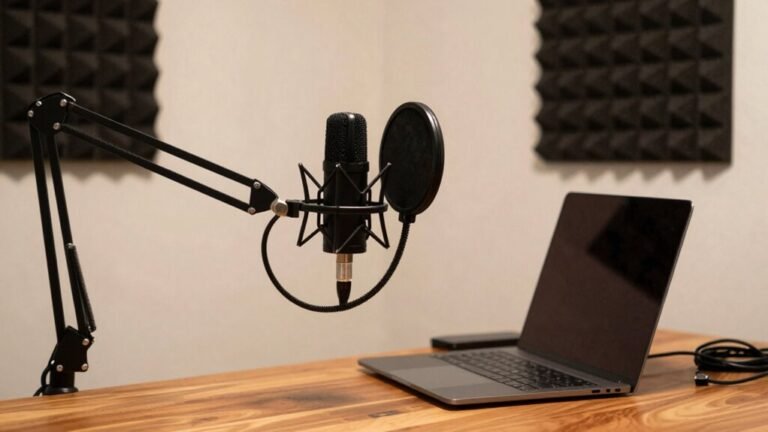
While your fancy camera makes you look like a pro, skimping on audio is like showing up to a concert in socks with sandals—everything else can be flawless, but people will still notice the flaw. Don’t let muffled mics or echo ruin your moment. Upgrade wisely and tweak smartly. For clearer calls in busy environments, consider headsets with Environmental Noise Cancellation (ENC).
| Gear Tip | Why It Matters |
|---|---|
| Use directional mics | They focus on your voice, not the dog barking nearby |
| Pick dynamic mics in noisy rooms | They ignore background chatter and room echo |
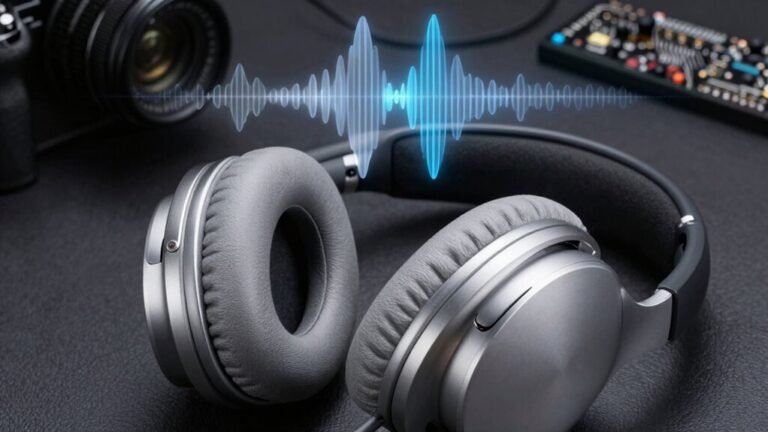
| Wear a wired ANC headset | Cuts noise and stays connected—no Bluetooth dropouts |
| Place mic 6–12 inches away | Catches clear speech without plosive pops |
| Add rugs or curtains | Soft stuff eats echo so your words stay crisp |
Tweak settings, respect the signal chain, and boom—you’ll sound like a podcast star.
Improve Lighting to Look Your Best on Camera
You’ve nailed the audio—you sound sharp, clear, and ready for prime time—so why show up looking like a shadowy figure from a noir film?
Let’s fix that.
Ditch backlighting; avoid sitting with a window behind you unless you want to look like a mysterious silhouette.
Instead, face a large window or place a bright, daylight-balanced LED lamp in front or slightly to one side.
This soft, natural-looking light makes your face pop without harsh shadows.
Use a ring light or adjustable desk lamp if you need affordable, effective gear.
Position lights 35–45 degrees above eye level and off-center—no one wants creepy overhead glare.
Mix key and fill lights to balance brightness and add depth.
And hey, your skin tones will thank you if you pick lights with a CRI of 85 or higher.
Light it right, and boom—you’re camera-ready, confident, and *definitely* not a shadowy mystery.
Frame Your Shot for a Professional Appearance

Snap into focus like a pro with a well-framed shot that says you mean business—without saying a word.
Position your camera at eye level or just above, using books or a stand—nobody wants to see up your nose or feel like you’re towering over them.
Angle it slightly down from above your head for a natural look.
Use the rule of thirds: imagine a tic-tac-toe grid and place your eyes on the top line.
Frame yourself from the chest up, centered, with shoulders filling about half the screen—no giant forehead close-ups or vanishing into the corner.
Leave a little headroom, but don’t cut off the top of your head.
Keep your background tidy and stable, not wobbly or cluttered.
Skip the mirror behind you—yes, we can see your reflection, and no, the cat doesn’t need a cameo.
Upgrade Key Equipment for Noticeable Improvements
Now that your frame looks sharp and your background won’t distract from your big presentation, it’s time to gear up for even bigger wins—because let’s be real, even the best angle can’t save you from a pixelated face or audio that sounds like you’re calling from a submarine.
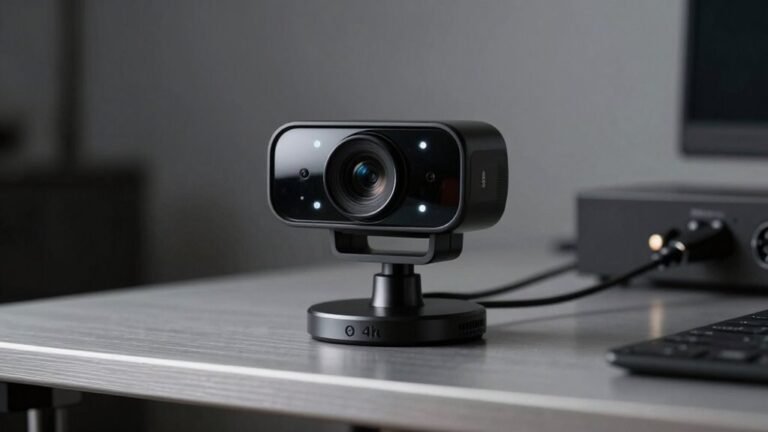
Swap your laptop cam for a 1080p or 4K webcam with good low-light performance and smooth 60 fps video, so your gestures stay crisp.
Add soft, color-accurate LED lights to banish shadows and make your face pop—no more looking like a blurry silhouette.
Grab a USB mic or headset for crystal-clear voice quality, and drape it on a boom to avoid plosives.
Plug into Ethernet for rock-solid connection, or upgrade your Wi-Fi with a snappy router.
These upgrades aren’t just flashy—they’re your secret weapon for calls that look and sound *expensive*.
Minimize Background Noise and Distractions

When your dog decides to serenade the vacuum cleaner mid-presentation, it’s not just awkward—it’s the universe testing your professionalism.
Choose a quiet spot away from kitchens, street noise, or noisy appliances, and close doors and windows to keep sounds out.
Use a carpeted room with soft furniture—it absorbs echo better than bare floors.
Grab a headset or external mic close to your mouth to capture your voice clearly while ignoring background chaos.
Enable noise suppression in Zoom or Teams, or try apps like Krisp to zap keyboard taps and barking.
Mute when you’re not talking, and give housemates a “call in progress” heads-up with a sign.
Move pets to a quiet room and time calls during calm hours.
A little prep keeps your audio crisp, clear, and wonderfully distraction-free.
You’ve got this!
Prepare in Advance for Important Meetings
While you can wing a casual chat, important meetings deserve a little pre-game prep to make sure you shine without surprises.
Double-check your Ethernet or Wi-Fi—nobody likes pixelated freeze frames.
Test your camera (hello, 720p!), mic, and headphones so you don’t sound like a robot from the basement.
Close sneaky apps hogging bandwidth, and keep your laptop plugged in—don’t let it die mid-presentation!
Update your meeting app, run a test call (yes, talk to yourself—it’s weird but worth it), and set up mute-on-entry to avoid chaos.
Open your slides early, use big fonts, and rehearse so you wow, not stumble.
Frame your face nicely, light it like a pro (no harsh shadows or halo hair!), and wear solid colors—because stripes? Not your friend on camera.
Get ready, and you’ll own that meeting like a boss.
Frequently Asked Questions
Can I Use My Smartphone as a Webcam for Better Video Quality?
Yes, you can absolutely use your smartphone as a webcam—and it’ll blow your laptop’s camera away!
Just grab an app like Reincubate Camo or Phone Link, connect your phone via USB or Wi-Fi, and boom: crisper images, better colors, and pro-level quality.
Pro tip: prop it on a tripod, set it to 720p, and wow everyone without looking like you tried too hard.
Your phone’s basically a mini studio now—go show off!
How Do I Sync My External Microphone With Video to Avoid Lag?
You sync your external mic by recording a quick clap or snap while staying in frame—this creates a sharp spike in both audio and video you’ll use as a marker.
Then, in editing, just line up the spikes from your mic and camera tracks.
Boom, perfect sync!
If you’re livestreaming, use a virtual audio cable with a small delay to match your mic to the video feed—your audience won’t even know you’re faking it till you make it.
Is It Better to Use 5GHZ or 2.4ghz Wi-Fi for Video Calls?
Oh, absolutely—go with 5GHz, because nothing says “I love pixelated chaos” like freezing mid-sentence during a serious chat.
You’ll enjoy faster speeds and less interference, perfect for smooth, HD calls.
But, if you’re hiding in the basement like a hermit, 2.4GHz’s longer reach saves the day.
Stay close to your router, pick 5GHz, and wow your coworkers with both clarity and charisma—no more guessing if you’re nodding or buffering.
What File Format Should I Use When Sharing Videos During a Call?
You should use MP4 when sharing videos during a call—it’s like the superhero of file formats!
It’s small enough to send fast, plays on almost anything, and keeps your video looking sharp.
Just pair it with H.264 and AAC-LC, and boom: smooth playback without the “buffering wheel of doom.”
Trust me, your friends (and your Wi-Fi) will thank you!
Can Multiple People Join a Call From the Same Network Without Issues?
Yes, you can totally have multiple people join calls from the same network—no drama!
Just keep an eye on your bandwidth, ’cause too many HD streams can slow things down like a buffering bunny.
Use Wi-Fi wisely, go wired if possible, and maybe turn off some cameras to keep things smooth.
With a little teamwork (and maybe one fewer cat filter), your home network’s got this!
Conclusion
You’ve got this! Think of your video calls like a cozy chat over coffee, just with better lighting and less spilled creamer. Tweak your tech, shine bright like a selfie in sunlight, and speak clearly—no muffled sandwich talk. With a few smart tweaks, you’re not just on camera, you’re *on point*. Boom: clear, confident, and camera-ready, every time. Who knew looking awesome on Zoom could be this fun?