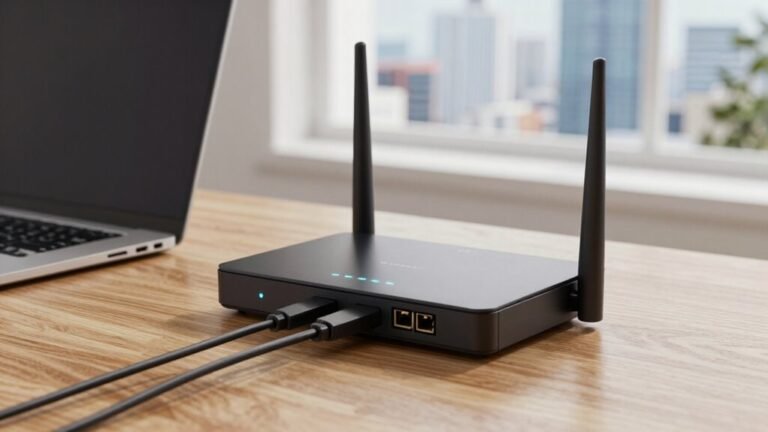
Setting Up a Separate Wi-Fi Network for Work
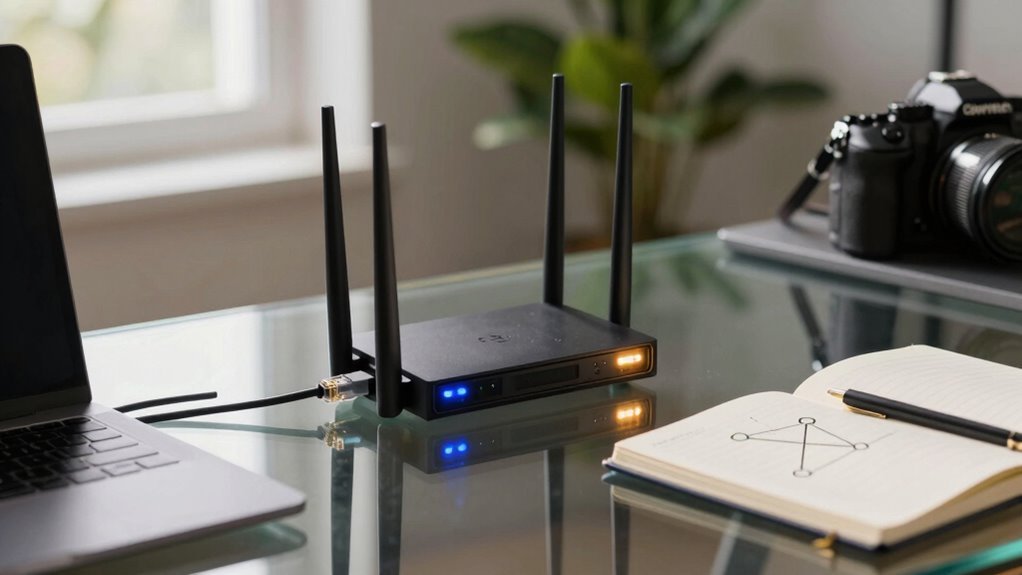
You’re giving your work Wi-Fi its own VIP lane—say goodbye to buffering during big presentations! Just hop into your router’s settings, carve out a guest or second network, and secure it with a strong password. Use a spare router or enable built-in guest features, then lock it down with WPA3 and QoS for smooth calls. Keep things fast, safe, and snooze-proof (your cat won’t hijack your Zoom again). There’s a bit more magic to make it perfect—you’ll want to see how.
Benefits of a Dedicated Work Wi-Fi Network
Ever wonder how to keep your work Wi-Fi running smoothly while the kids binge cartoons on the living room couch? You’re not alone!
Setting up a dedicated work network is your secret weapon.
It keeps your laptop and work apps on a separate lane, so Netflix marathons won’t slow your video calls.
You’ll get stronger security, too—no more worrying if your teenager’s smart toy gets hacked.
Plus, you can lock down your work Wi-Fi with better passwords, encryption, and even guest restrictions.
Need crisp audio for Zoom? No problem, with traffic prioritization, your voice stays clear.
It’s easier to track devices, push updates, and stay compliant with company rules.
Think of it like a private office in your home—quiet, secure, and built just for you.
Work smarter, not harder, with a network that’s all yours.
This setup ensures symmetrical upload and download speeds, supporting seamless video conferencing and real-time collaboration without interruptions.
Accessing Your Router’s Admin Panel
How do you get into the command center of your home network without tripping over digital speed bumps? It’s easier than you think! First, find your router’s IP—usually something like 192.168.1.1—by checking your device’s network settings or the router’s label. On Windows, just type `ipconfig` and look for “Default Gateway.” Then, pop that address into your browser’s bar. If you’re stuck, try these common combos:
| OS | Command | Typical IP |
|---|---|---|
| Windows | ipconfig | 192.168.1.1 |
| macOS | netstat -rn | 10.0.0.1 |
| Linux | ip route | 192.168.0.1 |
Use a wired connection if wireless acts up, and always double-check which network you’re on—don’t let a VPN sneak you off track! Login with the default admin credentials (check the router sticker), but change them later. Boom—you’re in! You can also access settings using a web browser.
Enabling and Configuring a Guest Network

While your work devices stay tucked safely inside your private network, setting up a guest network lets visitors get online without barging into your digital living room.
It’s like giving them a guest pass to the internet, not the keys to your whole house! To get it right, here’s what you should do:
- Turn on the guest network feature in your router settings—it’s usually hiding under wireless or security.
- Set a fun, separate name (SSID) and password so Aunt Karen doesn’t guess your main Wi-Fi code.
- Enable client isolation to stop guest devices from snooping on each other—no party crashing allowed!
- Limit bandwidth and block sketchy traffic so your Zoom calls won’t suffer during Netflix marathons.
Boom! You’ve nailed it: secure, simple, and stress-free sharing.
This approach also ensures improved security by isolating guest access from your primary network.
Choosing the Right Equipment for a Second Network
So, what’s the secret to keeping your work Wi-Fi sharp, secure, and stress-free? Picking the right gear!
You can grab a standard router, plug it into your main network, and boom—dedicated work zone.
Travel routers like the GL-AR750S-Ext are tiny champs for basic needs, though they cap client counts.
If you’re fancy, enterprise routers handle double NAT like pros, especially with a public IP.
Got a modem-router combo? Sweet—many let you spin up extra SSIDs right from the 192.168.0.1 dashboard.
Mesh fans, TP-Link Deco plays nice with modems like the Netgear CM1000.
And hey, old routers aren’t trash—they can become access points with a firmware flip.
Just power them, patch in Ethernet, and let them broadcast.
Pick WPA2, dodge channel 6 chaos, and avoid repeater mode unless you enjoy slow-motion streaming.
Your work network’s gonna shine—no cat videos crashing your Zoom call.
Connecting and Configuring a Second Router

You’ve picked out the perfect router, and now it’s time to bring your work Wi-Fi setup to life—think of it like setting up a mini office fortress in your home network.
To get it right, follow these steps:
- Connect your second router via LAN-to-WAN for full isolation, giving your work devices their own subnet and IP range.
- Disable DHCP on the second router if using LAN-to-LAN mode—this avoids conflicts and keeps your main router in charge.
- Assign it a static IP outside your main DHCP pool (like 192.168.1.2) so you can always find it for tweaks or troubleshooting.
- Block double NAT by turning off NAT or switching to Access Point mode—unless you *want* headaches with Zoom calls and file sharing.
Boom! You’re not just working from home—you’re mastering it.
Optimizing Router Placement for Maximum Coverage
Since your Wi-Fi signal doesn’t come with a map or GPS, placing your router right can make all the difference between smooth video calls and frustrating dropouts.
Put it near the center of your workspace—closer to where you and your devices hang out most.
Avoid corners or outside walls; you’ll just beam signals to the neighbor’s dog.
Elevate it on a shelf or mount it near the ceiling—Wi-Fi likes to spread out and drop down, not crawl across the floor.
Keep antennas vertical unless you’ve got a weird gadget stack, then tweak as needed.
Stay clear of microwaves, mirrors, and anything made of metal—they’re like kryptonite to your signal.
Walls made of concrete or brick? Big no.
Drywall’s your friend.
If you’re multi-floor, middle level’s ideal.
Test as you go, walk around, and check your signal where you actually work—because no one likes buffering mid-presentation.
Securing Your Work Wi-Fi With Advanced Settings

Ever wonder how to lock down your work Wi-Fi so it’s rock-solid without turning your router into a digital fortress only a hacker could love?
You’ve got this—just flip a few smart switches in your settings.
Here’s how to beef up security like a pro, without the headache:
1. Turn on WPA3 encryption****—it’s like giving your network a bulletproof vest.
If your gear’s older, WPA2’s still solid, but *ditch* WEP like last year’s phone.
2. Set up a separate work-only Wi-Fi network****—no random smart toasters allowed.
Keeps your laptop safe from sketchy IoT gadgets.
3. Use strong, unique passwords****—think long, weird, and unpredictable.
“CorrectHorseBatteryStaple” vibes, please.
4. Update your router’s firmware—yes, seriously.
Outdated firmware is like leaving your keys in the door.
Maintaining Performance With Bandwidth and Channel Management
How’s your Wi-Fi holding up when the video call freezes mid-presentation?
Don’t sweat it—smart bandwidth and channel management can save your workday.
You’ve got the power to pick the best channels: use 1, 6, or 11 on 2.4GHz to avoid overlap, or hop on the 5GHz band with its wide-open channels.
Grab a Wi-Fi analyzer to find the least crowded ones—your router will thank you.
Enable QoS to boost video calls over Netflix binges (sorry, Strangers Things can wait).
Keep interference low by steering clear of mesh systems that slow things down, and upgrade devices to 5GHz.
Place your router high and central, aim for -65 dBm signal strength, and split traffic with separate SSIDs.
With a little tuning, you’ll zip through meetings like a pro—no more “Can you hear me now?” drama!
Frequently Asked Questions
Can I Use the Same SSID for Both Networks?
No, you don’t want to use the same SSID for both networks—it’ll confuse your devices and cause connection headaches.
They’ll jump between networks like a squirrel on espresso, not knowing where they land.
You’ll risk wrong network access, IP clashes, and frustrated relogins.
Keep it simple and smart: use different names, like “WorkWave” and “HomeBase.”
It’s clearer, safer, and way less tech-drama.
Your future self will high-five you!
Will a Second Router Slow Down My Main Network?
No, a second router won’t slow down your main network—if you set it up right!
Did you know 73% of home networks run slower due to overcrowding?
You’re fixing that by spreading devices out.
Use AP mode with a wired connection, pick different channels, and boom: less traffic jam, faster lanes.
Just don’t stick the routers too close—no router drama!
Win-win!
How Do I Share Internet Without Sharing Devices?
You keep devices private while sharing internet by using client isolation or a guest network—simple!
Turn on hotspot isolation so gadgets can’t see each other, or fire up a separate SSID that blocks local access.
VLANs or firewall rules add extra armor.
Think of it like handing out backstage passes that *only* let folks into the concert, not your dressing room.
Easy, secure, and no awkward LAN parties.
Can Guest Users Access My Printer on Main Network?
No, guest users can’t access your printer on the main network—that’s by design!
Your router keeps guests isolated, like putting up a friendly “do not enter” sign.
If they need to print, you’ll have to tweak settings, and honestly, that’s kind of a tech rollercoaster.
But don’t panic!
You can safely open a tiny digital window just for printing—more on that soon.
Stay tuned, it’s easier than explaining Wi-Fi to your cat.
Is a Separate Modem Required for Second Router?
No, you don’t need a separate modem for a second router—your setup’s way more flexible than that!
Just grab your extra router, plug it into your main one with a LAN cable, and boom: you’ve got another network up and running.
It’s like adding a secret room in your house without building a new front door.
Just avoid double NAT drama by tweaking settings, and you’re golden!
Conclusion
You’ve set up a separate Wi-Fi just for work, hoping for focus and peace—ironic, since now your router knows your job better than your boss does. You’ve tweaked channels, named networks, and tucked routers into corners like hidden treasure. Yet here you are, streaming cat videos on your “work-only” connection. Congrats, tech whiz: you’ve built a fortress… then handed the keys to distraction. Still, at least the signal’s strong!