4K vs. 1080P Monitors: Which Is Best for Office Work?
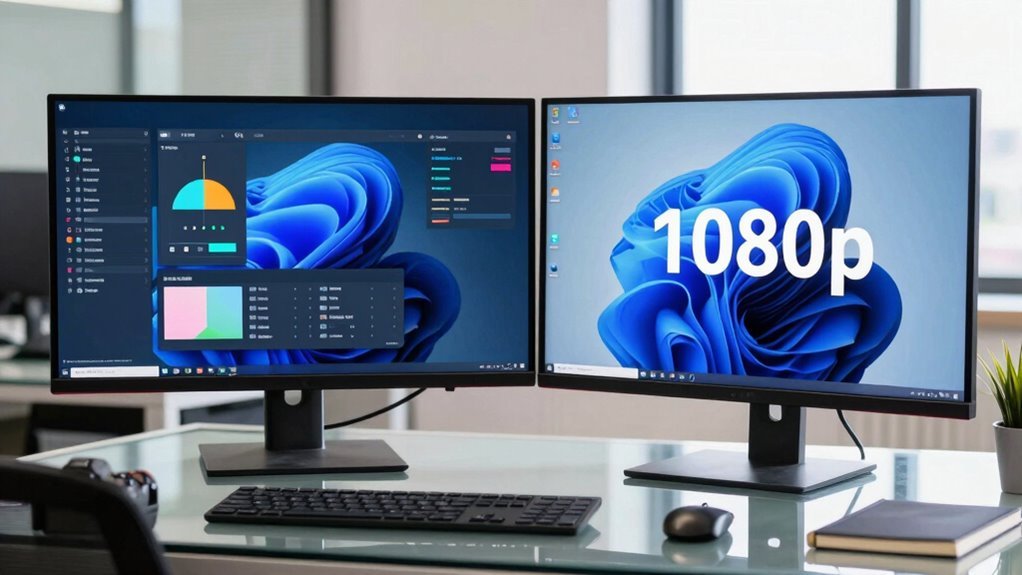
You’re gonna love how sharp everything looks on a 4K monitor—text pops, spreadsheets stay crisp, and windows snap neatly side by side without squinting. Sure, 1080p works fine and saves cash, but if your machine can handle it, 4K gives you desktop real estate that feels like an upgrade from economy to first class. Just mind the cables and scaling, and you’ll wonder how you ever worked with tiny, fuzzy icons. Stick around, and you’ll see how it all comes together.
Resolution and Pixel Density: What the Numbers Mean for Office Use
Ever wonder why your eyes don’t feel strained reading a crisp email on one monitor but get tired on another?
It’s all about pixel density—how tightly packed the pixels are on your screen.
A24″1080p monitor gives you about92 PPI, making text slightly fuzzy, while the same size in4K packs in ~184 PPI, doubling the sharpness.
Higher PPI means smaller, crisper text and icons—great for long work sessions.
But too much sharpness without scaling makes everything tiny!
That’s why you’ll want your OS to use200% scaling on4K, so fonts and buttons look comfy, not comically small.
At27″ or32″,4K hits that sweet spot of space and clarity, especially when you’re multitasking.
Just don’t expect4K magic on a13″ screen—your eyeballs can only handle so much crispness!Four times as many pixels as1080p means4K delivers significantly more detail, which enhances readability and screen real estate on larger displays.
How Screen Clarity Impacts Document and Spreadsheet Work
Why does your spreadsheet sometimes look crisp and clean, while other times it’s a fuzzy mess?
Well, it all comes down to screen clarity. When you’re working with 4K or high-PPI displays, every cell, number, and formula appears sharp—like reading a freshly printed page.
Your eyes don’t strain trying to decode tiny, blurry text at 100% zoom. Flat monitors keep things honest, giving you uniform clarity so Excel’s grid lines stay perfectly aligned.
On a 1080p screen, sure, everything fits, but you might squint unless you bump up the font size. It’s like reading a novel in newspaper print versus a big-print edition.
Higher resolution also means cleaner edges on those narrow columns—no more “what number is that?” guessing games.
So if you hate eye fatigue and love slick-looking spreadsheets, sharper clarity isn’t just flashy—it’s functional.
Curved monitors can further reduce eye strain by matching the natural arc of vision, especially in ultrawide formats where reduced eye travel enhances focus and comfort during long sessions.
Your cells will thank you.
Multitasking and Screen Real Estate in Daily Workflows

When you’ve got more screen space, juggling apps feels less like a circus act and more like a smooth dance routine.
You can keep your email open while editing a report, toss a video call in the corner, and still have room for research—no constant minimizing needed.
Bigger or higher-res screens mean fewer window switches, saving you time and brainpower.
Ultrawides are like a panoramic view for your desktop—great for side-by-side spreadsheets and docs without pesky bezels.
Need to code or crunch data? Keep your tools visible without flipping tabs.
Just don’t cram too much on-screen, or you’ll end up squinting and scrolling like crazy.
Use snap layouts to tidy things up fast.
And hey, less head-swiveling than dual monitors? Yes, please.
More space isn’t just flashy—it’s a legit productivity hack that makes work flow better, one window at a time.
Studies show users make 33% fewer errors with expanded screen real estate, highlighting the cognitive benefits of reduced window switching and improved information visibility.
System Requirements and Compatibility Challenges With 4K
How does your current setup stack up when it comes to handling 4K?
If you’re using older hardware, you might hit a few snags—like trying to run a marathon in flip-flops.
Many older integrated graphics only push 4K at 30 Hz, making everything feel sluggish.
Newer CPUs? They’re better, often supporting smooth 60 Hz, but double-check your model.
Your GPU needs at least 1.5–2 GB VRAM per 4K screen for snappy office work.
And don’t forget cables—HDMI 1.4 caps at 30 Hz, so grab HDMI 2.0 or DisplayPort 1.2+ for buttery visuals.
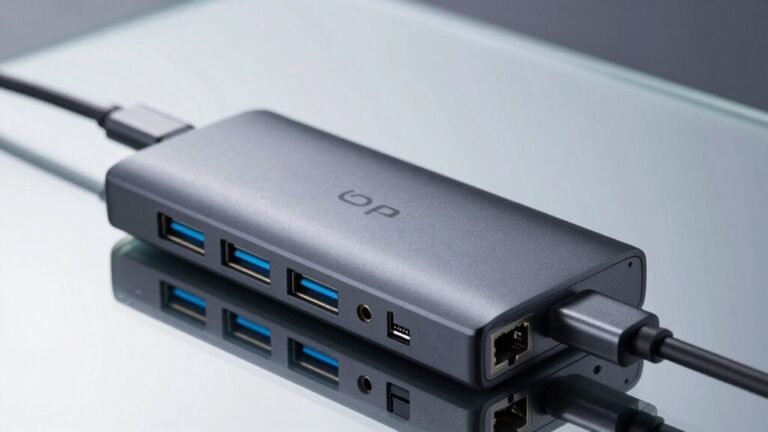
Docking stations and adapters can be sneaky culprits too; not all deliver full 4K.
Plus, some apps might squish or blur unless your OS scales things right.
Windows can be finicky, macOS usually nails it, and Linux needs extra love.
Remote access? Tweak those settings—nobody likes tiny text or laggy windows.
Cost, Power, and Long-Term Value for Office Deployments

Ever wonder what that extra cash buys when you go 4K in the office?
You’re paying nearly double—680 euros on average—compared to 1440p, thanks to sharper pixels and advanced tech.
But hey, that 4K dazzle means you can fit two documents side by side without squinting.
While 1080p models sip power and cost less (around 200 bucks!),
4K monitors like the Dell U2725QE pump out 140W to charge your laptop—convenient, right?
Just don’t forget they’ll demand more from your GPU.
For long-term wins, 1440p hits the sweet spot: great clarity, lower cost, and happy productivity.
Sure, 1080p works fine for spreadsheets and emails, but 4K scales beautifully without fuzziness.
Think of it like upgrading from gravel to glass.
Over time, sharper text and workspace efficiency might just make those extra euros worth it.
Frequently Asked Questions
Does 4K Make Text Easier to Read in Dim Lighting?
Yeah, 4K totally makes text easier to read in dim lighting.
You get sharper letters with less fringing, especially on OLED screens.
High pixel density keeps things crisp, and when you pair it with proper scaling and ClearType, it’s like your text is magic.
Add some bias lighting, and your eyes stay happy late into the night—no reading glasses needed (unless you forget them, again).
Can 4K Monitors Reduce Eye Strain During Long Work Sessions?
Yes, you can cut eye strain with a 4K monitor—crisper text means less squinting and focus fatigue.
At normal desk distances, 4K packs in extra pixels, making words look smooth, like reading a printed book.
Just remember to scale things right so tiny icons don’t send you squinting like a suspicious squirrel.
Pair it with good lighting and ergonomics, and your eyes will thank you—no superhero vision required!
Do I Need Special Cables for 4K Office Productivity?
Yes, you need special cables for 4K office productivity, pal.
Pick HDMI 2.0 or higher, or DisplayPort 1.4, to keep your cool and colors crisp.
Toss those old HDMI 1.4 cords—they’ll leave you lagging.
For smooth multitasking, use High-Speed or certified cables, and add slack for your sit-stand desk dance.
No more fuzzy fonts or frantic refreshes—just sharp, stunning clarity that makes work way more fun and far less fuzzy.
You’ve got this!
Will 4K Improve the Quality of Video Calls and Webcams?
you bet 4k improves video calls—your face shows sharper details, smoother edges, and richer colors, making you look almost camera-ready (even in pajamas).
webcams in 4k reduce pixelation, so you won’t resemble a blurry blob on screen.
calls feel more lifelike, yes, but only if your internet can keep up—otherwise, you’ll be freezing mid-sneeze.
Are Vertical (Portrait) 4K Monitors Better for Reading Documents?
Yes, vertical 4K monitors are fantastic for reading documents—you see 82% more text at once, which feels like reading a real book without constant scrolling.
You’ll glide through PDFs and e-books smoothly, with less eye strain and neck pain.
The sharp 4K clarity makes tiny fonts crisp, and let’s be real, you’ll finally win the battle against endless document scrolling—your eyes will thank you!
Conclusion
You’re not just crunching numbers, you’re painting your workday masterpiece. A 4K monitor? Think of it as giving your eyes VIP seats to the show. Crisp text, smooth scrolling, and enough screen real estate to juggle windows like a circus pro. Sure, 1080p gets the job done, but why drive a golf cart when you’ve got a racecar waiting in the garage? Upgrade mindfully, and let your desktop dazzle.