Home Office Tech Essentials for Graphic Designers
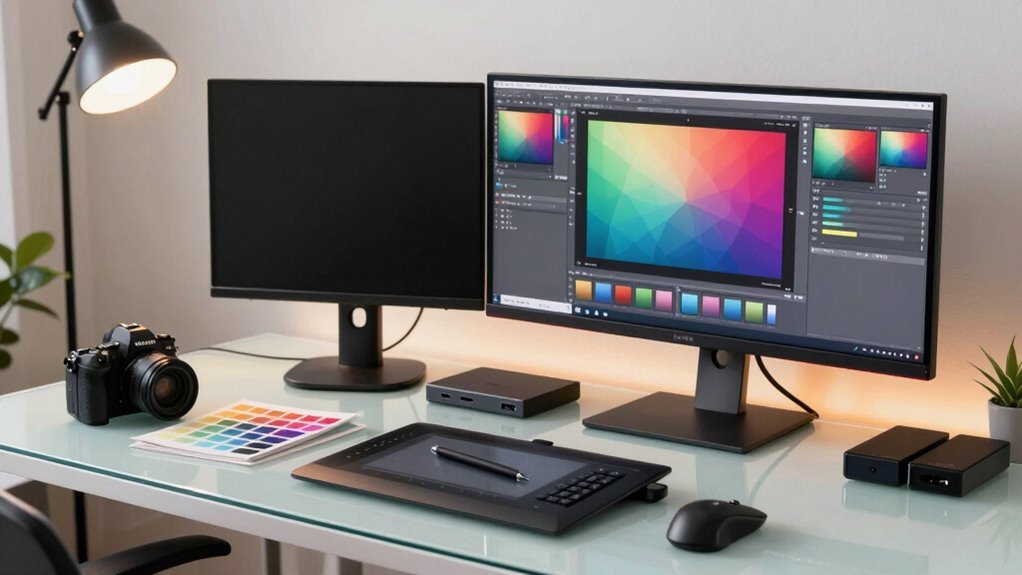
You need a sharp, color-accurate display—grab an IPS or OLED panel that covers 100% sRGB or more, so your designs pop exactly as intended. Pair it with a Wacom tablet for smooth sketching, and don’t skimp on ergonomics: adjustable chairs and monitor arms keep your back and eyes happy. Toss in Adobe Creative Cloud, a speedy Wi-Fi 6 setup, and backups like an unsung hero saving your work at midnight. Oh, and task lighting that doesn’t make your screen look like a disco ball—because glare is the villain in this story. You’ll love what else makes your workflow smoother.
Choosing the Right Display for Color-Accurate Design Work
Ever wonder why your designs look different on other screens after looking perfect on yours?
That’s likely because not all displays handle color the same way.
You need an IPS panel for stable, accurate colors and wide viewing angles—perfect when you’re double-checking a design from the side.
If you work in the dark, OLED’s deep blacks amp up contrast and make colors pop.
Skip TN panels—they’re fast but terrible at color.
Aim for 100% sRGB at minimum; if you’re into video or high-end work, hunt for 95%+ DCI-P3 or 99% Adobe RGB.
Look for 10-bit panels and hardware LUTs—they squash banding and boost precision.
Factory-calibrated monitors with Delta E <2 get you closer to true color right out the box.
Pro tip: calibrate regularly with a colorimeter, and don’t trust marketing fluff—check real measurements.
Your eyes (and clients) will thank you. Many top professional monitors, like those with 65W–90W USB-C charging, also streamline your workspace by powering and connecting your laptop with a single cable.
Essential Input Devices for Precision and Efficiency
Skip the mouse—your next-level designs deserve better.
You’re crafting art, not just clicking around!
A Wacom Intuos Pro gives you 8,192 levels of pressure control, so every stroke feels natural, while its ExpressKeys speed up your workflow with shortcuts you actually use.
If you’re budget-savvy, grab an older Intuos 4—it’s smaller, cheaper, and still a beast.
For true immersion, a Wacom Cintiq lets you draw right on the screen like a digital canvas, and the Movink 13? It’s sleek, lightweight, and feels like a pro artist’s dream tablet.
Need portability? The Apple Pencil on an iPad Air works wonders.
And hey, while mice are okay for surfing memes, they’re no match for styluses built for precision.
Pair your pen with a Logitech Craft keyboard, and suddenly, editing feels like magic.
These tools don’t just work—they work *for you*, making every pixel count.
Drawing on a tablet without screen feedback requires learning a new coordination.
Optimizing Your Workspace With Ergonomic Furniture

Here’s how to level up your setup:
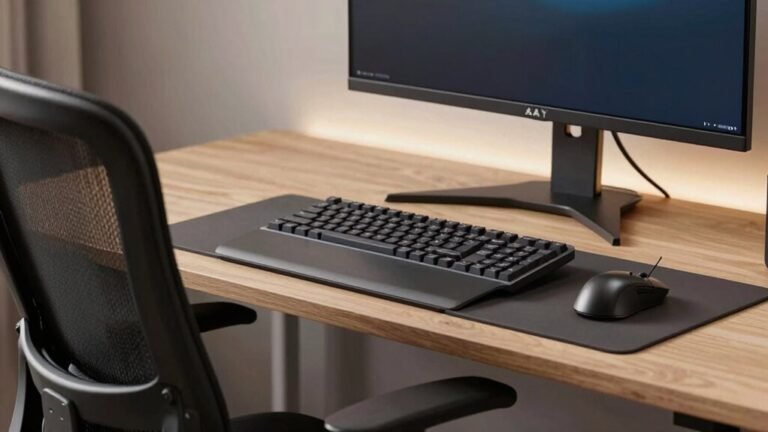
Many ergonomic chairs, like the Autonomous ErgoChair Pro, feature adaptive backrest technology that supports posture shifts during screen or sketchpad work, helping maintain comfort and focus over long design sessions.
| Feature | Why It Matters | Pro Tip |
|---|---|---|
| Adjustable chair & desk | Keeps spine happy and blood flowing | Set it, then tweak it—your body will thank you |
| Monitor arms | Reduces neck strain | Position top of screen at eye level |
| Task lighting (5000K, CRI ≥90) | True colors, no eye fatigue | Avoid glare like it’s spoilers for your favorite show |
Software and Workflow Tools Every Designer Needs
What if your software could keep up with your creativity instead of slowing it down?
You’ve got ideas flying—your tools should race right beside you.
Ditch the clunky workflows and embrace what actually makes design fun.
Whether you’re crafting logos, layouts, or killer social graphics, the right software turns “ugh” into “aha!”
- Adobe Creative Cloud (Photoshop, Illustrator, InDesign) – your all-in-one powerhouse for just about any design job.
- Figma – perfect for team projects, real-time edits, and nailing that UI/UX magic together.
- Canva or Inkscape – budget-friendly picks that still pack a punch for quick wins or indie projects.
- GoProof or Abstract – save yourself from endless email threads and version chaos with smart feedback and version control.
Design’s not about wrestling tech—it’s about letting your vision flow.
And yeah, maybe impressing your client before lunch.
Reliable Connectivity and Backup Solutions for Seamless Operations

Ever had your Wi-Fi cut out the second you’re about to hit “save” on a client’s masterpiece?
Don’t let that nightmare ruin your flow—set up a dual internet connection so your 4G kicks in when your main line caves.
Use wired Ethernet whenever possible; it’s faster, steadier, and won’t drop during big cloud backups.
Toss in a UPS battery pack to keep your modem and router alive during short outages—long enough to save your work and shut down like a pro.
Upgrade to Wi-Fi 6 and boost coverage with mesh systems so dead zones vanish.
Back up everything using the 3-2-1 rule: three copies, two formats, one off-site.
RAID NAS for quick recovery, cloud for safety, and monthly restore tests to sleep easy.
Turn on file versioning, protect with MFA, and schedule big transfers at night—you’ve got better things to stress over, like font choices.
Frequently Asked Questions
How Often Should I Replace My Stylus Nibs?
You should replace your stylus nibs every 6 to 12 months if you draw daily, but it really depends on how hard you press and what type you use.
Felt nibs wear out faster, so swap them every few months with heavy use.
Check for scratchiness or shorter length—those are clear signs.
Rotate the nib, ease up on pressure, and you’ll stretch its life.
Treat your pen kinder, and it’ll keep drawing smoother than a doodle on a lunch break napkin!
Can I Use a TV as a Secondary Design Monitor?
You can use a TV as a secondary design monitor, but don’t expect magic.
You’ll dodge pixel-blur gremlins by picking a 4K TV with 4:4:4 support and ditching its flashy “vivid” mode.
Turn on PC Mode, tweak scaling, and—boom—crisper text.
It’s like giving your design suite a spacious new lounge, minus the pro color precision.
Great for previews, not for finicky color work.
Think of it as your creative sidekick, not the main hero.
Do I Need a UPS for My Design Workstation?
Yeah, you do need a UPS for your design workstation—trust me, it’s a lifesaver.
It keeps your work safe during power cuts and protects your gear from surges.
You won’t believe how fast a storm can zap your computer.
Plus, it gives you calm, quiet time to save your project and shut down nicely.
No more frantic Ctrl+S spamming!
Think of it as a seatbelt for your setup—boring but brilliant.
How Do I Calibrate My Monitor Without a Colorimeter?
You bet you can calibrate your monitor without a colorimeter!
Start by resetting it to factory settings and tweak RGB sliders to midpoints for a balanced base.
Use free tools like QuickGamma or DisplayCal with test patterns to fine-tune brightness and gamma.
Stack some paper behind your screen to nail the D65 white point—it’s like DIY magic!
Squint at gamma ramps, tweak till it feels right, and check uniformity.
It’s not perfect, but hey, you’ll get *pretty* darn close without breaking the bank.
Are Noise-Canceling Headphones Good for Design Work?
Yeah, noise-canceling headphones are great for design work—you stay focused by blocking out distractions like traffic or noisy roommates.
They let you dive deep into your projects without constant interruptions, plus you’ll look super serious, like a creative ninja.
Just pick a comfy pair with good sound, and your brain (and ears) will thank you during those long design sprints.
Conclusion
You sketch with confidence, click with precision, and design with flair. You’ve got color-true screens, lightning-fast backups, comfy chairs that hug your back, and tools that work like magic. Your space isn’t just smart—it’s alive with creativity. No more glitches, no more aches, just smooth, joyful workflow. So grab that stylus, fire up your rig, and make something awesome. After all, your dream studio isn’t coming—it’s already here, humming, ready, waiting. Let’s go!