Dual Monitor Ergonomics: Preventing Neck Strain
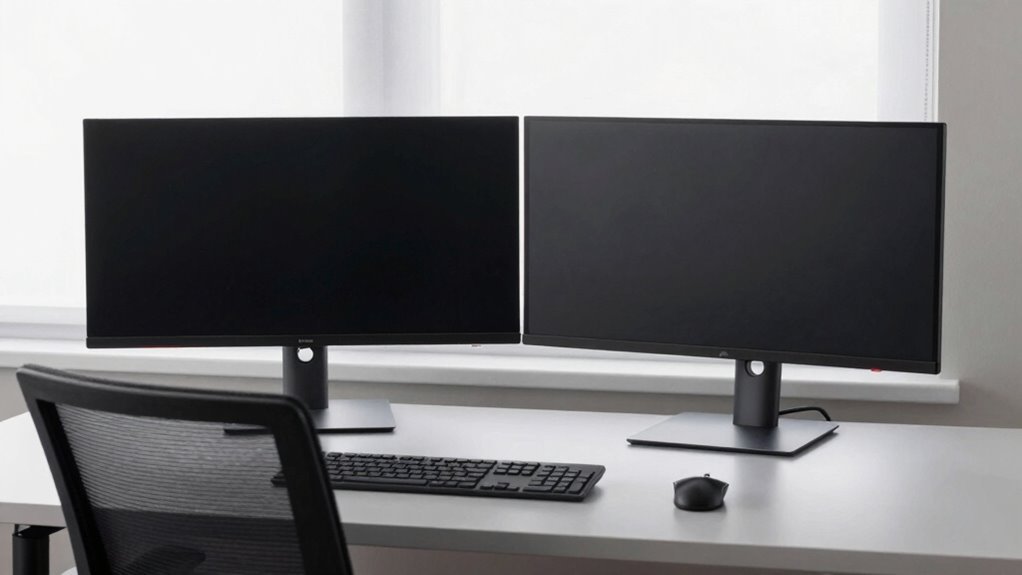
Set your screens so the tops are at eye level, and tilt them slightly up—your neck will thank you. Keep the primary monitor centered right in front of you, and tuck the secondary one close at a 30° angle so you’re not craning sideways. Match both height and distance, about an arm’s length away, and pick adjustable mounts that let you tweak things轻松. Add quick stretches and posture checks, and boom—you’re working smarter, not stiffer. Oh, and there’s a few clever tweaks coming your way…
Align Screen Height With Natural Gaze Level

When you’re setting up your dual monitors, think of your eyes as VIP guests that hate awkward neck angles—so give them the red carpet treatment by aligning your screen height just right.
You want the top of your screen at eye level or just below, so you’re not craning up or slumping down.
Your gaze should land gently on the center of the screen, about 5–10 cm under the top edge—like it’s giving you a cozy sideways hug.
Tilt it slightly upward (10–20 degrees) for bonus comfort.
Keep both monitors at the same height so your head doesn’t play tennis when switching tasks.
Whether you’ve got a 24-inch or a giant 32-inch, match the distance and angle so your eyes, neck, and posture stay happy all day.
No one wants to be a hunched-over screen zombie—so show your spine some love!
Maintaining this setup helps prevent neck strain through consistent ergonomic alignment.
Center Primary Monitor on Your Body’s Midline
Since your neck doesn’t come with a warranty, treat it kindly by centering your primary monitor right on your body’s midline—think of it as front-row seating for your eyes, no craning required.
You’ll save your neck from daily punishment just by making one smart move.
Here’s how centering your main screen works magic:
- Place your primary monitor directly in front of you, aligned with your nose and torso—this keeps head turns to a minimum.
- Set it at 0°, so your natural gaze lands right in the middle without twisting.
- Keep the inner edges of both screens nearly touching, centered on your body for smooth glances.
- Sit an arm’s length away, forming a soft V-shape that hugs your field of view.
For optimal comfort, position the center of your primary screen 10-20 degrees below eye level to support a neutral neck posture.
Simple? Absolutely. Your neck will thank you every Monday morning—with less ache and more “heck yeah!”
Position Secondary Monitor to Minimize Head Rotation

You’ve got your primary monitor smack in the sweet spot—centered, aligned, and doing right by your neck—so now let’s give your secondary screen the spotlight it deserves without turning your head into a human weather vane.
If you’re using it less, place it to the side at about a 30-degree angle so you can just glance over with your eyes instead of swiveling your whole head.
Keep the edge of the secondary monitor touching your primary to form a slight V—kind of like a techy smile aimed at you.
This setup means less neck strain and way fewer “ow” moments.
Angle it slightly inward so your eyes do the work, not your spine.
When you peek at the second screen, it should feel easy, quick, and pain-free—like stealing a glance at your phone when you’re supposed to be working.
Angling supports reduced head turning and improved neck comfort.
Maintain Equal Distance and Height for Dual Screens
Think of your two monitors as a tag team—they’ve got to work together, not against your neck and eyes.
When your screens match in height and distance, you’ll dodge strain and stay comfy all day.
Here’s how to nail it:
- Line up the top edges of both screens at eye level, so you’re gazing slightly down, not craning up or slumping.
- Sit about an arm’s length away—roughly 20–28 inches—so both screens feel equally close, no eye juggling needed.
- Position the center line of the two monitors straight ahead, keeping your head centered like a pro pivot.
- Use adjustable arms or risers to match heights perfectly, even if one screen’s smaller—level tops, not bases!
Boom—your eyes and neck will thank you.
No more “screen showdown” drama!
Optimize Viewing Distance and Screen Tilt

When your eyes aren’t busy dodging strain, they’re free to crush deadlines and binge spreadsheets like a boss—so let’s get your viewing distance and screen tilt dialed in just right.
Sit about an arm’s length away—60 to 100 cm—so text stays sharp without squinting or leaning in.
Too close, and your eyes work overtime; too far, and tiny details blur.
Aim for that sweet spot around 92 cm if it feels comfy.
Tilt your screens 15 degrees down from horizontal—like a gentle nod—so your gaze lands naturally, reducing neck and eye fatigue.
Keep them low enough to avoid staring up, especially if you wear bifocals.
For dual monitors, tilt them slightly inward, like a cozy cockpit setup, so you’re not swiveling like an owl.
This keeps both screens in your comfort zone without cranking your neck.
Get it right, and your body will thank you—one headache-free hour at a time.
Choose Equipment That Supports Neck-Friendly Adjustments
Now that you’ve got your screens sitting at just the right distance and angle, let’s talk about the real unsung heroes of neck comfort—your gear.
The right equipment makes adjusting a breeze, not a chore. Here’s how to pick winners:
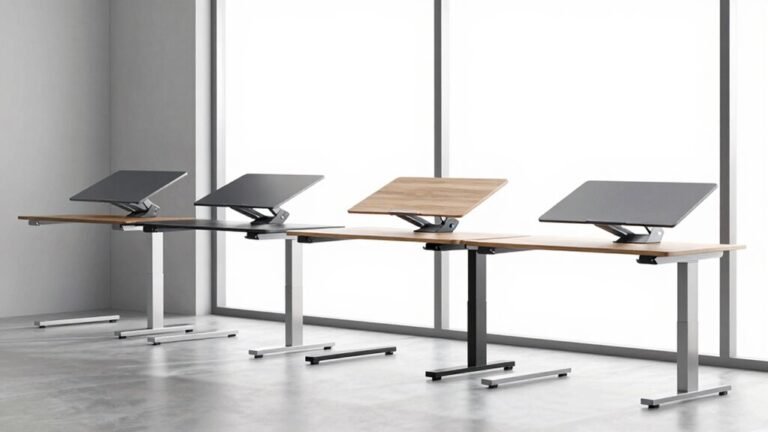
- Grab monitor arms with smooth gas-spring lifts—they let you tweak height in seconds, no tools needed.
- Go for arms that swivel, tilt, and rotate independently, so each screen hugs your natural gaze line like a pro.
- Pick ultra-slim bezel monitors—they’re like best friends who don’t make you turn your head too hard to chat.
- Double-check VESA compatibility and weight limits—sagging screens are sneaky neck-strain bandits.
Choose smart, move easy, and keep your neck happy all day. Your spine will quietly thank you—probably with less grumbling.
Incorporate Posture Support and Movement Breaks

While your monitors may be perfectly aligned, slouching like a question mark or freezing in one spot for hours can still wreck your neck.
Sit up straight—back snug in the chair’s support, feet flat like you’re rooting into the floor.
Keep your forearms at 90 degrees, whether sitting or standing.
Good posture’s your foundation, not an afterthought.
And hey, don’t turn your head into a revolving door—dual screens mean more neck twisting and tired muscles.
Pick one main monitor, center your mouse there, and let your gaze settle.
It cuts needless swiveling.
Toss in movement breaks every 30 minutes: stretch, stand, or fake conducting an orchestra—your neck’ll thank you.
Use monitor arms to shift positions smoothly, and keep screens at or just below eye level.
Small tweaks, big relief.
Your spine’s not a pretzel—keep it happy!
Frequently Asked Questions
Can I Use Different Sized Monitors Without Causing Neck Strain?
Yes, you can use different sized monitors without straining your neck—you’ve totally got this!
Just keep your primary screen centered and at eye level, and match the heights using adjustable arms.
Angle the second screen slightly inward, keep it close, and avoid extreme tilts.
With smart spacing and positioning, mixing sizes feels smooth, comfy, and kind of awesome—like your desk knows what you need before you do.
How Often Should I Readjust My Dual Monitor Setup?
Think of your setup like a guitar—it needs tuning, not overhaul.
Start by tweaking something small every couple of days.
Then, check in weekly for fine adjustments, especially if your neck whispers (or shouts) complaints.
Once it’s dialed in, you’ll only need quick touch-ups.
Life’s too short for stiff necks, so stay playful, stay loose, and keep that groove smooth and comfy.
Does Monitor Brightness Affect Neck Posture and Comfort?
Yeah, monitor brightness totally affects your neck posture and comfort.
If it’s too bright or too dim, you’ll squint or lean in, and that sneaky forward head move strains your neck fast.
Plus, glare’s a real party crasher—makes you tilt your head like you’re confused all day.
Match your screen’s glow to the room, keep it comfy, and save your neck the drama.
Your spine will thank you—no weird turtle face required!
Is a Curved Monitor Better for Neck Ergonomics Than Flat?
Yes, a curved monitor can be better for your neck than flat—if you use one screen.
Imagine your eyes as camera lenses: a curved display keeps everything in frame without swiveling, like a hammock cradling your view.
It cuts head turns by up to 30%, studies say, but only if you sit centered.
Too far off, and it’s like trying to hug a rainbow—looks cool, feels awkward.
Can Laptop Use With Dual Monitors Increase Neck Pain Risk?
Nope, you’re not stuck with neck pain when using a laptop with dual monitors—your setup’s the real culprit.
If your screens aren’t at eye level or properly spaced, you’ll crane your neck like a curious giraffe.
But hey, tweak the heights, align the center, and boom—you’re golden!
Smart adjustments keep discomfort away, so you stay comfy, focused, and pain-free while rocking that multi-screen magic like a tech-savvy pro.
Conclusion
You’ll love how much better you feel—studies show 67% of desk workers report less neck pain after adjusting their dual monitors! By aligning screens with your natural gaze and centering your setup, you’re already winning. Tweak your height, tilt, and distance, then take quick stretch breaks. Your neck will thank you, and hey, you might even impress your coworkers with your ergo-smarts—and that’s a win-win!