Dual Monitors vs. Ultrawide: Which Is Better for Productivity?
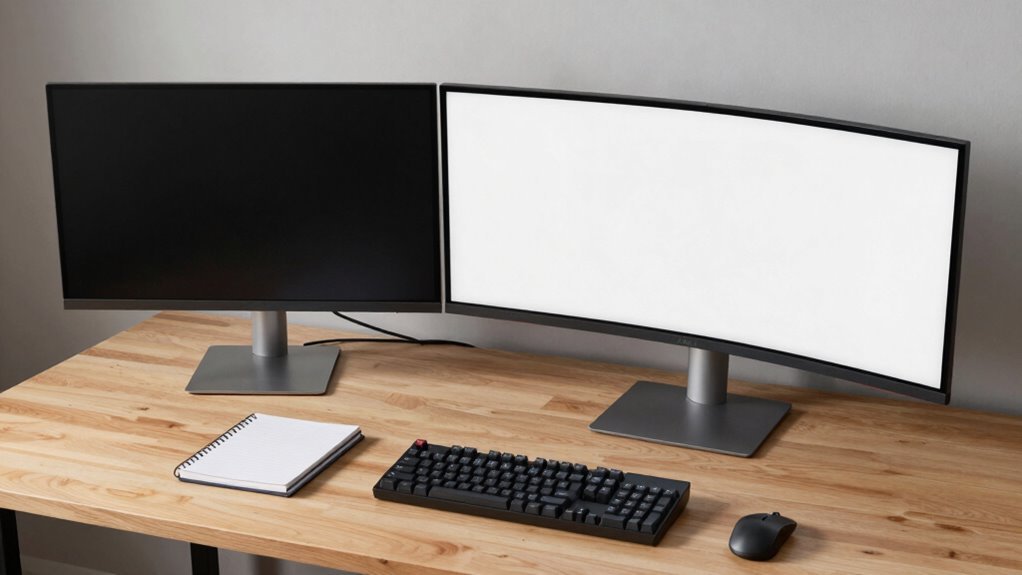
You’re getting more done with dual monitors—seriously, slashing window swaps by 15% means fewer brain hiccups and smoother workflow. One screen for email, one for spreadsheets? That’s focus magic. Plus, you get better task separation, fewer errors, and way more flexibility when coding or multitasking. Sure, ultrawides look sleek, but they can’t beat two screens for real-world productivity. And trust us, there’s even more where that came from.
Maximizing Multitasking Efficiency
Ever wonder how to get more done without feeling like you’re juggling ten apps at once?
Dual monitors slash window switching by 15%, so you’re not constantly minimizing and maximizing like a digital ninja.
You keep emails open on one screen, spreadsheets on the other, and suddenly, your brain doesn’t need a reset every time you swap tasks.
Studies show you could boost productivity by up to 60%—that’s like getting Friday done by Wednesday.
Plus, you cut errors by a third.
No more sending replies with the wrong client info!
You’re not just multitasking; you’re multitasking smarter.
And with 98% of users swearing by dual screens for comfort and flow, you’re not just efficient—you’re in control.
It’s like giving your brain extra desk space, minus the clutter.
Who knew two screens could make life feel less like chaos and more like a well-played game of Tetris?
33% fewer errors were reported in multi-monitor setups, enhancing accuracy in fast-paced workflows.
Evaluating Total Screen Real Estate
You’ve got your multitasking groove down—windows in their place, brain not in overdrive—so now let’s talk space, the kind that makes you feel like you’ve upgraded from a studio apartment to a two-bedroom without leaving your desk.
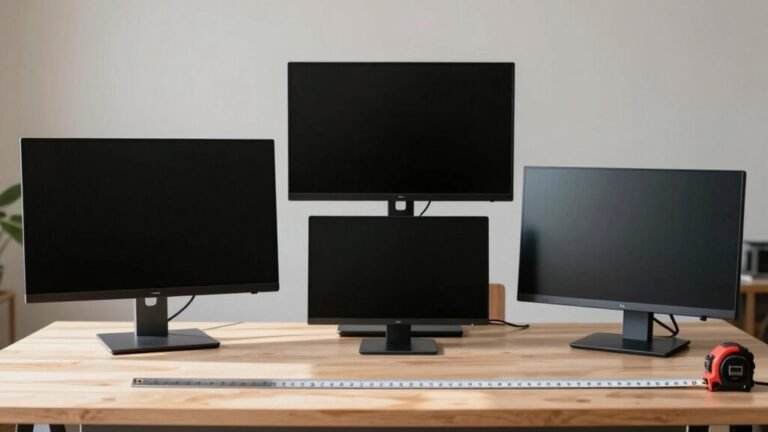
Dual monitors usually give you more total real estate than a standard 34-inch ultrawide, especially if you mix sizes—one big, one small, like a sidekick for chats.
Sure, ultrawides offer a slick, bezel-free stretch perfect for wide spreadsheets, but they’re stuck in landscape mode, leaving tall reading tasks out in the cold.
You can rotate one of your dual screens vertically—hello, PDFs and code!
And larger 38-inch ultrawides come close to dual setups, but most still can’t beat the sheer customizable space of two screens.
dual monitors provide greater flexibility
Dual wins on total area, flexibility, and that sweet, sweet bezel-jumping freedom.
Enhancing Focus Through Task Separation

Right out of the gate, think of dual monitors like having two separate desks fused into one setup—each screen holds its own job, so your brain doesn’t have to juggle as much.
You keep email on one, work docs on the other, and voilà: no more alt-tabbing like a maniac.
That physical gap between screens? It’s not just space—it’s a mental border, helping you focus like a pro.
Ultrawides blend everything together, which feels sleek but muddles multitasking. On duals, Discord chats chill in the corner while you draft reports, no drama.
Fullscreen apps won’t hijack your whole world, and dragging files between screens feels natural.
Sure, ultrawides are great for movies, but for real work? Duals give you clean separation, better focus, and a 42% productivity boost on average. It’s like your brain gets its own office suite—minus the stale coffee.
bezel between dual screens helps reinforce task separation by providing a visible and physical divide that supports mental focus.
Optimizing Your Desk Setup and Space
You just leveled up your focus by splitting your tasks across two screens like a productivity ninja. But now let’s talk about the real MVP of your workspace: the desk itself.
Dual monitors eat up space—often needing 40–60% more width—while an ultrawide tucks neatly into the center, freeing room for your coffee, notebook, or cat’s impromptu nap.
Cables? Two screens usually mean double the mess; one ultrawide keeps things tidy with fewer plugs and cleaner wiring.
Mounting’s easier too—one arm, one stand, one less headache.
Curved ultrawides hug your view and shine on corner desks, reducing neck cranks.
But if you love tilting, swiveling, or stacking screens vertically, dual arms give you ninja-level customization.
Just watch the bezel gap—it can break images like a tiny screen moat.
At the end of the day, your desk’s not just furniture; it’s your mission control.
it’s your mission control.
Make it fit.
Ensuring Software Compatibility and Performance

Ever wonder why your favorite apps look weird on an ultrawide screen?
That’s because most software is built for standard 16:9 displays, so on a 21:9 ultrawide, you might see black bars or stretched images.
But don’t sweat it—dual monitors usually play nice with nearly all apps and operating systems, giving you smooth, plug-and-play ease.
You can mix screen sizes, run different inputs, and avoid weird scaling issues.
Sure, some ultrawides offer split-screen or picture-by-picture modes that mimic dual screens, but not every program handles the width well.
Think of your apps like pancakes—great on a regular plate, but spilling over on a giant griddle!
For coding or multitasking, dual monitors often give you better performance and fewer headaches.
Compatibility? Duals win by a mile.
Meeting Hardware and System Requirements
While your rig might handle a single screen with ease, pushing pixels across dual monitors or stretching them wide on an ultrawide demands real muscle from your GPU—think of it like upgrading from a bike to a twin-engine jet.
You’ll need serious graphics power, especially for 3440×1440 or dual 4K setups.
High refresh rates and adaptive sync tech like G-Sync or FreeSync? Absolutely doable, but only if your hardware’s up for the ride.
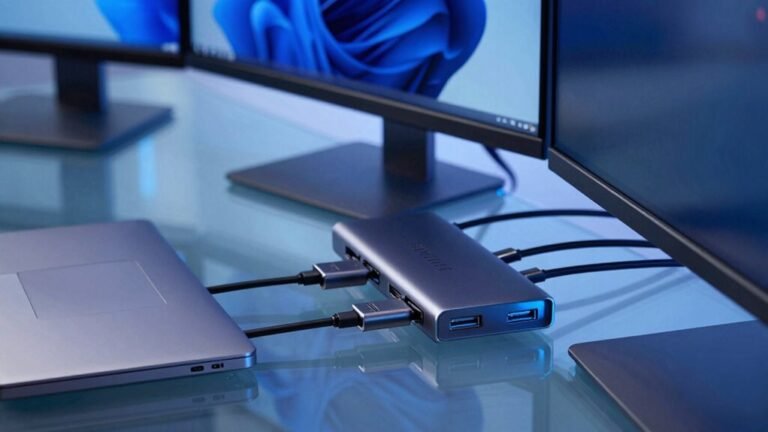
And don’t forget cables—ultrawide keeps it clean with just one, while dual monitors mean double the cords and connections.
- One ultrawide, one cable: sleek and simple
- Dual monitors offer flexible, expandable space
- High refresh rates need beefy GPUs to shine
- Mounting two heavy screens takes sturdy arms
Upgrade smart, and your setup will fly.
Choosing Based on Use Case and Workflow

That graphics muscle you just upgraded? Put it to work by matching your screen setup to how you actually work—because one size doesn’t fit all. If you’re juggling emails, coding, and docs, dual monitors give you room to spread out, with less app-switching hassle. Love sinking into spreadsheets or video timelines? An ultrawide’s seamless span is your playground. Need sharp task separation? Duals win with physical gaps that keep your mind focused. Want clean, clutter-free desk vibes? Ultrawide looks sleek and saves space.
Here’s how they stack up:
| Use Case | Dual Monitors | Ultrawide |
|---|---|---|
| Multitasking | Great (42% boost!) | Good (but cramped) |
| Task Separation | Excellent | Fair (feels messy) |
| Single App Immersion | Weak (bezel break) | Awesome (no distractions) |
Frequently Asked Questions
Can Ultrawide Monitors Cause Eye Strain Over Long Work Sessions?
No, ultrawide monitors don’t have to cause eye strain—even during long work sessions.
You’ll find they actually reduce it, especially if you pick a curved one.
They’re easier on your eyes, boost focus, and cut down on neck cricks.
Sure, a super bright screen might tire you at first, but tweak the settings and boom—smooth sailing.
Your eyes will thank you, promise!
Do Dual Monitors Increase Electricity and Long-Term Energy Costs?
Yeah, dual monitors do increase your electricity and long-term energy costs—no way around it.
Two screens mean double the power, especially if they’re big or lack high Energy Star ratings.
But here’s a fun fact: modern efficient GPUs, like Pascal, slash idle power by up to 70%!
So, while you’re burning a few extra bucks yearly, you’re not exactly melting your wallet.
Think of it as powering productivity, not just pixels!
Are Ultrawide Monitors Compatible With Ultrawide Gaming Features?
Yes, you can totally game in stunning ultrawide on these monitors—most modern AAA titles support 21:9 or even 32:9, giving you a wider, more immersive view.
Just don’t expect every older or competitive game to play nice—some will stretch or misbehave like they’re stuck in 2013.
But hey, when it works, it’s glorious: think epic landscapes and cockpit views that wrap around you like a sci-fi movie.
Can I Daisy-Chain Dual Monitors Without Performance Loss?
You *can* daisy-chain dual monitors without noticeable performance loss—for work, anyway.
Just don’t expect gaming glory; it’s smooth for spreadsheets and streaming cat videos, but forget buttery gameplay.
If your gear supports DisplayPort 1.2 and MST, you’re golden.
Less cable clutter? Yes, please!
But pick a good cable—cheap ones crash the party.
It’s like magic, but with more tech checks and zero wizard hats.
Does Screen Curvature on Ultrawides Affect Readability for Text?
Yeah, screen curvature on ultrawides *does* boost readability for text—especially when you’re reading shorter stuff.
The curve keeps words aligned with your central vision, so your eyes don’t strain tracking side to side.
It’s like the screen hugs your gaze, making letters clearer and easier to zip through.
Think of it as a VIP lane for reading—faster, comfier, and way less eye fatigue, especially on tighter curves.
You’ll fly through emails like a productivity ninja!
Conclusion
You’ve got this, super multitasker! Whether you choose dual monitors or an ultrawide, it’s like picking between roller skates and a skateboard—both roll smooth, just different styles. Dual screens give you split-focus freedom, while ultrawides wrap your world in one sleek view. Your workflow calls the shots, not the hype. So grab your snacks, tweak those settings, and turn your desk into a productivity playground!