How to Set Up Dual Monitors Correctly
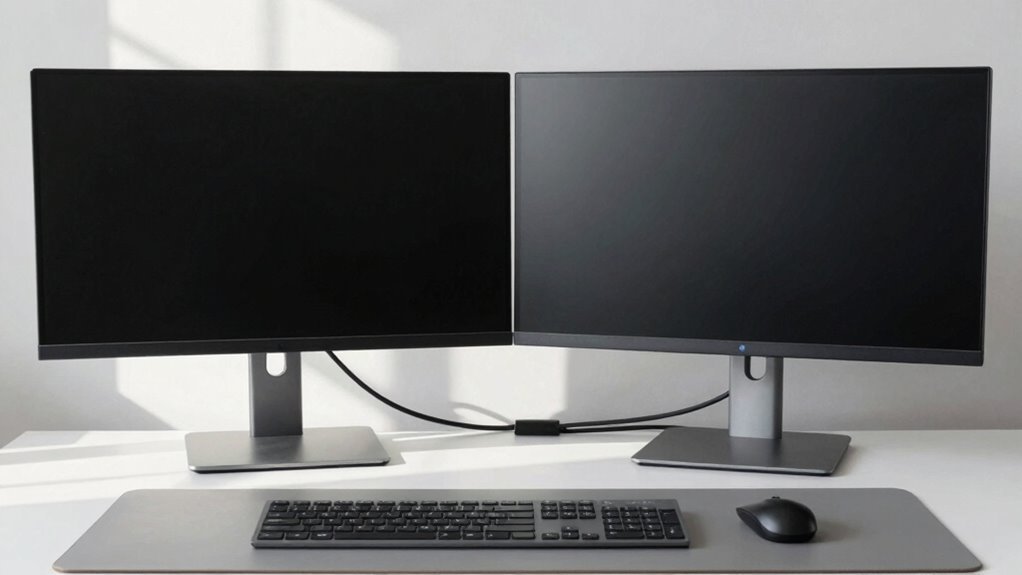
Make sure your computer supports dual monitors and grab the right cables—HDMI or DisplayPort works best. Shut down, plug each monitor into a separate port on your GPU, then power up. Once both screens light up, go to your display settings, extend the desktop, and drag them to match your setup. Set your main screen, match resolutions, and align them just right. Tidy up the cables, adjust the height, and boom—your productivity’s about to get a serious upgrade, and there’s even more to fine-tune for the perfect match.
Check Your System Compatibility

Before you dive into the dual-monitor dream, let’s make sure your system’s ready for the upgrade—because nobody wants to get stuck with a fancy second screen that just won’t wake up.
Most modern laptops and desktops can handle dual displays, but it’s smart to double-check first.
Take a peek at your computer’s specs and confirm it supports multiple monitors.
Your graphics card is the real MVP here—make sure it’s got enough HDMI, DisplayPort, or USB-C outputs.
If you’re rocking an Intel CPU or AMD APU, you might even use motherboard ports without a separate GPU.
Match your monitor’s inputs to your outputs, and don’t forget to power down before connecting anything.
Think of it like a tech handshake—everyone’s got to speak the same language.
Once everything’s in sync, you’re golden.
Your future self, sipping coffee across two glorious screens, will thank you.
This setup can lead to increased productivity with studies showing performance boosts up to 42%.
Gather the Necessary Equipment
Getting your gear together is where the fun really begins—this is your chance to build the ultimate two-screen powerhouse.
You’re not just upgrading your desk; you’re upgrading your entire workflow, gaming, or creative experience.
Just make sure you’ve got the right pieces to make it all click.
- Two monitors with matching resolutions and compatible panel types (like IPS for design or TN for gaming)
- DisplayPort or HDMI cables (or USB-C if your laptop loves modern perks)
- A pair of monitor arms or a dual stand to save space and look sleek
- A docking station or hub if your laptop hates juggling connections
- A cozy external keyboard and mouse combo—your hands will thank you
Proper monitor positioning ensures ergonomic comfort and productivity, so place your primary monitor directly in front of you at eye level.
Grab these, and you’re basically a desktop superhero in training. cape optional.
Connect Monitors to Your Computer

How do you turn two shiny screens into your personal command center?
Start by checking the ports on your computer and monitors—look for HDMI, DisplayPort, USB-C, or even older ones like VGA or DVI.
Match each monitor to your PC using the right cables: HDMI’s great for most setups, DisplayPort rocks for gaming, and USB-C is a slick all-in-one option if your gear supports it.
Got a port mismatch? No sweat—use adapters like USB-C to HDMI or DVI to VGA.
Just make sure they support your resolution.
Plug each monitor into a separate video port, ideally on your graphics card for best performance.
Use modern cables like HDMI 2.1 or DisplayPort 1.4 to future-proof your twin-display dream team.
Adapters must match the display’s resolution to avoid performance issues, especially when using USB-C to monitor connections.
Now, you’re wired for work, play, and everything in between—boom, double the screen, double the fun!
Power On and Verify Connections
Alright, let’s fire things up—power on your monitors first, then wake up your computer, and watch the magic begin.
This little power dance helps your GPU spot the screens early and cuts down on “No Signal” surprises.
Give it a sec—each display should light up with a logo or friendly beep.
If one’s still sleeping, don’t panic!
Let’s troubleshoot smart.
- Make sure both monitors show a glowing power light or splash screen—no zombie screens allowed!
- Peek at your BIOS or startup screen; if it’s only on one monitor, that’s totally normal at this stage.
- Use the OSD menu to match the input (HDMI, DP, USB-C) to your connected cable—no guessing games!
- If “No Signal” pops up, reseat the cable or try a backup one—you’ve got this.
- Crank up brightness just in case it’s set to “invisible mode” (we’ve all done it!).
Configure Display Settings in Your Operating System

| Task | Windows Shortcut | macOS Path |
|---|---|---|
| Open display settings | Right-click desktop | Apple menu > Displays |
| Extend screens | Multiple displays > Extend | Uncheck Mirror Displays |
| Set main monitor | Check “Make this my main” | Drag menu bar to preferred screen |
| Adjust resolution | Select native resolution | Click Display tab, set per screen |
| Flip orientation | Choose landscape or portrait | Same – great for coding or comics! |
Play around—you’ve got this!
Arrange and Align Monitors for Optimal Workflow
Ever wonder why your mouse feels like it’s falling off a cliff when you drag it between screens?
It’s probably because your monitors aren’t arranged to match how you use them.
Line them up side-by-side with the tops perfectly aligned so your cursor glides smoothly, just like flipping pages.
Position both screens at eye level or slightly below, tilt them 10–20 degrees, and keep them about an arm’s length away.
This isn’t just about comfort—it’s about making your workflow feel natural and fun.
- Match monitor sizes and positions to create a seamless desktop
- Align tops so windows don’t “jump” when dragged across
- Angle screens slightly inward to reduce neck strain
- Drag display icons in settings to mirror your physical setup
- Keep both monitors in your direct line of sight, like a cockpit dashboard
Calibrate Display Quality Across Both Screens

You’ve got your monitors lined up just right, with your mouse gliding effortlessly from one screen to the next like it’s on a desktop rollercoaster—now let’s make sure they’re showing the same vibrant, true-to-life colors so one doesn’t look like a sunburned twin of the other.
Start by resetting both screens to factory settings and let them warm up for 30 minutes—no cold monitors allowed!
Match the room lighting, then aim for 6500K whitepoint, 120 cd/m² brightness, and Gamma 2.2.
Use a hardware calibrator like Calibrite if you can—it’s the gold standard.
Calibrate your main monitor first, create an ICC profile, then match the second manually using the OSD.
Keep adjustments on-screen, not through your GPU, for cleaner results.
If you’re using Windows, run the display calibrator for each screen and repeat until both look like best buddies.
Even matching different models? Get it close—perfect’s not always possible.
Optimize Cable Management and Ergonomic Positioning
Once your monitors are showing off their true colors, it’s time to tame the wild tangle of cables snaking across your desk—because nothing kills the vibe of a sleek dual-screen setup like a spaghetti jungle behind your monitors.
Clean cable management isn’t just pretty—it boosts safety, airflow, and your peace of mind.
Pair smart routing with ergonomic positioning so your eyes and back stay happy during long work sessions.
- Use monitor arms with hidden cable channels to keep wires out of sight and mind
- Match your cables to your ports and performance needs—no one wants flickering 4K
- Bundle wires neatly with Velcro and tuck them into under-desk trays like a tech ninja
- Label each cable so you’re not playing “guess the plug” during upgrades
- Leave a little slack in your cables—future you’ll high-five yourself during changes
Clean cables, comfy view—now that’s desk goals.
Frequently Asked Questions
Can I Use Different Monitor Sizes Together?
Yep, you can totally mix different monitor sizes—no tech crime there!
Just make sure your GPU can handle both, and tweak the scaling so text isn’t tiny on one and huge on the other.
Line them up at eye level to avoid neck yoga, and pick a sweet spot for your viewing distance.
Sure, the look might be a little mismatched, but with a quick calibration, they’ll play nice—like mismatched socks that somehow still work.
Will Dual Monitors Slow Down My Computer?
Dual monitors won’t dramatically slow your system, but they do demand more from your hardware.
You’re pushing extra pixels, so your GPU works harder—especially in games or high-res scenarios. Desktop tasks? Barely a blip. Still, with too many tabs or weak hardware, you might feel slight sluggishness. Think of it like driving with a rooftop cargo box: it’s efficient, but there’s a tiny toll on speed. Fun, but fair warning!
Can I Close My Laptop Lid With Dual Monitors?
Yes, you can close your laptop lid with dual monitors—just don’t let it nap on you!
Set “Do nothing” when closing the lid in power settings, so it stays awake.
Pick one external monitor as your main screen, so your taskbar doesn’t vanish.
Use a dock if you’re short on ports, and keep drivers updated.
Just watch the heat—some laptops throw a fit if they overheat.
With the right tweaks, it’s like giving your laptop a cool cape—it looks sleek and works harder!
Do I Need Identical Refresh Rates for Both Monitors?
No, you don’t need identical refresh rates—your setup won’t throw a tantrum if one’s 144Hz and the other’s 60Hz.
Your GPU’s smart enough to handle the mismatch like a pro.
Just don’t be surprised if Windows plays hide-and-seek with your high refresh rate settings.
Update drivers, use the right cables, and manually tweak if needed.
Boom—you’re rocking smooth gaming on one and calm browsing on the other, no drama!
Can I Use Wireless Monitors for Dual Setup?
Yeah, you can totally use wireless monitors for your dual setup—it’s like magic, but with tech!
Just grab a couple of wireless display adapters, plug ‘em into your monitors’ HDMI ports, and connect via Windows + K.
You’ll extend your desktop smoothly, no messy cables.
Sure, there might be a tiny lag, but hey, it’s not a video game marathon—unless it is.
Then maybe go wired.
Conclusion
You’ve got this! Sure, setting up dual monitors might seem fussy, like herding digital cats, but it’s worth it. Once connected and aligned, your workflow will feel smoother than ever. Don’t worry if the screens don’t match perfectly—tweak brightness and color to sync them. Tangled cables? Neatly bundle them, sit back, and enjoy your expanded desktop. Hello, productivity—and yes, you *can* finally have memes on one screen and work on the other.