How to Improve Wi-Fi Signal in Your Home Office
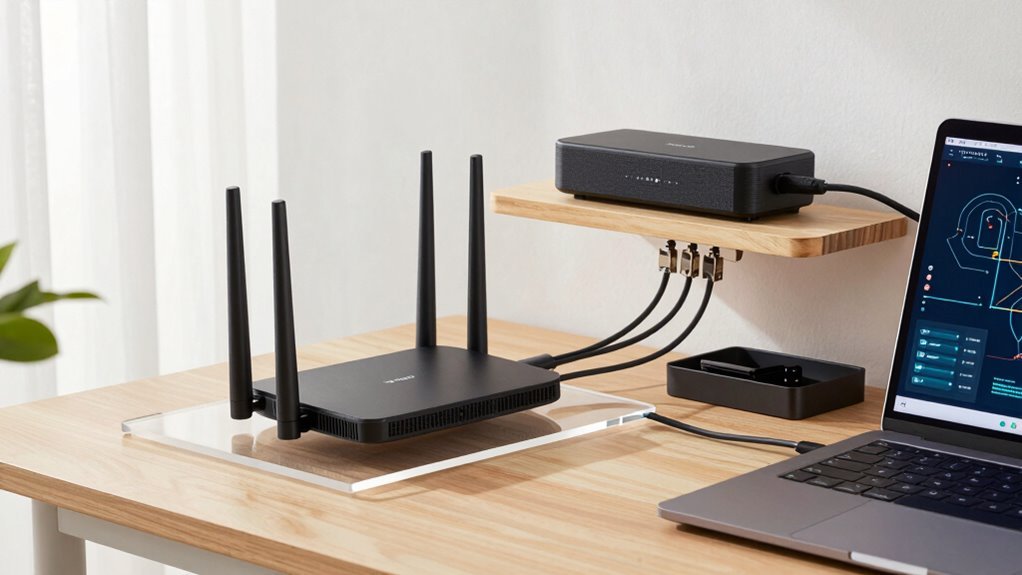
Boost your Wi-Fi by moving the router out of the closet and into the open—elevate it near your workspace, away from thick walls or fish tanks (yes, really). Upgrade to Wi-Fi6 or higher for speed and stability, especially with multiple devices. Use a mesh system if you’ve got dead zones, and connect your desktop or smart TV with Ethernet for rock-solid performance. Point those antennas up, tweak the bands, and you’ll already be winning—there’s even more where that came from.
Optimize Router Placement for Maximum Coverage
If you want your Wi-Fi to reach every corner of your home office without dropping like a bad Zoom call, start by giving your router the best seat in the house.
Ditch the dark corner or dusty basement—place it near the center of where you work, ideally on a shelf or table 1–2 meters high.
This helps signals fly clear of couches and cabinets.
Keep it away from thick walls, mirrors, or fish tanks—they’re like kryptonite for Wi-Fi.
Point those antennas up for strongest coverage, and if you’re on two floors, try placing it near the stairs or between levels.
Avoid microwaves and USB 3.0 hubs too; they’ll mess with your signal like a noisy neighbor.
Use a free Wi-Fi app to test spots—find that sweet spot with the strongest bars.
A little move can mean a big leap in speed—so tweak, test, and triumph!
low latency reduces lag during video calls and real-time collaboration, making your connection feel faster and more responsive.
Upgrade to Modern Wi-Fi Hardware and Standards
You’ve nailed the perfect router spot—no more hiding it behind the bookshelf like it’s playing peekaboo with your signal—so now let’s give that smart placement some serious firepower. Upgrading your Wi-Fi gear isn’t just fancy tech talk; it’s a game-changer for streaming, calls, and file uploads. Check this out:
| Feature | Why It Rocks |
|---|---|
| Wi-Fi 6 | Faster speeds, less lag, more devices |
| Wi-Fi 6E | Extra 6 GHz lane—no traffic jams |
| Wi-Fi 7 | Lightning 46 Gbps and ultra-low ping |
You’ll breeze through Zoom calls while uploading 4K edits—no more “spinning wheel of doom.” Wi-Fi 6 handles most home offices great, but if you’re juggling heavy downloads or a household of streamers, Wi-Fi 7’s like upgrading from a scooter to a sports car. Plus, WPA3 security keeps creeps out. Future-proof now, relax later. Real-world performance can see up to a 40% faster boost with Wi-Fi 6 thanks to efficient data packing and airtime use.
Expand Coverage With Mesh Systems and Access Points

Wondering how to zap dead zones and keep your Wi-Fi humming happily in every corner of your home office?
It’s time to team up with mesh systems and access points—your very own Wi-Fi dream squad.
- Place your main node near the modem, then scatter satellites like smart sprinkles—high up, away from microwaves and fish tanks, because yes, water walls mess with signals.
- Go wired when you can—Ethernet backhaul is the superhero of speed, keeping your video calls crisp and downloads blazing.
- Use tri-band mesh or Wi-Fi 6 if going wireless, so your backhaul doesn’t steal bandwidth from your actual devices.
- Stack nodes like pancakes on different floors—vertically aligned for stronger chats between levels and fewer signal drop-offs.
Dead zones don’t stand a chance. You’ve got backup from the mesh cavalry!
These systems thrive on intelligent traffic management and self-healing networks, ensuring seamless connectivity even during high-demand tasks like video conferencing or large file uploads (self-healing networks).
Fine-Tune Frequency Bands and Router Settings
Ever feel like your Wi-Fi’s stuck in the slow lane, no matter how close you’re to the router? You’re not broken—it’s just misconfigured!
Switch high-bandwidth tasks like video calls to 5 GHz or 6 GHz for speed, while letting smart sensors and old gadgets chill on 2.4 GHz.
On 2.4 GHz, stick to 20 MHz-wide channels and pick 1, 6, or 11 to dodge interference—think of it as Wi-Fi feng shui.
Use wider channels (80 MHz+) on 5 GHz only if your airwaves are clear, and go big on 6 GHz where available—it’s like opening a new highway with zero traffic.
Avoid mixed channel widths—they cause digital traffic jams.
Update your router’s firmware, enable Wi-Fi 6 smarts like OFDMA, and gently steer laggy devices to better bands.
Tweak transmit power so APs don’t shout over each other.
A little tuning turns chaos into harmony—your office will thank you with silky-smooth streaming.
Leverage Wired Connections and Hybrid Networking Solutions

A little secret to supercharging your home office? Go wired—yes, really! While Wi-Fi’s great, nothing beats the speed, reliability, and security of a good old Ethernet cable. Think of it as giving your desktop, printer, or smart TV a VIP pass to the internet.
For everything else, mix in wireless to keep things flexible. It’s the best of both worlds: rock-solid performance where you need it and freedom to roam when you don’t. You’ll laugh at how fast your downloads fly and how smoothly your video calls run.
- Jack in your desktop for lag-free streaming and backups
- Run cables to smart TVs and gaming consoles for seamless 4K playback
- Connect printers and NAS drives so they’re always ready, never lagging
- Use Wi-Fi for laptops and tablets when you’re hopping around on calls
Hybrid networks rule!
Frequently Asked Questions
How Often Should I Reboot My Router for Best Performance?
You should reboot your router every 2–4 weeks for best performance—think of it as a mini spa day for your tech.
If things feel sluggish or devices act up, a quick restart can work wonders.
Just unplug, wait 10 seconds, and power back on.
It clears digital clutter and keeps your Wi-Fi fresh.
Your router’ll thank you (and so will your Zoom calls).
Can Too Many Devices Slow My Home Office Wi-Fi?
Yeah, too many devices can totally slow your home office Wi-Fi—even if you’re not using them!
You might think, “But my router says it supports 200 gadgets!”
Cool, but that’s like saying a pizza feeds 200 ants.
Each phone, camera, or smart fridge hogs bandwidth, especially when streaming or downloading.
More users equal digital gridlock.
Does Wi-Fi Frequency Affect My Sleep or Health?
No, Wi-Fi won’t mess with your sleep or health—you’re safer than you think!
Those signals are weaker than your microwave’s vibes and way below safety limits.
Sure, some lab studies get jumpy at high exposures, but your router’s not blasting like a concert speaker.
You’re more likely to lose sleep stressing over emails than EMFs.
So relax, kick back, and let Wi-Fi do its thing.
Sweet dreams are still on the menu!
Will Aluminum Foil Boost My Router’s Signal?
Yes, aluminum foil *might* boost your router’s signal—but don’t jump for joy yet.
It can reflect and redirect signals like a tiny mirror, sometimes helping 2.4 GHz reach further.
But here’s the twist: it could wreck your 5 GHz band or create dead zones.
Results vary, so try it, test, and tweak.
Just don’t wrap your router like a burrito—keep it loose, safe, and maybe, just maybe, you’ll snag a few extra bars.
Can My Neighbor’s Wi-Fi Slow Down My Connection?
Yes, your neighbor’s Wi-Fi can totally slow down your connection—especially if you’re both using the same channel on the 2.4 GHz band.
It’s like trying to talk in a crowded room, with everyone shouting over each other.
Their signal clashes with yours, causing interference, dropped packets, and slower speeds.
But don’t sweat it—switching to 5 GHz or picking a less busy channel can give you the bandwidth edge you need!
Conclusion
You’ve got this! Tweak your router’s spot, grab newer gear if needed, and don’t shy away from mesh systems—they’re total game-changers. Switch bands, tweak settings, and lean on wired links when you can. Before you know it, your Wi-Fi woes will vanish like socks in a laundry room. Smooth streaming, zero lag, and a home office that *just works*? That’s the dream, and you’re already living it. Keep tinkering, stay curious, and enjoy the speed!