Monitor Ergonomics: Ideal Height and Distance
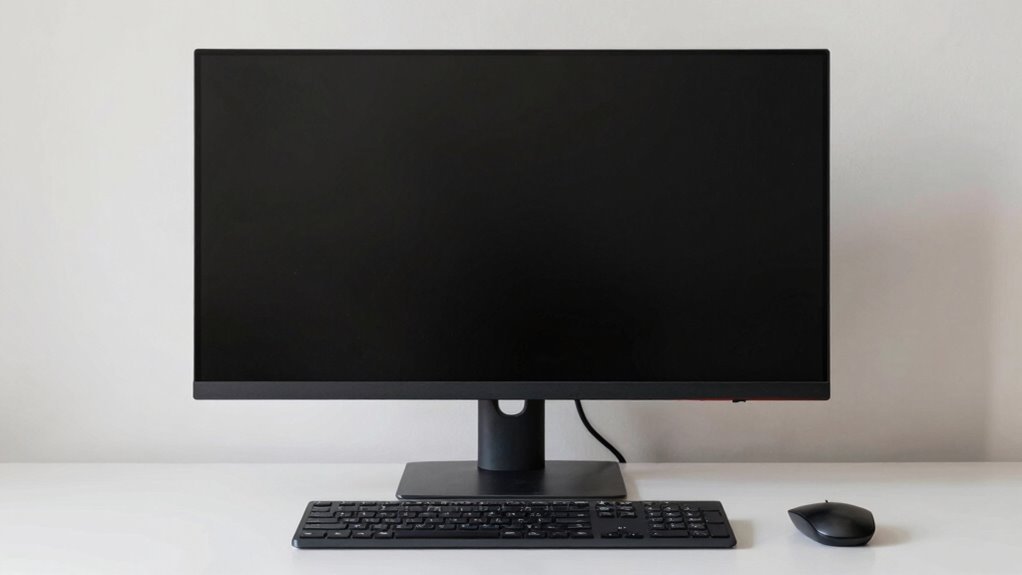
Sit about an arm’s length from your screen—roughly 20 to 30 inches away—so your eyes stay comfy and your neck doesn’t protest. Keep the top of the monitor at or just below eye level, tilt it slightly back, and gaze down like you’re casually checking your phone for memes. Bigger screens? Scoot back a bit. Got multiple monitors? Angle them like a tech-savvy triangle. There’s even more magic waiting to upgrade your setup.
Optimal Viewing Distance for Eye Comfort
Ever wonder why your eyes feel tired after a few hours at the computer?
You’re probably sitting too close—or too far!
For real eye comfort, aim for 20–30 inches (50–76 cm) from your screen, about an arm’s length away.
That’s right—stick out your arm; if your fingertips don’t touch the screen, you’re good.
OSHA says keep it at least 20 inches away to avoid strain.
Bigger monitors let you sit farther without squinting, but don’t get lazy—your eyes and neck still need love.
Too close? You’re forcing your eyes to work overtime.
Too far? You’re practically birdwatching.
Find that sweet spot where text looks sharp, your posture stays neutral, and your eyeballs don’t feel like mush.
Think Goldilocks: not too near, not too far, just right.
Your eyes will thank you—no glasses required (probably).
Improper viewing distance can lead to forward head posture, increasing the risk of long-term Musculoskeletal Disorders.
How Screen Size Influences Monitor Placement
You’ve nailed the ideal viewing distance for eye comfort—now let’s level up by matching that sweet spot to your screen size.
If you’re rocking a 21-inch monitor, keep it 20–28 inches away—close enough to feel cozy but far enough to avoid squinting.
Go bigger with a 24-incher? Then slide back to 24–32 inches.
For 27-inch displays, aim for 28–36 inches—about arm’s length to a long-armed giraffe.
And if you’ve gone all out with a 32-inch beast, give it 32–40 inches so you’re not neck-craning like you’re watching a tennis match.
Ultrawides? Treat them like VIPs: center the screen, keep it arm’s length (1–1.5x diagonal), and tilt slightly down.
No matter the size, top it off with the screen’s top at or just below eye level—your neck will thank you.
Recommended viewing distance is 20 to 40 inches to reduce eye strain and support natural body alignment.
Size matters, but comfort wins.
Ideal Vertical Angle for Reduced Eyestrain

So, what’s the secret to keeping your eyes happy during marathon work sessions? It’s all about that sweet spot in your gaze—aim for a slightly downward look.
Your eyes love it when the center of your screen sits about 15° below eye level, roughly the angle of glancing at your phone while pretending to be productive.
Here’s how to nail it:
- Position the top of your monitor at or just below eye level—yes, not staring up like you’re watching a giant.
- Tilt the screen slightly back (10°–20°) to cut glare like a pro.
- Keep your gaze relaxed, about 15° down—your eyeballs will thank you after eight hours.
- Blink often; no, really, they’re not kidding. Looking down helps keep your eyes moist and happy.
Maintaining this position helps prevent postural discomfort caused by prolonged upward or awkward head tilts, which can lead to neck and shoulder strain over time.
Setting the Right Monitor Height for Your Posture
Getting your monitor to play nice with your posture starts with nailing the perfect height—because nobody wants to hunch like a question mark or crane their neck like a curious giraffe.
You should set the top of your screen at or just below eye level, so you gaze down slightly—think of looking at a book, not the moon.
If you wear bifocals, drop it another inch or two; your neck will thank you.
Standing desk? Bump the monitor up about 2 inches.
Use a ruler to measure your setup, and don’t guess—most screens sit too low.
A monitor arm helps, especially since seated eye height varies wildly across users.
Get it right, and you’ll sit taller, hurt less, and focus better.
Plus, you’ll avoid that zombie lean toward your screen.
Good height means less slouching, fewer aches, and more “I’ve got this” energy.
Trust us, your back’s already cheering.
Eye-Level Alignment and the Top-of-Screen Rule

When your eyes meet the screen just right, everything feels easier—like your monitor was made for your line of sight.
Position the top of your screen at or slightly below eye level, so you’re gazing down about 10–20°. This cozy angle cuts neck strain, boosts eye comfort, and keeps dry eye at bay—because nobody likes blink-deprivation!
For readers with progressive lenses, drop the screen a bit lower so you’re not craning like a curious turtle.
- Aim the top edge of the monitor at eye level
- Sit about an arm’s length (20–30 in) away
- Tilt the screen back 10–20° to beat glare
- Adjust font size so text pops without squinting
Your eyes will thank you—and your neck might throw a party too!
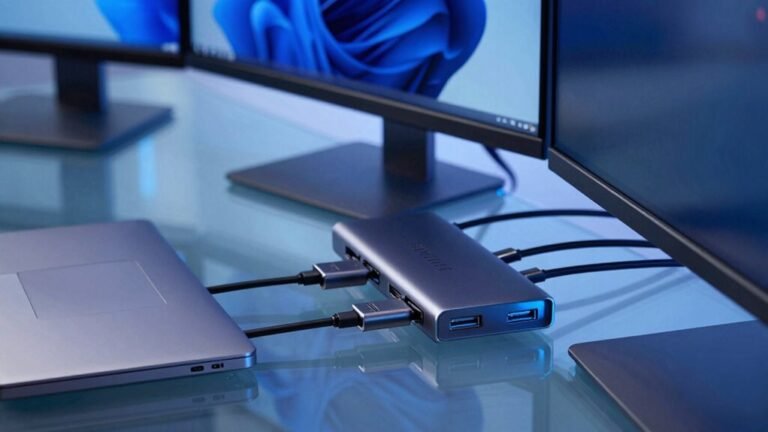
Multi-Monitor Setup and Visual Field Management
Ever wondered how to arrange multiple monitors without turning your desk into a high-tech obstacle course?
If you use one screen more, place it straight ahead and angle your secondary monitor 15–30° toward you, forming a sleek half semi-circle.
For equal screen use, set them side-by-side, touching at the inner edges, with both angled slightly like a “V” so your eyes glide smoothly across.
Keep both at eye level, same height, and match brightness—nobody likes screen shock.
Stay an arm’s length away, around 20–28 inches, with your gaze centered and both screens fully visible.
Use monitor arms to swivel, tilt, and slide with ease.
Position your mouse near your main screen, get a wide desk (55”+), and keep cables tidy.
And hey, use your chair’s swivel—your back will thank you!
Adjusting for Progressive Lenses and Shared Workstations

You’ve got your multi-monitor setup looking sleek, like a control deck fit for a spaceship captain—now let’s make sure you can actually see the controls without twisting your neck into a pretzel.
If you wear progressive lenses, lower your monitor so the top is slightly below eye level—this keeps you in the right lens zone and stops you from craning your neck like a confused giraffe.
Angle it up about 15 degrees for that sweet 15-degree downward gaze.
In shared workspaces, one-size-fits-all doesn’t work—so here’s your game plan:
- Use adjustable arms so everyone can tweak height, angle, and distance fast.
- Position the screen directly in front of each user to avoid awkward twists.
- Lower monitors for progressive lens users—no neck yoga required.
- Boost font size and tweak brightness so reading feels effortless, not like detective work.
Your eyes (and spine) will thank you.
Frequently Asked Questions
Can I Use a Laptop Stand With an External Keyboard Effectively?
Yes, you can absolutely use a laptop stand with an external keyboard effectively—*and your body will thank you!*
It boosts your screen to eye level while letting you type comfortably at elbow height.
You’ll sit taller, slouch less, and avoid that “turtle neck” vibe.
Just make sure your stand’s stable, your keyboard’s within easy reach, and boom—you’ve nailed a healthier, comfier workspace without turning into a human question mark.
How Often Should I Reassess My Monitor Setup Ergonomically?
You should reassess your monitor setup at least once a year, but don’t wait if something changes or you feel discomfort.
Got a new desk, chair, or monitor? Recheck it.
Feeling neck strain or eye tiredness? Tweak it now.
After adjustments, double-check in 2–4 weeks—your body needs time to adjust.
If your job gets busier or you switch devices, give your setup a quick once-over.
Think of it like a tune-up for your posture—better safe (and comfy) than sorry!
Does Ambient Lighting Affect Ideal Monitor Distance and Height?
Yes, ambient lighting totally affects your ideal monitor distance and height.
Bright rooms make screens glare, so you’ll squint or lean in—bad news for your neck and eyes.
Did you know 80% of people feel eye strain by midday? Ouch!
Keep lights warm and dim behind your screen, use bias lighting, and position your monitor perpendicular to windows.
You’ll sit better, see clearer, and work happier—no detective needed to solve *that* mystery!
What’s the Best Way to Measure My Viewing Distance Accurately?
You’ve got this—just sit in your chair, extend your arm, and touch your screen; that’s roughly your ideal distance.
For precision, grab a tape measure from your eyes straight to the monitor.
If you’re rocking a 27-inch screen, aim for 20–30 inches.
Boom! Comfy, clear, and no squinting.
You’re not just working—you’re thriving, one perfectly measured inch at a time.
Who knew ergonomics could feel this fun?
Should I Position My Monitor Differently for Portrait Mode Use?
Yes, you should tweak your setup for portrait mode—it’s like giving your neck a vacation!
Tilt the screen slightly back, keep the top at or below eye level, and center it so you’re not playing crane-neck.
Use an adjustable arm to swing it into place, and remember: big screen doesn’t mean big head tilts.
Stay comfy, stay sane, and let your eyes scroll, not your spine.
Conclusion
You’ve hunched over screens, craned your neck, maybe even squinted like a confused owl—no more! Now, your monitor floats at just the right height, arms-length away, top edge kissing your gaze. It’s not magic, just smart ergonomics. Comfort dances with productivity, and your back actually thanks you. Sit tall, blink easy, and let your eyes glide—work feels lighter, brighter, and yeah, a little more fun.