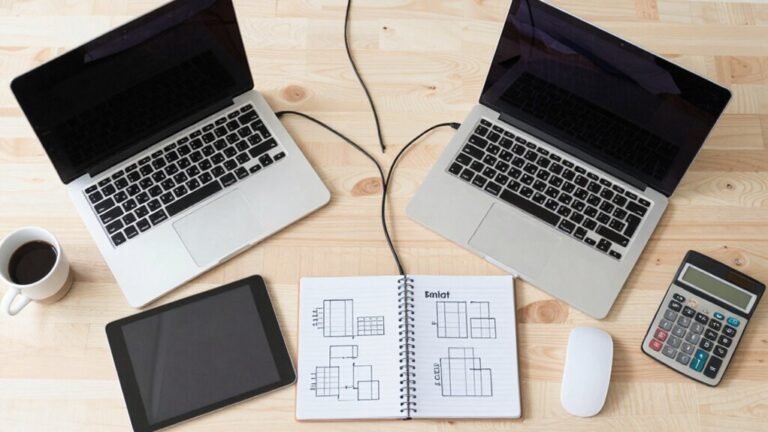
Dual Monitor Productivity Tips for Remote Work
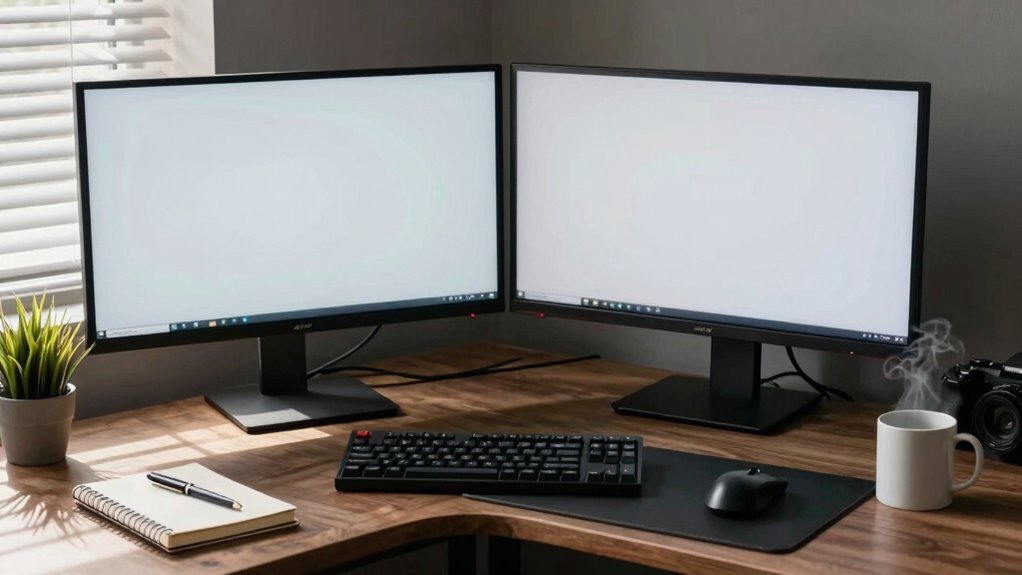
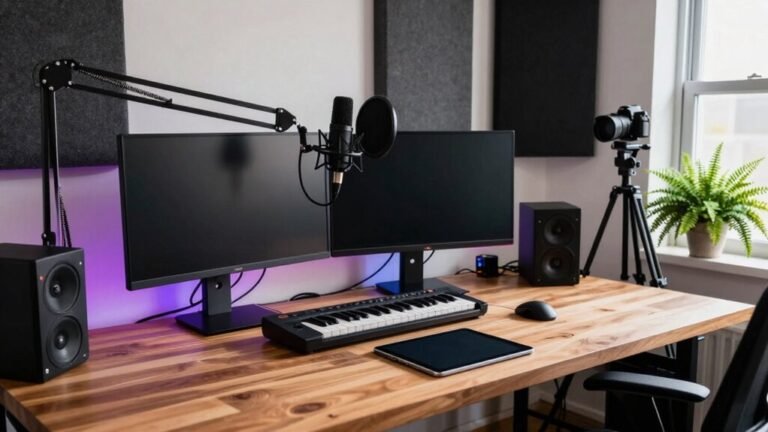
You’re typing on one screen while hunting for info on the other—stop the chaos! Place your monitors side-by-side, level with your eyes, and give each a job: one for deep work, the other for emails or Zoom. Snap windows neatly, reduce clutter, and keep your neck happy. Add a portable screen and your kitchen table becomes mission control. Your future self—and your eyeballs—will thank you, big time. There’s even smarter ways to work waiting just ahead.
Maximize Efficiency With Side-By-Side Task Layouts
Imagine this: you’re juggling research, writing, and emails all at once—except now, instead of alt-tabbing into a black hole of lost focus, everything just *fits*.
You’ve got source docs on one screen, your draft on the other, and boom—no more frantic window-hopping like a caffeinated squirrel.
Need to compare contracts? Slide ’em side by side and spot differences faster than your cat spots a laser dot.
Coding or analyzing data? Keep the live preview up while tweaking code or formulas nearby—mistakes vanish before they’ve even had time to cause drama.
Meetings? Watch the speaker *and* jot notes without playing peekaboo with windows.
You’re not just working—you’re workflow-wizarding.
Assign tasks to each screen like seating guests at a dinner party: everyone’s in their place, nobody’s arguing.
With this split-screen savvy, you’ll save time, slash errors, and actually finish before snack o’clock.
Who knew productivity could feel this smooth—and fun?
Studies show up to a 35.5% productivity gain with three displays, but even dual monitors can significantly reduce task-switching time and boost efficiency.
Position Your Monitors for Optimal Ergonomics
You’ve got your screens side by side, apps neatly arranged, and workflow humming like a well-tuned playlist—now let’s make sure your body’s in the groove too. Positioning matters just as much as productivity. Keep monitor tops at eye level so you’re not craning your neck like a curious turtle. Place your primary screen dead ahead, and angle the second 15–30° toward you—less twist, more focus. Sit about an arm’s length away, and use monitor arms to fine-tune height and distance. For optimal ergonomic support, ensure your setup maintains a neutral working posture.
| Feature | Pro Tip |
|---|---|
| Height | Top of screen at eye level |
| Distance | 25–30 inches from your face |
| Angle | Slight inward V for smooth glances |
Your spine will thank you, and your focus? It’ll stay crystal clear—no awkward screen peeks allowed!
Reduce Context Switching With Dedicated Work Zones

Ever wonder how to stop the mental merry-go-round of jumping between emails, messages, and reports?
You’re not doomed to chaos—assign one monitor just for deep work like writing or coding, and let the other handle emails, Slack, or research tabs.
Think of it as giving each task its own room so they don’t crash your focus party.
Use visual cues like color-coded backgrounds or screen-specific wallpapers to train your brain: left for creative, right for number crunching.
Keep notifications quarantined on one screen—your main workspace stays squeaky clean.
Studies show this zoning cuts mental clutter and boosts focus by 15%.
You’ll switch tasks less, finish faster, and feel calmer, like you’ve got a productivity superpower.
It’s like building a mini office inside your monitors—quiet zone here, team huddle there.
Work smarter, not harder, and let your screens do the heavy lifting.
This setup mirrors the benefit of private alcoves in open-office designs, where dedicated spaces protect focus and reduce distractions.
Streamline Workflows Using Window Management Tools
You’ve already given your focus a serious upgrade by setting up dedicated zones on each monitor, so now let’s turbocharge how you move around that digital workspace.
With window management tools, you’ll slash window switching by 15%—no more frantic alt-tabbing like you’re playing a memory game.
You can keep email open on one screen and your report on the other, glancing back and forth like a pro.
Studies show this boosts efficiency by up to 18%, and honestly, who doesn’t want to work faster and mess up less?
Tools that snap windows into place help you view data side by side, copy faster, and keep your cool.
Plus, 91% of users swear by dual screens—they’re not just efficient, they’re satisfying.
Limit each screen to two or three windows, ditch distracting notifications, and align your monitors so you’re not twisting like a slow-roasting chicken.
Work smarter, not harder, and let your screens do the heavy lifting.
Enhance Focus During Video Calls With Split-Screen Setup

When the camera’s rolling and everyone’s watching, a smart split-screen setup keeps you looking sharp without the stress.
You’ll feel more present, focused, and way less frazzled when you optimize your screens like a pro.
Here’s how it transforms your vibe:
- You stay calm—put your meeting grid on one monitor and notes or slides on the other, so you’re not frantically switching tabs.
- You feel confident—position your camera preview subtly, or hide it, so you’re not obsessing over how your hair looks (spoiler: it’s fine).
- You sound engaged—keep chat, timer, and participants visible without scrolling, so you never miss a cue or look zoned out.
Use window snapping, dim non-essential screens, and mute distractions—your brain (and coworkers) will thank you.
Work smarter, feel lighter, and crush those calls like the remote champ you are.
Choose the Right Hardware for Seamless Multi-Display Use
What if your dual-monitor dream setup could be as sleek and seamless as your workflow?
Start by picking matching monitors—same size and resolution—so windows align perfectly and text stays sharp.
Go for 24–28 inches with 4K or 5K clarity; models like the Dell U2725QE or BenQ PD2730S deliver stunning detail and even let you daisy-chain displays.
Need budget smarts? Dell’s S2725QC gives premium quality without the price tag.
Don’t forget connectivity: Thunderbolt, DisplayPort, and built-in USB-C hubs make cable chaos a thing of the past.
A KVM switch, like on the Dell U2723QE, lets you toggle devices with a click—laptop to desktop, no sweat.
Just make sure your GPU, say an RTX 2060 or GTX 1660, can handle the pixel punch.
Oh, and minimal bezels? Non-negotiable.
You’ll work faster, smoother, and look way cooler doing it.
Automate Layouts for Consistent Remote Work Environments

Ever wonder how the pros keep their remote workspaces looking sharp and running smoothly, no matter where they log in?
You’ve got this too—once you automate your layout.
Use remote desktop tools like Splashtop or RDP that support dual screens, and save your perfect setup with profiles.
With a single hotkey, you can switch from a focused coding layout to a full-blown dashboard like magic.
No more dragging windows for 10 minutes like you’re herding cats.
Here’s what changes everything:
- Peace of mind – your exact setup launches in seconds
- Less stress – no more “which monitor is which?” panic
- Pride – your workspace feels like *you*, even on someone else’s PC
Tools like UltraView even split big screens into micro-monitors for chat, timers, or cat cams.
Work feels easier, faster, and way more *you*.
Minimize Eye Strain With Proper Display Alignment and Settings
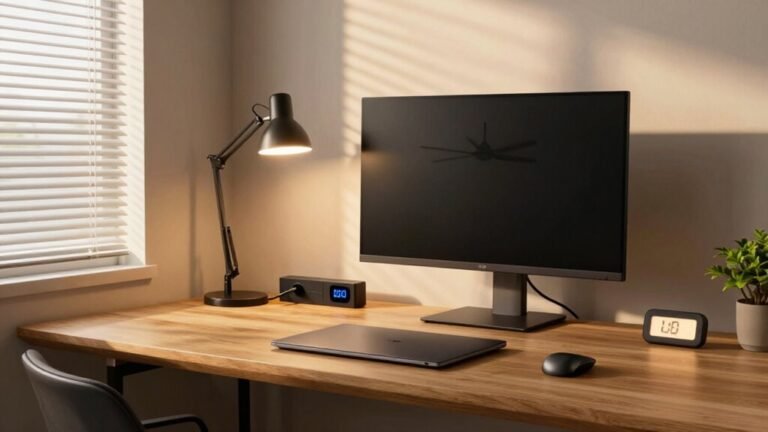
You’ve nailed the perfect workspace layout—snappy, sleek, and ready with a single keystroke—so now let’s make sure your eyes don’t pay the price. Align your primary monitor dead ahead, and tilt the secondary one 30 degrees—think of it as a stylish tech V. Keep both at arm’s length, tops at eye level, and center your gaze to reduce eye jet lag. Brightness? Match it to the room, enable night mode, and thank your future self. Stick to the 20-20-20 rule: every 20 minutes, peek at something 20 feet away for 20 seconds—your eyes will do a happy dance.
| Setting | Pro Tip |
|---|---|
| Distance | 20–40 inches—no screen hogging! |
| Alignment | V-shape for less neck yoga |
| Breaks | 20-20-20 keeps eye strain in check |
Maintain Productivity on the Go With Portable Dual-Screen Kits

How’s this for a game-changer: your office isn’t stuck at your desk anymore.
With portable dual-screen kits, you’ve got full productivity power in your backpack—perfect for coffee shops, travel, or escaping noisy roommates.
Lightweight, easy to set up, and battery-powered, these screens turn any spot into your command center.
Just pair them with your laptop and boom—dual-monitor magic, anywhere.
Imagine:
- Writing side-by-side with sources—no more frantic window-hopping during research.
- Pitching confidently—impress clients without the awkward laptop huddle.
- Moving freely—claim the kitchen table without trashing it mid-Zoom call.
Manufacturers like ASUS and Lenovo built these for *you*—the mobile multitasker.
You’re not just working remotely; you’re working smarter, faster, and way more flexibly.
Who knew your dream office fits in a tote bag?
Measure Gains and Avoid Distractions in Remote Teams
Now that you’ve got your portable dual-screen set up turning coffee shops into command centers, let’s talk about what really matters—how well your team’s using all that newfound flexibility.
You’re not just working remotely—you’re winning remotely, right?
Track real progress with clear metrics like tasks completed weekly, project completion rates, and sprint accuracy—no guessing games.
Did you know remote workers are 47% more productive?
Don’t let distractions eat that edge away.
Watch response times, tool usage, and time spent hunting files instead of creating them.
Measure error rates and revision loops to keep quality high.
And hey, make sure your team actually uses the tools you’ve got—adoption matters!
Keep meetings lively and documentation fresh, because zombie docs scare everyone.
With the right KPIs, you’ll spot slumps before they become sinkholes—all while keeping work fun, focused, and furiously productive.
Frequently Asked Questions
Can Dual Monitors Work With Any Laptop?
Yeah, most laptops can handle dual monitors—you’ve got the power!
If your laptop’s got HDMI and USB-C, or VGA plus HDMI, you’re all set.
Just match the ports, grab the right cables or a slick adapter, and boom: extra screen space.
Even older laptops can tag in a second display with a USB-A adapter.
It’s like giving your laptop a productivity upgrade—no magic, just connections!
Do I Need Identical Monitors for Dual Setup?
No, you don’t need identical monitors—mix and match all you want!
As long as your laptop supports dual displays, you’re golden.
Different sizes or resolutions? No biggie.
Modern tech handles them like a pro.
Sure, matching specs look slick, but mismatched monitors still boost productivity like crazy.
Just align them neatly, update your drivers, and boom—you’ve got a powerhouse setup that’s uniquely yours.
Who said twins make the best team?
How Does Dual-Screen Affect Battery Life on Laptops?
You’re draining juice faster with two screens—yep, that battery tanks quicker when powering an external monitor.
Your laptop’s GPU and CPU work harder, sipping energy with each pixel pushed.
You’ll see about 1% gone every two minutes on a MacBook Pro 16″.
But hey, turn off your laptop screen and go “second screen only”—boom, instant battery save!
Close the lid, kick back, and keep streaming without panic.
Is Dual Monitor Setup Suitable for Small Desks?
Yes, you can totally rock a dual monitor setup on a small desk!
Grab slim-bezel 22–24 inch screens or use monitor arms to save space.
Mounting them vertically? Genius move—it frees up room and looks sleek.
Angle one slightly for comfy viewing, and bam—more screen real estate without the clutter.
Just keep cables tidy, and your tiny desk’ll feel like a productivity powerhouse.
Who knew small could feel so mighty?
Can I Use a TV as a Second Monitor?
You totally can use a TV as a second monitor—imagine spreading your work across a big, bright screen like a digital command center!
Just hook it up with an HDMI cable, match the ports, or grab an adapter if needed.
Pop in your connection, hit Windows + P, and extend your desktop.
Boom! You’ve got extra space for tabs, videos, or cat memes.
It’s a fun, easy upgrade—plus, you can binge shows *after* work.
Promise.
Conclusion
You’ve got this, super-worker! Think of your dual monitors like a brain with two gears—one for focus, one for flow. Position them right, split tasks smartly, and skip the digital chaos. With slick setups and tools, you’ll glide through work like a pro skateboarder down an open street—smooth, fast, and totally in control. Less strain, more gains, zero excuses. Now go own that remote grind, you productivity ninja!