How to Connect Multiple Monitors to a Laptop
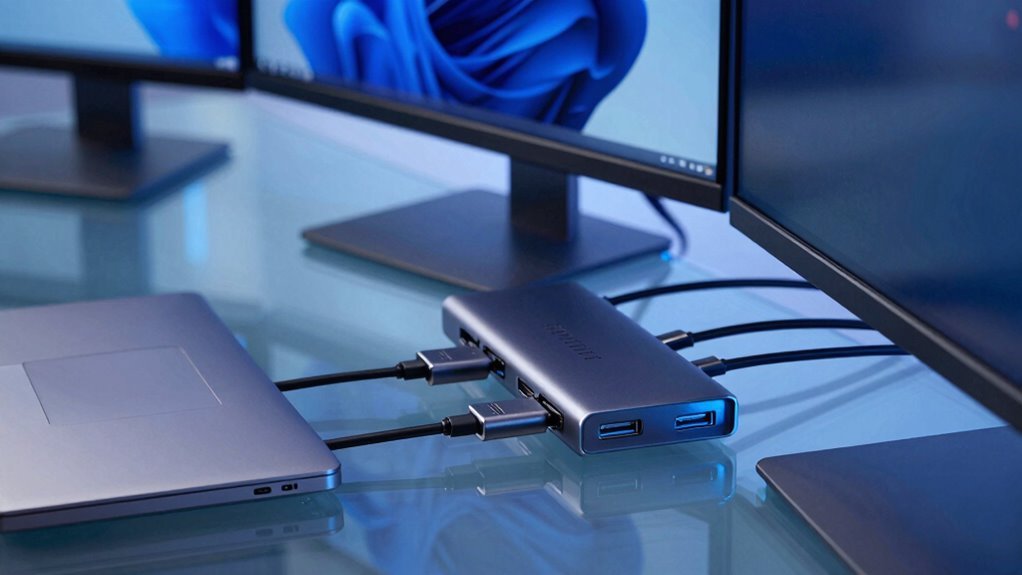
You’ve got this! Check your laptop’s ports—HDMI, USB-C, or DisplayPort—and pick the right cables or hub to match. Make sure your graphics card can handle extra screens, then grab a slick dock or adapter that packs power, video, and maybe even SD slots. Plug in your monitors, update drivers, and let your OS detect each display. Drag windows across three glowing screens like a tech wizard, and imagine what’s possible when you unleash your full multi-monitor magic.
Check Your Laptop’s Available Ports
Ever wonder what all those little ports on your laptop are actually good for?
Well, guess what—they’re your ticket to a multi-monitor setup!
Look for HDMI, it’s super common and carries both sound and video, perfect for hooking up to TVs or extra screens.
Spot a slim oval USB-C? Even better—it can push video, charge your laptop, and transfer data, all through one cable.
If you see DisplayPort (that rectangle with one chopped corner), you’re in luck—it’s built for high-refresh work and supports sharp 4K or even 8K.
Older ports? VGA (that blue one with pins) is ancient and crummy—use it only if you’ve got no choice.
DVI’s chunky and video-only, but still pops up on older gear.
Don’t stress—you’ve probably got options, and adapters can fill in the gaps!
Verify Graphics Card Compatibility
So, how many screens can your laptop actually handle?
Well, it depends on your graphics card.
If you’re using integrated graphics like Intel HD or Iris Xe, you’re likely limited to 2 or 3 displays, and performance might hiccup with high resolutions.
But if you’ve got a dedicated GPU—like an NVIDIA GTX 1660 or AMD RX 6000 Series—you’re in luck!
These powerhouses support up to 4 or even 6 monitors and come with their own memory to keep things smooth.
To find your exact limits, hop online and search your GPU model’s specs—check how many displays it supports, what ports it likes (HDMI, DisplayPort, etc.), and don’t forget to update your drivers.
Trust me, skipping this step is like bringing a spoon to a sword fight—possible, but not pretty.
Graphics and chassis limitations may constrain external monitor use even if ports are available.
Choose the Right Adapter or Hub

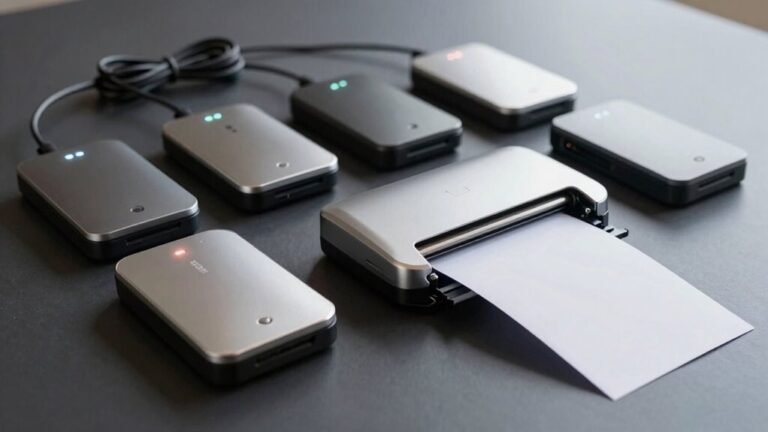
Tapping into the power of multiple screens starts with picking the perfect adapter or hub—one that plays nicely with your laptop and monitors. You’ve got options, and hey, no one wants a fancy monitor setup that just stares back at them like, “We can’t talk.” Match your laptop’s USB-C (with DP Alt Mode or Thunderbolt) to your monitors’ inputs—HDMI, DisplayPort, or even VGA if you’re feeling nostalgic. Need triple 4K? The Ugreen Revodok Pro’s got your back on Windows. Mac users, temper those triple-display dreams—it’s usually mirror mode for you. And don’t forget power! A good adapter charges your laptop while powering screens. Think of it as a snack and a show. Many hubs include built-in SD and microSD card readers, offering added convenience for photographers and content creators (SD/MicroSD readers).
| Brand | Max Displays | Power Delivery |
|---|---|---|
| Ugreen | 3 (Win) | 100W |
| Plugable | 2 | 60W |
| Kingston | 1–2 | 60W |
| Startech.com | 2–3 | 95W |
Select a Suitable Docking Station
If you’re dreaming of a sleek, all-in-one hub that turns your laptop into a powerhouse workstation, picking the right docking station is where the magic starts.
Match the dock to your laptop’s port—Thunderbolt 4 or USB4 offers the best performance, supporting multiple 4K screens with ease.
If your laptop’s a bit slow on the draw, don’t sweat it—docks with DisplayLink can still power several displays using regular USB, though they need a driver.
Check that your OS plays nice with the tech, especially on Mac.
Make sure video outputs like HDMI or DisplayPort match your monitors’ needs—no point aiming for 4K at 60Hz if the dock only delivers 30.
Need ports for all your gear? Load up on USB, Ethernet, and audio without breaking a sweat.
And pick one with solid power delivery—your laptop shouldn’t die mid-zoom call.
Bigger docks with fans keep cool under pressure, and hey, bonus points if it looks cool on your desk.
Connect Monitors Using Appropriate Cables

While your docking station sets the stage, the real connections come alive when you plug in the right cables—think of them as the highways that carry crisp visuals and smooth motion from your laptop to your monitors.
You’ve got options: HDMI’s great for most screens and carries audio too, while DisplayPort shines with high-refresh gaming or 4K work.
If your laptop’s got USB-C, you might get video, power, and data in one slick cable—talk about efficient!
Thunderbolt’s the speed demon, perfect for driving multiple 4K monitors without breaking a sweat.
Just match your laptop’s ports to your monitors’, and pick cables that support your dream resolution and speed.
Need to bridge different ports? Use active adapters when going from HDMI to DisplayPort or old-school VGA.
And don’t skimp on cable quality—especially for long runs.
Your pixels will thank you!
Update Your Operating System and Drivers
Staying on top of updates keeps your multi-monitor magic running smoothly—think of it as giving your laptop a fresh coat of paint and a tune-up all in one.
You’re not just fixing bugs; you’re enabling cool features, likeNotification Center on secondary screens in Windows 11.
But heads up—some updates, like macOS 15.6.1 or old Windows KB patches, can act up and knock out a display.
No panic! Just restart first—it works wonders.
If a monitor vanishes, check for OS updates or roll back recent ones.
On Windows, update or rollback Intel graphics drivers through Device Manager—Dell and HP users, grab those manufacturer-specific packs.
Mac folks, try BetterDisplay or drop to 30Hz on 4K screens to play nice after updates.
Blocking auto-updates temporarily can save you future headaches.
Stay sharp, check advisories, and keep that setup running like a dream team.
Detect and Configure Multiple Displays

Ever stared at your laptop, wondering why that second (or third!) monitor isn’t showing up?
Don’t panic—hit *Display Settings* and click *Detect* to give your screens a roll call.
Use the *Identify* feature so each monitor proudly flashes its number like a contestant on a game show.
If one’s still missing, check cables—loose HDMI or dead USB-C cables love to play hide-and-seek.
Make sure your dock or GPU isn’t hitting its max display count—you can’t cheat physics (yet).
Peek at your ports: HDMI, DP, USB-C? All must support video out.
Need more screens? A Thunderbolt dock or DisplayLink adapter can help, but install drivers first.
If it’s still ghosting you, reboot or update—sometimes tech just needs a nap.
You’ve got this!
Customize Display Settings for Optimal Layout
Since your monitors are now chatting nicely together, let’s make them work *for* you—not just sit there looking pretty.
Drag those display icons in Settings to match how they sit on your desk, so your mouse glides smoothly like it’s on vacation.
Set each screen’s resolution to its native sweet spot—3840×2160 on the 4K laptop, 1920×1080 on the other—so nothing looks stretched or blurry.
Scale them individually so text isn’t teeny-tiny or comically huge.
Make one your main display (probably the one you stare at most).
Choose “Extend” mode—because mirrored screens are boring, like watching the same show twice.
Snap apps side by side, tweak the taskbar, and slap on cool wallpapers.
Position monitors at eye level, maybe go portrait for coding, and voilà: your productivity just jumped 42%.
Boom—work just got way more fun.
Frequently Asked Questions
Can I Use Adapters to Connect More Monitors Than My Laptop Supports?
Yeah, you can totally use adapters to hook up more monitors than your laptop natively supports—pretty cool, right?
Just grab a USB or DisplayLink adapter, plug it in, and boom: extra screens.
They’re plug-and-play on most systems, though you might need to install a driver.
Sure, they’re not great for gaming, but for multitasking? Pure magic.
More monitors = more space, more fun!
Will Connecting Multiple Monitors Slow Down My Laptop Performance?
No, connecting multiple monitors won’t slow your laptop to a crawl—your system’s not Hercules carrying the sky!
For everyday tasks like browsing or streaming, you’ll barely notice a difference.
Gaming or intense visuals? Yeah, you might lose a few FPS, especially across two screens.
But with a decent GPU and 16GB RAM, you’re golden.
Just plug into the discrete GPU, not the motherboard, and mismatched resolutions? Avoid those—they’re sneaky little hiccups!
Do I Need Special Software to Manage Multiple External Displays?
Nope, you don’t need special software—you’re all set with what’s already on your laptop!
Just plug in your displays, then use Windows settings or macOS Display preferences to arrange them.
Pop open the display menu, drag screens around like puzzle pieces, and boom: seamless setup.
Think of it like hosting a monitor party, and you’re the DJ—no extra gear needed.
Easy, fun, and totally in your control.
Can I Close My Laptop Lid and Still Use External Monitors?
Absolutely, you can close your laptop lid and still rock dual (or triple!) monitors—it’s like giving your desktop superpowers!
Just connect your screens, plug in power, and close the lid.
Your laptop won’t miss a beat, as long as it’s set to “Do nothing” when closed (Windows) or you’re in clamshell mode (Mac).
Add a keyboard and mouse, and boom—you’re a productivity ninja!
How Do I Switch Which Monitor Is My Main Display?
You switch your main display by just clicking the monitor you want to lead the pack.
Pop into Display Settings, pick that screen, and check “Make this my main display”—boom, it’s in charge!
Use “Identify” so you don’t pick the wrong twin.
Drag icons to match your desk layout, because who wants a mouse jumping into the void?
Easy, peasy, tech-savvy breezy!
Conclusion
You plug in the last cable, and just like that, your screens light up in perfect harmony—coincidentally aligning just as your coffee hits the sweet spot. Boom! Your laptop now powers a triple-monitor masterpiece, sleek and sharp. You’re basically a tech wizard now, conjuring extra desktop space like magic. Congrats! You’ve turned chaos into clarity, one vibrant display at a time. Go show that workspace who’s boss!