How to Choose the Right Monitor Size for Your Desk
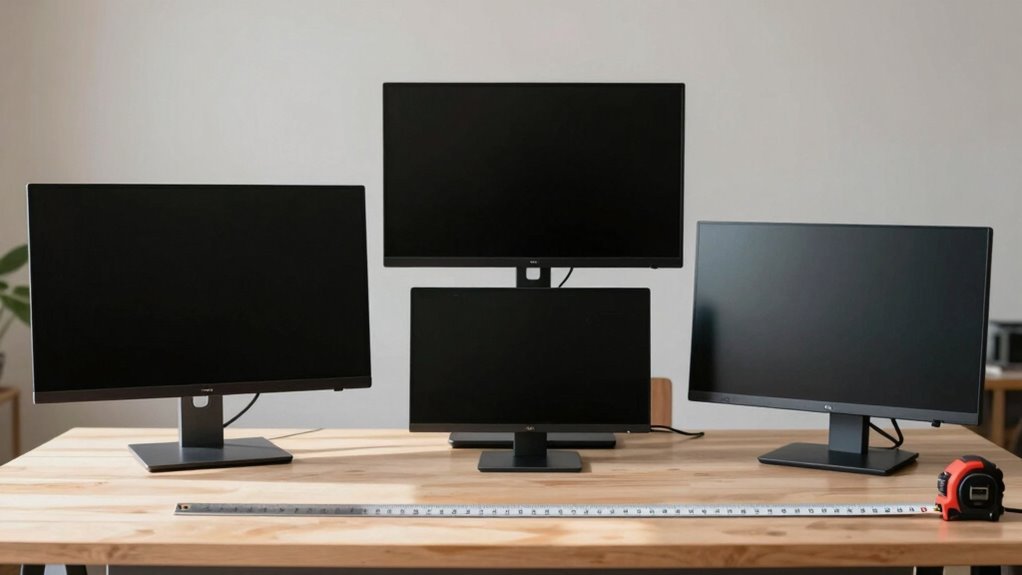
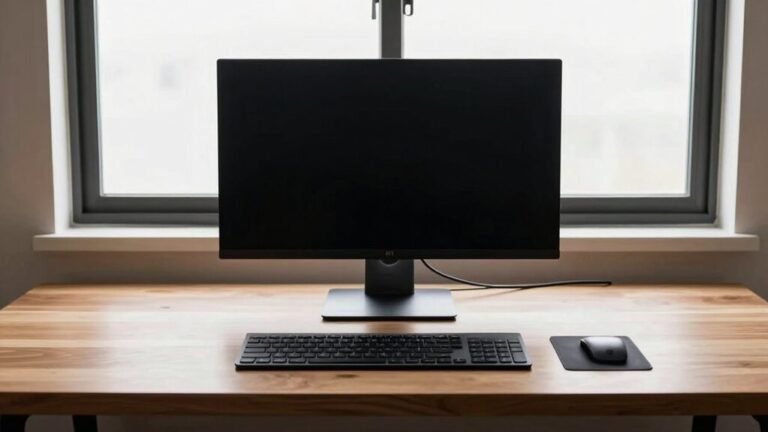
You’ve got this! Match your monitor size to your desk space—bigger isn’t always better. For most desks, 24 to 27 inches hits the sweet spot. Use a monitor arm to free up space and find that *just right* position. Sit an arm’s length away, top of screen at eye level, and boom—comfort city. Dual monitors? Make sure you’ve got room to breathe. Want to reveal the secret to a sleek, happy workspace that feels like it was made for you? There’s more where that came from.
Desk Size and Monitor Compatibility
If you’ve ever squished a giant monitor onto a tiny desk and felt like you were wrestling a crocodile, you’re not alone—getting the right screen size for your desk is all about balance, not bragging rights.
You need at least 22″ of width for a 24″ screen, and bigger monitors eat up space fast—like that 32″ beast needing nearly 28″ just for itself.
Don’t forget depth: your desk should be at least 20.5″ deep for smaller screens, but 28–30″ is better for larger ones.
Leave room for your keyboard, mouse, and a few inches on each side—nobody wants a cluttered battlefield.
If space is tight, grab a monitor arm; it’s a desk-saving superhero.
Ultrawides? Super cool, but only if your desk can handle their Hollywood-sized egos.
Measure first, buy later—your future self will thank you.
377Monitors bought and tested have shown that real-world performance varies significantly across setups.
Single vs. Dual Monitor Space Planning
You’ve picked the perfect monitor size that fits your desk like a glove, so now let’s level up and talk about doubling the fun—because two screens can mean double the productivity, and yes, double the satisfaction.
Slapping on a second monitor boosts efficiency by up to 44%, and most folks love the comfort it brings.
Two mid-sized screens often beat one giant one in both price and flexibility, especially as desks shrink.
Just position them side-by-side, lining up the center with your nose, or stack one above the other if space’s tight.
Use monitor arms or wall mounts to free up room and keep things tidy.
Your laptop or desktop likely supports dual displays—just check your ports.
Match sizes and resolutions for a smooth experience, adjust the heights, and boom: you’re multitasking like a boss, with way less window-juggling.
33% fewer errors were reported in studies with dual-monitor users, highlighting a key advantage beyond just screen space.
Definitely worth the small setup hustle!
Understanding Viewing Distance Guidelines

How close should you really be to your screen—arm’s length, high-five distance, or just beyond a enthusiastic desk lean? Aim for 20 to 40 inches, like OSHA suggests—roughly one arm’s length for most people. If you’re using a 24-inch monitor, sit 20–30 inches back; go 24–36 inches for a 27-incher.
Higher resolution? You can sit closer without seeing pixels, which is awesome for sharp detail. But don’t get too cozy—stay at least 2 feet back, even if math says you can squeeze nearer. Your eyes will thank you.
Fun trick: multiply your screen size by 1.6 for a quick estimate, but most desk setups end up closer. Think 2–3 feet for 24–27 inches, 3–4 feet for 32-inch beasts. Just don’t stick your nose to the display—unless you’re showing off pixels, and let’s be honest, nobody wants that.
Display size and viewing distance determine how much benefit you get from 4K resolution.
Ergonomic Positioning for Eye and Neck Health
When your monitor sits just right, you’ll barely notice it’s there—and that’s the whole point.
Position the top third of your screen at or slightly below eye level so you’re gazing down about 15°, keeping your neck happy and relaxed.
If you wear bifocals, drop it a bit lower—your eyes (and spine) will thank you.
Tilt the monitor back 10–20° to cut glare and avoid craning forward.
Keep it centered so you’re not constantly turning like you’re watching a tennis match.
Stick to arm’s length (50–70 cm), or farther for larger screens, and scale text instead of leaning in like you’re sneaking a peek.
Match distances across multiple monitors too—no one likes playing monitor hopscotch.
With the right setup, you’ll work longer, feel stronger, and maybe even smile more (okay, maybe not that last one, but hey, it’s possible).
Maximizing Small Desk Setups

Finding the sweet spot for your monitor on a small desk is like solving a fun puzzle—fit the right screen into a cozy space without cramping your style.
You’ve got options: 22- to 24-inch monitors are compact, popular, and perfect for everyday tasks like browsing or writing.
They take up less width—about 19 to 22 inches—so you’ll still have room for your coffee (or secret snack stash).
Sit about an arm’s length away, roughly 20 to 24 inches, and your eyes will thank you.
If you’re multitasking, two smaller 24-inch screens can actually save space—and sanity—versus one giant display.
Even 17- to 23-inch models handle basic work just fine.
For compact setups, 22- to 27-inch sizes offer clarity without eating up your desktop real estate.
Pick wisely, and your little desk will feel like it just got a clever upgrade—no magic, just smart choices.
Ideal Monitor Sizes for Productivity Tasks
While your laptop screen might get the job done, stepping up to the right monitor can seriously supercharge your productivity—with more space to spread out, fewer tabs stacked like pancakes.
And less squinting at tiny text.
Go for a 27-inch or larger screen and you’ll work 18–21% faster, especially with spreadsheets or documents.
A 34-inch ultrawide gives you 33% more horizontal space, letting you view 30+ Excel columns at once and speeding up tasks by 31%.
Dual monitors? They can boost efficiency by over 40%, but don’t go too big—excessive head turning causes fatigue.
Stick to 27–32 inches at a distance of 70–85 cm for sweet-spot comfort.
Crisp 4K on a 27- or 32-inch screen makes everything look sharp and legible.
And hey, your eyes will thank you when you’re not constantly resizing windows or playing digital whack-a-mole with tiny icons.
Creative Work Requirements for Screen Size

What if your screen could keep up with your creativity instead of holding it back?
For creative work, size *and* clarity matter—you need space to breathe and pixels sharp enough to see every detail.
A 27-inch monitor is the sweet spot for most designers, pairing perfectly with 1440p or 4K to keep toolbars, timelines, and layers visible and tidy.
Bigger screens, like 32-inch or ultrawide 34-inch models, give you room to spread out—ideal for editing video or comparing mockups side by side.
High resolution means less zooming, less squinting, and more flow.
- You can fit your entire timeline andpreview window without frantic resizing
- 4K on 27-inch+ makes tiny design flaws pop (in a good way)
- Ultrawide screens feel like a creative superpower for multitasking
- Pre-calibrated monitors save you from color correction chaos
- Mid-range 4K models deliver pro performance without draining your wallet
Using Mounts and Arms to Save Desk Space
Lifting your monitor off the desk with a sleek arm isn’t just a space-saving win—it’s like giving your workspace a superpower upgrade.
You instantly free up room cluttered by bulky stands, especially those chunky V-shaped ones.
Now you’ve got space for your laptop, notebooks, or even snacks (we won’t judge).
Cable management features keep wires tidy, so your desk looks clean and professional.
Plus, you can adjust height, tilt, and swivel in seconds—perfect for switching between sitting and standing or sharing your screen with a coworker.
Studies show it reduces neck strain and back tension, so you stay comfy and focused.
These arms clamp on easily, work with most desks, and make cleaning a breeze.
With a 99% user satisfaction rate and a booming global market, it’s clear: monitor arms aren’t just smart—they’re essential for a sleek, flexible, and happy workspace.
Frequently Asked Questions
Can I Use a 32-Inch Monitor on a 47-Inch Desk?
Yeah, you can totally use a 32-inch monitor on your 47-inch desk—it’ll fit without crowding.
Just make sure you leave enough space for your keyboard and mouse.
At that size, sit about two arms’ away to avoid eye strain—trust me, your eyeballs will thank you.
It’s like parking a Smart Car in a full garage: tight, but totally doable with a little finesse.
Do Ultrawide Monitors Affect Posture Differently Than Standard Ones?
Size matters, and ultrawides do it better—your posture will thank you!
You’ll sit up straighter, turn your head less, and avoid that “monitor head spin” from dual screens.
Curved ultrawides cradle your view, reducing neck and shoulder strain, while fewer window switches mean less eye fatigue.
Just give it space: set it back 50–100 cm, keep the top at eye level, and boom—you’re sitting like a human designed to work, not a pretzel.
Is Screen Brightness Related to Desk Size or Monitor Size?
Nope, screen brightness isn’t tied to your desk or monitor size at all—fun fact, your 24-inch screen and a 32-inch beast can both blast at 350 nits!
Brightness, measured in nits, depends on lighting, not inches.
Want comfier eyes? Pick brightness based on your room, not how big your desk is.
Bigger desk, bigger monitor? Cool—but don’t blame screen glow on square footage!
How Does Monitor Weight Impact Desk Stability?
You’re juggling a monitor that’s heavier than your lunch, and yeah, that weight wobbles your desk like a tipping seesaw.
Heavy monitors strain frames, especially on two-leg desks with weak knees—literally!
Placing them off-center worsens sway, while sturdy C- or T-frames handle the load like champs.
So, pair thick, solid desks with hefty screens, and you’ll dodge wobbles, creaks, and that panic when your monitor leans like it’s bored.
Balance wins!
Are Curved Monitors Better for Small Desks?
No, you’re probably better off skipping curved monitors for small desks—they’re like party guests who take up too much space.
Their bend needs room to shine, and cramped setups make them awkward.
You’ll lose desk real estate fast, and that sweeping curve won’t help if it’s half hanging off the edge.
Stick with flat screens—they play nice with tight spaces and still keep your eyes happy.
Save the curves for bigger stages!
Conclusion
You pick the perfect monitor size, and boom—your desk feels like a cockpit built for productivity. Too big? You’re squinting like you lost your glasses. Too small? You’re leaning in like a curious puppy. But just right? Your eyes stay happy, your neck stops complaining, and suddenly, even spreadsheets feel kind of fun. Who knew ergonomics could high-five your efficiency? Sweet spot found—game on, superstar.