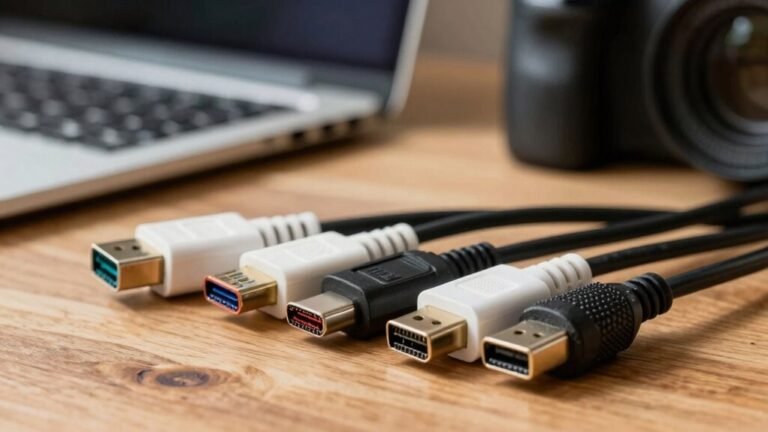
Charging Cables Guide: Length and Speed for Home Offices
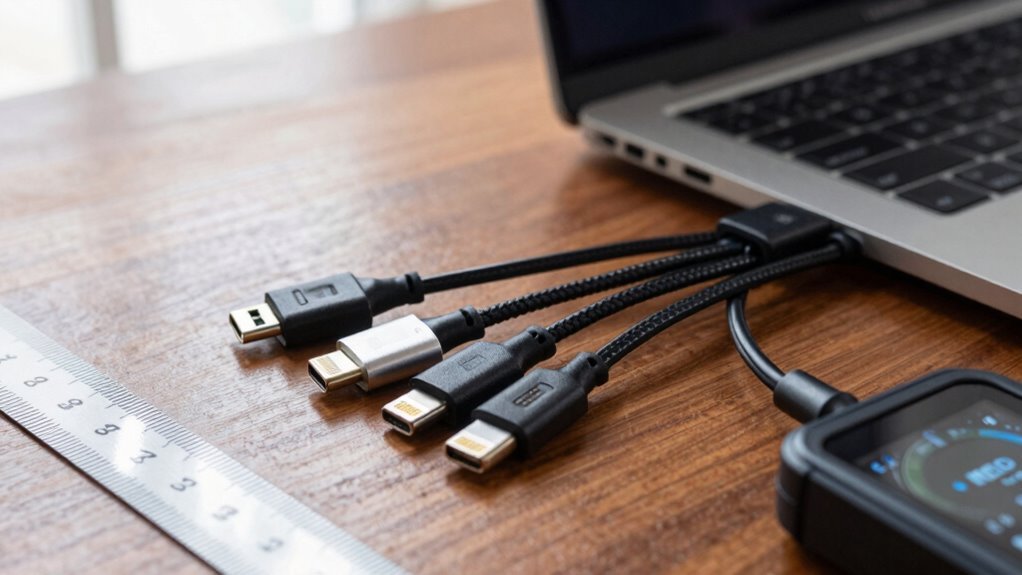
You’re better off keeping your charging cables under a meter long—shorter means faster charging and rock-solid speed. USB-C handles up to 100W, but longer cables drag power down with resistance. For home offices, stick to thick, certified 3A or 5A cables under 3 feet; they’re speed demons and powerhouses. Passive cables work great up close, while active ones help when you need reach—but they cost more. Oh, and skip that 10-foot spaghetti monster unless you love waiting. There’s a smarter way to keep your gear charged and happy.
Understanding USB Type-C Cable Length Recommendations
Ever wonder why your super-fast USB-C cable came with a measly 1-meter length?
Well, it’s not a sneaky ploy—it’s science!
USB-C cables have strict length limits to keep your data zooming and charging strong.
High-speed standards like USB 3.1 Gen2 and USB4 lose signal fast, so they’re capped at around 1 meter to avoid glitches.
Need to charge at 100W? Stick to 1 meter to prevent voltage drop—longer cords can make your laptop grumble instead of charge.
Even USB 2.0, the old champ, maxes out at 5 meters, but quality matters!
Manufacturers keep cables short because shorter means faster, more reliable connections.
Think of it like whispering secrets: the closer, the clearer.
So when you see that short cable, don’t sigh—cheer!
It’s built to perform, not annoy.
Grab a certified one, and you’re golden.
Passive cables are recommended to stay under 4 meters for optimal performance.
How USB Version Affects Maximum Cable Distance
Why do your USB cables suddenly tap out just when you need a few extra feet?
Well, your USB version’s the real boss of how far you can stretch.
USB 1.0 only goes about 10 feet—perfect for a mouse, not so much for across the room.
USB 2.0 gives you 16 feet, which feels generous, but even that has limits.
Bump up to USB 3.0, and you’re suddenly stuck with just 6 to 9 feet—thanks to its super-fast 5 Gb/s needs.
Need 10 Gb/s? USB 3.1 Gen2 says “one meter, max” for passive cables, and 40 Gb/s barely clears 3 feet!
But don’t panic—active cables can stretch USB 3 up to 18 feet.
This performance drop-off happens because higher speeds increase the risk of timing issues in data transmission.
Data Speed Limits for USB 2.0 and USB 3.1

You’re getting ready to transfer a movie to your flash drive, and boom—your USB 2.0 cable crawls at speeds that feel like dial-up in the age of streaming.
With a max of 480 Mbps, it actually delivers around 60 MB/s, thanks to overhead and half-duplex limits.
That’s fine for small files, but it’s no match for USB 3.1, which rockets up to 10 Gbps—over 1200 MB/s in real use.
USB 3.1 cuts delays with full-duplex power and slick 128b/132b encoding, meaning you’re not just sending data, you’re blasting it.
Just don’t expect the boost unless you’ve got matching gear—both device and cable need to support USB 3.1, ideally with Type-C on both ends.
Hook up an old USB 2.0 device, and everything slows to that snail’s pace.
Ensure your USB devices are registered with Sony to access support and firmware updates that optimize data transfer speeds.
Charging Performance Over Different Cable Lengths
That speed boost from USB 3.1 feels amazing—until you stretch the cable and wonder why your device is charging like it’s sipping power through a straw.
Longer cables increase resistance, which means less power gets to your device.
You’ll notice slower charging, especially past 3 meters.
Short cables under a meter? They’re your best bet for fast, efficient power.
Thicker wires help too—they fight voltage drop and keep energy flowing smoothly.
USB-C can deliver up to 100W, but even it loses steam over distance unless it’s got an eMark chip to stay smart and efficient.
At 1.8 meters, it still keeps 90% power, which is solid.
Heat and charger quality matter just as much as length, so don’t overlook them.
Stay within recommended lengths, pick well-shielded cables, and you’ll plug in with confidence—no more ghost-charging like a turtle on a break.
Passive Vs Active Cables: What’s the Difference?

Ever wonder why some cables seem to work magic over long distances while others fizzle out like a weak Wi-Fi signal at a family reunion?
Well, it all comes down to whether you’re using passive or active cables.
Passive ones are simple—just wires connecting the ends, no chips or power needed.
They’re cheaper, tough, and great for short runs around your desk.
But they lose speed over longer distances.
Active cables, though, have built-in electronics that boost the signal, keeping your data fast and clean—perfect for high-res video or long stretches across the room.
You’ll notice active cables often have chunkier ends or tiny boxes.
They cost more and need power, but they’re worth it when performance matters.
Look for labels when buying—sellers usually call out “active” right on the box.
Easy!
When to Use Active Cables for Longer Distances
While your passive cables might handle short hops across the desk just fine, they start to struggle when you need to reach across a room—like trying to toss a paperclip into a trash can from three offices away. That’s where active cables come in, boosting your signal so your devices stay fast and charged.
Here’s what you can expect with active cables:
| USB Version | Max Length | Best For |
|---|---|---|
| USB 2.0 | 5m | Keyboards, mice, printers |
| USB 3.0 | 3m | Fast data drives |
| USB-C 60W | 4m | Charging laptops |
| USB-C 100W | 3m | High-power docks |
| VR setups | 3–5m | Oculus Quest 2 |
They pack built-in smarts to keep data strong, prevent dropouts, and charge reliably—even across larger spaces. If you’re stretching beyond 3 meters, go active. Your home office will thank you, and no more cable juggling!
Optimal Cable Lengths for Home Office Setups

How far should you let your cables roam before they start slacking off? For your home office, stick to 1–3 foot cables—they’re clean, simple, and cut the clutter fast.
A 1-foot (30 cm) cable works great when your charger’s right beside you, while 3-foot options give you just enough wiggle room without tripping hazards.
Need to stretch a bit? A 6-foot cable helps if your outlet’s farther away, but don’t go longer unless you’re using active cables.
USB 2.0 handles up to 4 meters, but shorter is still safer for solid signals.
Thunderbolt 3? Keep it under 2 meters for best results.
Thicker cables, like Anker’s beefy USB-C, charge faster and last longer than flimsy, thin ones.
Pick quality over bargain bins—your devices (and desk) will thank you.
Keep it short, sweet, and tangle-free for a workspace that just works.
Power Delivery and Current: 3A Vs 5A Considerations
You’ve picked the perfect cable length to keep your desk neat and tangle-free, but now let’s talk about what really charges your gear: the power behind the cord.
Not all cables pump the same juice—3A handles up to 60W, great for phones or tablets, while 5A delivers up to 100W (or 240W with PD 3.1!), ideal for laptops and power-hungry gadgets.
A tiny e-marker chip inside the cable ensures your devices get the right current safely.
Skimp here, and you’ll face slower charging or even overheating.
Here’s what you need to know:
- Check the rating – Look for “5A” on the cable or packaging.
- Match your gear – Both charger and device must support high-power modes.
- Trust certified cables – They’re tested to handle the heat—and your laptop’s demands.
Your power game just got real.
Extending USB Beyond Standard Length Limits

Ever tried stretching for a USB cable just a few inches too short?
You’re not alone—and lucky for you, there’s a way past those frustrating limits.
Standard USB cables top out at 5 meters (about 16 feet) for USB 2.0, but go longer and your signal weakens fast.
That’s where active extension cables come in—they’ve got built-in tech to boost the signal, letting you stretch USB 2.0 up to 30 meters!
Need more distance?
Powered hubs or repeaters can push USB 3.0 runs over 15 meters, while industrial extenders reach as far as 700 meters.
Just remember, higher speeds like USB 4 need shorter cables to keep data zipping.
Choosing Certified Cables for Reliable Performance
- Look for the USB-IF logo on the overmold—especially the 240W or 60W mark—so you know it passed serious power and speed tests.
- Check for UL or CE marks—they mean it won’t overheat, spark, or die on a Tuesday afternoon.
- Make sure E-markers are built in for high-power cables; no fake chips or flimsy connectors pretending to be something they’re not.
Certified cables? Yeah, they’re the unsung heroes—quiet, reliable, and totally worth it. Your laptop (and your coffee break) will thank you.
Frequently Asked Questions
Can I Use USB-C Extension Cables for Charging Only?
Yes, you can totally use USB-C extension cables for charging only—no worries!
Just plug it in and let your devices juice up without swapping cables.
They’re perfect for keeping your setup tidy while stretching the reach to your laptop, phone, or tablet.
Most support fast charging, so you’re not stuck waiting.
Think of it as a power detour with zero traffic jams!
Do Shorter Cables Charge Devices Faster Than Longer Ones?
Yeah, shorter cables do give your devices a little speed boost—think of them as the express lane for power.
Less length means less resistance, so juice flows faster, like skipping traffic on your morning commute.
But don’t sweat it—unless you’re using a flimsy, ultra-long cable, the difference is usually small.
Grab a quality 3-foot cable, and you’re golden.
Your phone’ll thank you with every charge!
Are Braided USB-C Cables More Durable Than Regular Ones?
Yeah, braided USB-C cables are way tougher than regular ones—you’re not swapping them out every few months.
The woven nylon shell fights off twists, bends, and tangles like a champ.
Imagine your cable surviving daily abuse from pets, desks, and backpacks and still charging strong.
Brands like Anker even survive hundreds of thousands of bends.
Will a Damaged Cable Affect My Device’s Battery Health?
Yeah, a damaged cable can totally wreck your device’s battery health.
You’re feeding it uneven power, which strains the battery, causes overheating, and speeds up wear.
Think of it like giving your phone a junk food diet—sure, it survives, but it won’t thrive.
Swelling, slow charging, and dropped capacity? All on the menu.
Treat your tech right—swap out frayed cables fast, and keep your battery happy and healthy!
Can I Mix USB-C Cable Brands Without Performance Loss?
You can mix USB-C cable brands, but it’s like pairing sneakers with a suit—sometimes it works, sometimes it’s awkward.
If specs don’t match, you’ll slow down to the weakest link.
Power drops, data crawls, and frustration kicks in.
For best results, stick with certified cables, check those tiny logos, and let tech shine—no fashion emergencies allowed!
Conclusion
So, grab your charging cable like a trusty flashlight—it lights your way through home office tangles. Shorter rays stay strong, longer ones may flicker; pick the right glow! Whether you’re zipping data or fueling your device, trust certified paths and know your currents. Think of each plug-in as a high-five for productivity. Stay charged, stay ready—your desk adventure awaits, one spark at a time!