Choosing the Right Cable: HDMI, USB-C, and More
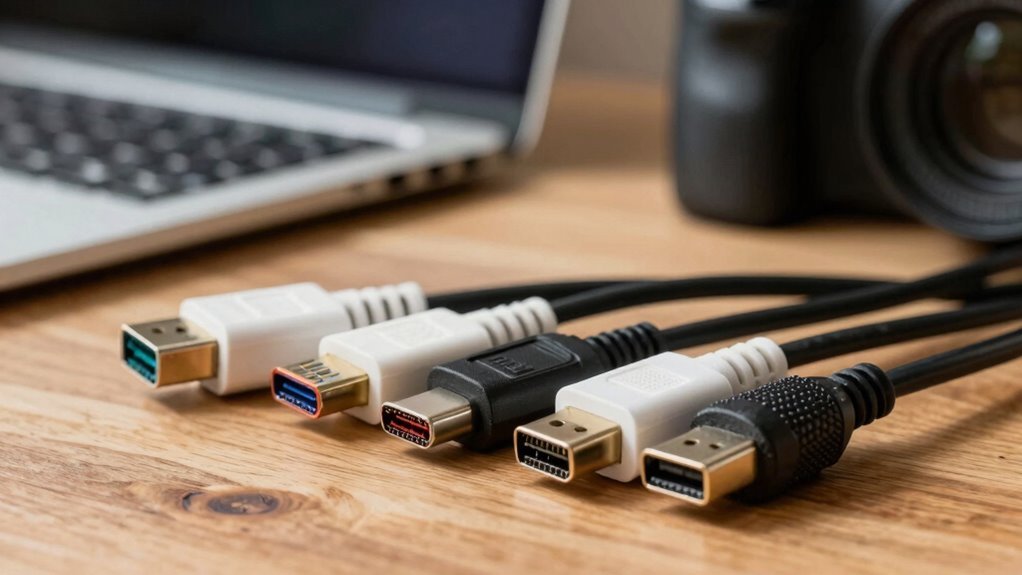
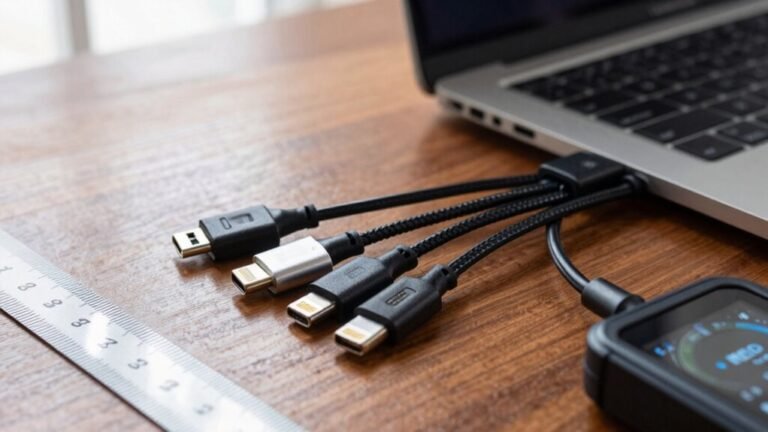
You’ve got screens to hook up and gadgets to charge, so let’s get you the right cable fast. HDMI handles killer 4K and 8K video with ease, while USB-C packs power, data, and video in one tiny plug—perfect for phones and laptops. Need simplicity? Grab a sturdy HDMI or USB-C cable. Want flexibility? Adapters have your back. Stick around, and you’ll nail every connection like a tech pro.
Understanding HDMI: Purpose and Performance
Ever wonder how your TV gets that crisp, stunning picture and crystal-clear sound without a jungle of old-school cables?
HDMI’s got your back, sending uncompressed video and audio from your device to your screen in one slick digital stream.
It replaced clunky analog connections like SCART, ditching the tangle for a single, simple plug.
You’re probably using a Type A connector—it’s the standard 19-pin plug that fits most TVs and devices.
Depending on the cable, you can enjoy everything from 1080p to mind-blowing 8K, with options that handle 4K at 240Hz if you’re super future-proof.
Premium and Ultra High Speed cables make sure you’re ready for HDR, gaming at 120Hz, or even Dolby Atmos sound.
And hey, no more signal hiccups—thanks to better shielding and certified performance, what you see is what you get, only way better.
HDMI supports uncompressed video and audio signals, ensuring the highest quality transmission without data loss.
Who knew pixels and soundwaves could play this nicely together?
Exploring USB-C: Versatility and Functionality
How’s it feel to have a single cable that can charge your laptop, transfer gigabytes in seconds, *and* power two 4K screens—all while plugging in blindfolded?
With USB-C, you’re not dreaming—it’s all real.
You get a reversible plug that always fits, no juggling needed.
It powers your devices with up to 240 watts, so even beefy laptops stay charged.
Transfer files at lightning speed—up to 80 Gbps if your gear supports it.
You can even run an 8K display or daisy-chain monitors using Thunderbolt.
Best part? It speaks multiple languages—USB, DisplayPort, HDMI, PCIe—thanks to smart negotiation through its CC pin.
Just grab a certified cable with the right e-marker, and you’re set.
Whether you’re charging, copying data, or going big onscreen, USB-C’s got your back.
It’s not just a cable—it’s your tech’s new best friend.
Physical Design: Size, Shape, and Usability

You’re holding a cable that’s sleek, compact, and built to fit just right—HDMI Type A plugs in smoothly with dimensions of just 13.9 mm wide and 4.45 mm high, making it a snug match for most TVs, monitors, and streaming devices.
Its compact design slips in without a fight, no wrestling required.
When it comes to choosing a cable that feels good in your hands and setup, consider these key points:
- Size matters—small connectors save space and look neat behind your gear.
- Flexible jackets like PVC let you bend without breaking, even behind tight furniture.
- Molded boots protect the ends, so yanking won’t leave you with a dead connection.
- Lightweight builds make routing easy and keep your setup looking clean, not cluttered.
Bonus: flat cables slide under rugs like ninjas.
Who knew tech could be this fun—and tidy?
This 1.8 m (6 ft) length ensures enough slack for clean setups, with a double shielded construction to maintain signal integrity.
Bandwidth and Speed: What Each Cable Can Handle
What’s the secret behind buttery-smooth 4K gaming or a jaw-dropping 8K movie night? It’s all in the bandwidth, my friend — the digital highway that keeps your pixels pumping. Think of it like a multi-lane road: more lanes mean less traffic and faster speeds. Here’s what each cable brings to the party:
| Cable Type | Max Bandwidth (Gbps) |
|---|---|
| HDMI 2.1 | 48 |
| DisplayPort 2.1 | ~80 |
| Thunderbolt 4 | 40 |
| USB4 | 40 |
HDMI 2.1 handles 8K like a champ, while DisplayPort 2.1 flexes with crazy-high 10K+ potential. Thunderbolt and USB4 pack a punch with 40 Gbps, perfect for power users who want it all. And yes, they’re smart enough to share lanes for data, video, and even your charging needs — no capes needed, but still heroic.
Video Quality: Resolutions and Refresh Rates Compared

Ever wonder why your gaming monitor feels snappier than your 4K TV, even though both look sharp?
It’s not just resolution—it’s how fast the image updates.
Here’s what really shapes your visual experience:
- HDMI 2.1 gives you 4K at 120Hz, perfect for buttery console gaming, while some push to 8K (but let’s be real—your living room isn’t a spaceship… yet).
- DisplayPort 2.1 is your go-to for extreme PC performance, delivering 8K at 120Hz or even 4K at over 240Hz if you’re chasing that competitive edge.
- USB-C with DP Alt Mode packs a punch, especially when your laptop magically drives two high-res screens from one port—thanks, tech wizardry.
- DSC compression sneaks in like a ninja, making high refresh and resolution work without quality loss—don’t worry, it won’t hurt your pixels.
Your setup’s only as strong as its weakest link—so choose wisely.
Audio Support: Capabilities Across Interfaces
While your eyes might be glued to the picture, don’t let your ears get left behind—great sound pulls you right into the action. HDMI’s audio power has grown fast, and you’ll want to match your cable to your system. Older versions handle basic surround, but newer ones deliver immersive 32-channel sound with zero compression. Need Atmos or DTS:X? Look for eARC—it’s a game-changer for audio lovers (and late-night movie watchers who hate spoilers from lag).
| Interface | Max Audio Channels |
|---|---|
| HDMI 1.4 | 8 channels |
| HDMI 2.0 | 32 channels |
| HDMI 2.1 | 32 channels |
Just saying “Dolby TrueHD” in the mirror won’t help—make sure your gear supports it. Your ears will thank you when the spaceship whooshes overhead in perfect sync.
Power Delivery: Charging and Device Compatibility

How does your phone know it’s safe to gulp down 65 watts instead of just 5?
It’s all thanks to smart power talks between your device and charger!
USB Power Delivery (PD) negotiates voltage and current like a quick handshake—making high-speed charging safe and universal.
But not all cables or chargers play fair.
Here’s what really matters:
- Your charger and device must both support PD to enable fast charging.
- Use a 5A-rated USB-C cable with an e-marker chip for max power—especially for 100W+.
- Avoid cheap adapters or old USB-A-to-C cables; they often cap at 15W.
- Even with top gear, some devices limit charging speed to protect the battery.
Data Transfer: File Speeds and Device Connectivity
You’ve seen how your gadgets chat to charge up fast, but they’re also busy swapping files and connecting to screens at lightning speed.
USB-C’s got your back for moving big files—think 10 to 40 Gbps, depending on the flavor.
USB4 and Thunderbolt 4 can blast a 4K movie to a drive in seconds, no sweat.
Need to plug into a monitor? USB-C flexes with DisplayPort or HDMI signals through Alternate Mode—pretty slick.
HDMI, though, is the AV champ: 48 Gbps on HDMI 2.1 means gorgeous 8K video and rich Dolby Atmos sound, perfect for movie nights.
But it’s not built for shuttling files like USB-C.
While USB4 demands USB-C cables for peak speeds, HDMI stays focused on wowing your TV.
You’ve got the right tool for each job—fast data here, epic visuals there.
Cables: not just cords, but digital superheroes with different powers!
Adapter vs. Cable: When to Use Each Solution

Ever stared at your USB-C laptop and an HDMI screen, wondering how to make them play nice?
You’ve got two pals in this tech tango: adapters and cables.
Here’s when to use each:
- Pick an adapter if you’re lightening your load — it’s tiny, cheap, and pairs with HDMI cables you already own.
- Grab a cable for one-and-done connections, especially if you’re chasing 4K/8K glory with zero signal hiccups.
- Choose high-end adapters when quality matters — good ones handle sharp video, but skip the dollar-store duds.
- Opt for cables at home, where length and stability beat portability.
Adapters are your pocket-sized sidekick; cables are the heavy hitters for showtime. Either way, you’re in control — no more tech-induced head-scratching or “why won’t you just work?!” meltdowns. Plug in, power up, and play.
Matching Your Needs: Scenarios and Device Pairings
Why wrestle with flickering screens or confusing hookups when the right cable can make all the difference? Whether you’re boosting productivity, streaming your favorite show, or diving into a gaming marathon, pairing the right cable with your devices keeps things smooth and hiccup-free. No more “why isn’t it working?!” meltdowns—just plug, play, and enjoy.
Here’s a quick cheat sheet for common setups:
| Scenario | Best Cable Choice |
|---|---|
| Laptop to monitor | DisplayPort or HDMI 2.0+ |
| Phone/tablet to TV | USB-C to HDMI (Alt Mode) |
| Gaming PC/console to display | HDMI 2.1 or DisplayPort |
Match your gear with the right cable, and boom—you’re golden. It’s like giving your tech a high-five: everything just works better when they’re speaking the same language. Easy, right?
Frequently Asked Questions
Can HDMI Carry Internet Like Ethernet?
Yeah, HDMI can carry internet like Ethernet—pretty cool, right?
If you’ve got HDMI with Ethernet (HEC), it shuttles data, video, and audio all in one cable.
You’re sharing your connection between TV, soundbar, or game console without extra wires.
Just mind the speed—maxes out at 100 Mb/s, so not for heavy lifting, but for most stuff? Smooth sailing.
Just don’t expect it to beat your Wi-Fi in a drag race!
Do USB-C Cables Support Audio Without Video?
Yeah, USB-C cables can totally carry audio without video—no screens needed.
You plug in your headphones, and boom, music plays.
Some devices send analog audio straight through, while others shoot digital signals that a dongle converts for you.
It just depends on your phone or laptop.
No video? No problem.
Think of it like whispering secrets through a wire—only sound, no pictures.
Pretty neat, huh?
Are All HDMI Cables 4K HDR Compatible?
No, not all HDMI cables handle 4K HDR—you might grab one thinking “game on,” but it could choke on the signal.
Older or uncertified cables often lack the bandwidth, turning your shiny HDR movie into a blurry slideshow.
You need at least a Premium High Speed cable (18 Gbps) to keep up with 4K @ 60Hz, HDR, and vibrant colors—think of it as a VIP pass for your pixels.
Does USB-C Always Support Displayport Alt Mode?
No, not every USB-C port’s got display tech up its sleeve—don’t count your chickens before they hatch.
Just ‘cause it’s USB-C doesn’t mean it supports DisplayPort Alt Mode; some only handle charging or data.
You’ve gotta check the specs, look for a DisplayPort or Thunderbolt logo, or peek at the manual.
Both the port and cable must play nice together.
When they do, boom—crisp video magic!
Can I Daisy-Chain Monitors via HDMI?
Nope, you can’t daisy-chain monitors via HDMI—it just doesn’t support that trick.
You’ll need separate cables from your computer to each screen.
Think of HDMI like solo performers; they don’t play well in a chain!
But don’t worry, DisplayPort or USB-C with DisplayPort Alt Mode’s got your back for cool multi-monitor setups.
Just grab the right gear, and you’ll be gaming or working across screens like a pro in no time!
Conclusion
You’re the captain of your tech journey, and the right cable’s your trusty co-pilot. HDMI blasts like a rocket for big-screen dreams, while USB-C slips in sleek as a ninja, doing it all. Whether charging, streaming, or sharing files, match your mission with the right cord. Don’t fumble in the dark—choose smart, plug in, and let the good times roll. Cable chaos? Not on your watch!