Docking Station vs. USB Hub: Which Do You Need?
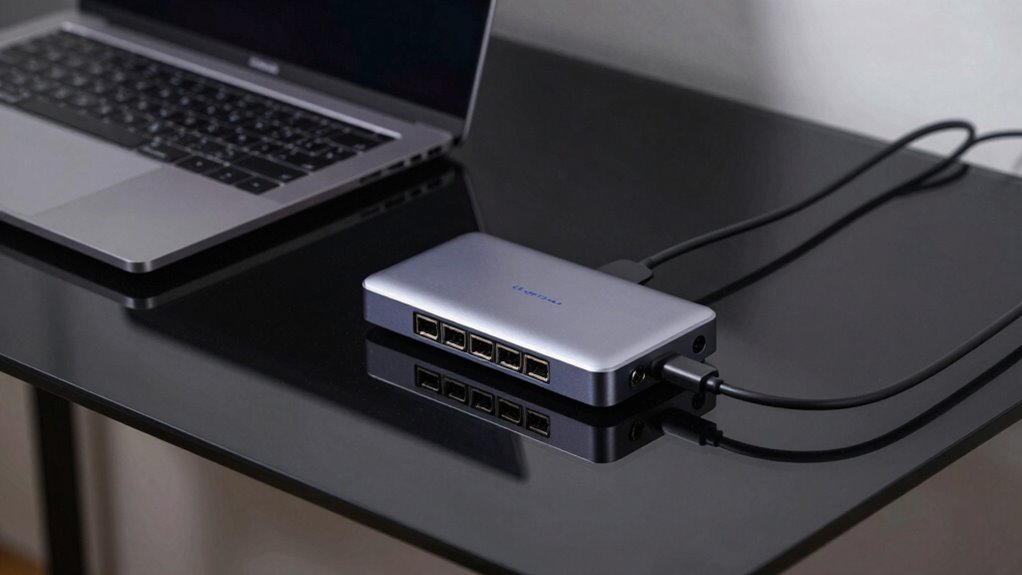
Need more ports for your weekend coffee shop sessions? Grab a USB hub—it’s compact, easy, and perfect for charging your phone while you work. But if you’re building a command center with dual 4K monitors, Ethernet, and full laptop charging, a docking station’s your power-packed partner. Hubs travel light, docks stand strong. One’s a sidekick, the other’s the superhero your laptop deserves—let’s see which one fits your setup.
Understanding Connectivity Options
While you’re trying to keep your workspace sleek and your gadgets happy, choosing between a USB hub and a docking station can feel like picking between a Swiss Army knife and a full toolbox—both useful, but *very* different.
You plug in a USB hub, and bam—more ports for your mouse, drive, and keyboard, easy-peesy.
But it’s usually powered by your laptop, so don’t expect it to charge your machine fast, if at all.
Now, a docking station? That bad boy powers up your laptop, drives multiple monitors, spits out Ethernet, and keeps your external SSD flying—all at once.
It’s like giving your laptop a first-class upgrade.
Some fancy hubs blur the line, but real docks pack serious guts: better video, stable power, and pro-level ports.
Think bigger brain, more brawn.
So ask yourself: are you just adding gadgets, or building a whole command center?
The answer’s probably not hiding in a tiny hub.
Docking stations provide Ethernet connectivity, making them ideal for reliable, high-speed internet in professional setups.
Evaluating Portability Needs
Where do you stand when your laptop hits the road—light and lean, or fully loaded?
If you’re all about speed and simplicity, grab a USB hub. They’re tiny, fit in your pocket, and weigh next to nothing—perfect for tossing in a bag without a second thought.
No bulky power brick, no fuss, just plug and play your peripherals on the fly.
Docks? They’re the power players, but they’re heavier, need extra cables, and love staying put on a desk.
Traveling with one feels like bringing a tiny office along.
Need to charge your laptop while juggling gadgets? A dock with power delivery’s got your back.
But if you just need a few quick ports and hate setup stress, a compact, rugged metal hub wins.
Less weight, fewer headaches—hello, happy travels!
Hubs share bandwidth among connected devices, which can affect performance under heavy load (shared bandwidth).
Assessing Device Compatibility

You’ve got your gear packed light for the road, but now let’s talk about what actually works with your setup—because what’s the point of bringing tech if it just stares at you like you’re speaking a different language? Before you plug anything in, check your device’s ports, OS, and what your gear actually supports. A docking station might promise five monitors, but your laptop could say, “Hard pass.” Know your USB-C from your Thunderbolt, and whether your Mac or PC plays nice with certain docks. For example, if you’re using a MacBook, make sure the docking station supports dual 4K display outputs to fully leverage its capabilities.
| Feature | Check This | Why It Matters |
|---|---|---|
| Port Type | USB-C, Thunderbolt, USB-A | Determines speed and compatibility |
| Video Output | HDMI, DP, Alt Mode support | Ensures your monitor actually lights up |
| OS Support | Windows, macOS, Linux | Avoids sad “not recognized” moments |
Comparing Power Delivery Capabilities
Ever wonder why your laptop charges fast at your desk but crawls to 80% when you’re juggling a dozen gadgets through a tiny hub?
That’s because docks pack serious power—they often deliver up to 100W or more, with some Thunderbolt models pushing 140W, perfect for hungry laptops.
They’ve got built-in power brains that smartly juggle energy between your machine and all your gear.
Meanwhile, most USB hubs just pass through power from your charger, and once you plug in a few devices, your laptop might get stuck sipping instead of gulping watts.
Even if a hub claims 100W, some power gets lost running the hub itself.
Plus, cheap cables or weak ports can throttle speed.
So if you want fast, reliable charging while powering monitors and drives, a dock’s your powerhouse.
Hubs? Great for light tasks, but don’t expect miracles when the wattage race begins.
Identifying Ideal Use Cases

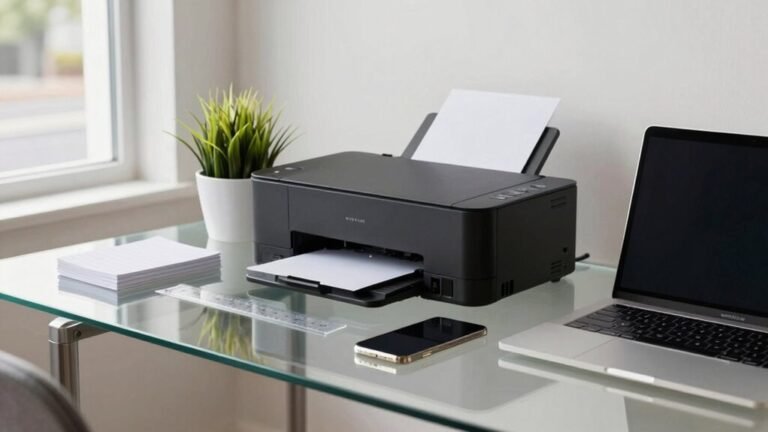
So, what’s your tech life really like—juggling a mouse, flash drive, and phone on a lunch break, or running four monitors, a printer, and an external SSD from your desk like a full-on command center?
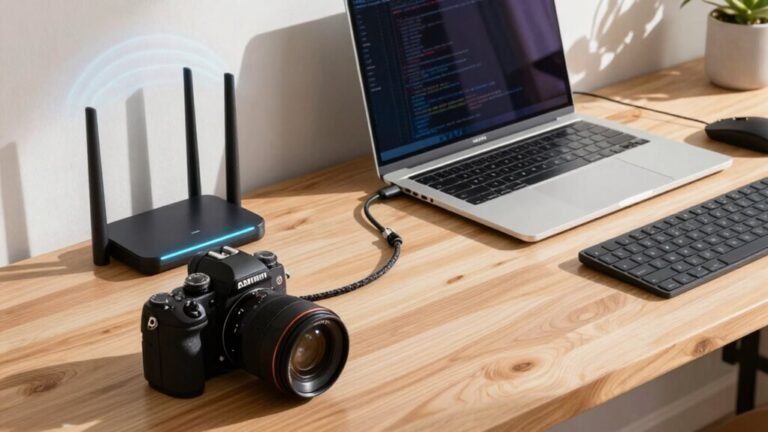
If you’re all about portability and just need a few extra USB spots for your flash drive, mouse, or camera, a USB hub’s your go-to.
It’s small, cheap, and perfect for on-the-go life.
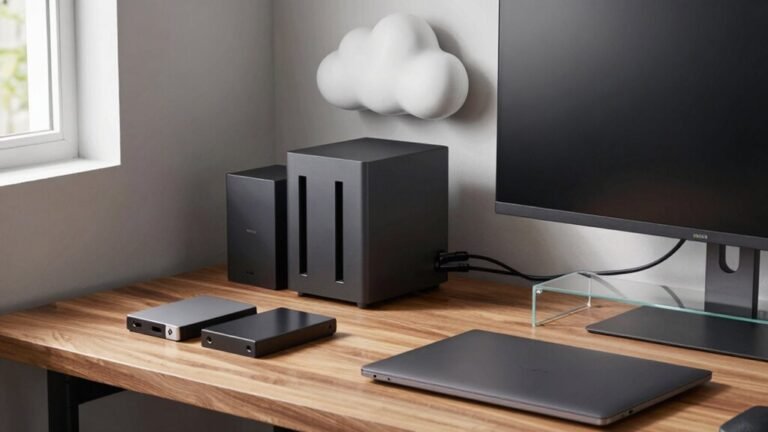
But if you’re building a full workstation—think Ethernet, SD cards, audio gear, and multiple drives—then a docking station’s the real MVP.
It handles heavy multitasking with powered ports and one-cable simplicity.
Hubs rock for students or light users; docks rule for pros needing serious connectivity.
Pick the hub for quick plug-ins, the dock for turning your laptop into a desktop beast.
No overkill, just the right tool for your tech chaos.
Exploring Video Output and Display Support
You’re already juggling gadgets like a pro, whether you’re spreading out in a coffee shop or ruling the desk like a tech conductor.
When it comes to video, though, not all gear plays nice.
USB hubs? They’ll get you one screen, maybe 4K at a butter-smooth 30Hz—or full HD if you’re binge-watching cat videos.
But if you want dual (or triple!) 4K@60Hz glory for editing spreadsheets *in style*, docking stations are your VIP pass.
Thunderbolt 4 docks even handle a single 8K display—because why not future-proof?
Keep cables tidy and your monitors blazing with the right setup.
- Hubs: 1 display, lower refresh, basic needs
- Docks: Multi-monitor, high-res, pro power
- Hybrid docks: Thunderbolt speed, clean connections, zero desk chaos
Weighing Cost Against Features

While your wallet might sigh at the price tag, going beyond a basic hub could save you from a jungle of adapters and midday charging panic.
You’ll pay more upfront—docks start around $100, while hubs can be under $30—but that extra cash buys real power.
Think 65W+ charging, multiple 4K screens, and fast data speeds without slowdowns.
Cheap hubs often skimp on power and bandwidth, leaving your devices starved when you need them most.
A solid dock cuts cable clutter, lasts longer, and packs Ethernet, video, and charging in one sleek package.
Sure, it’s not pocket change, but imagine skipping the “why is my laptop dying?!” drama every afternoon.
Plus, fewer dongles means less desk chaos—your future self will high-five you.
Smart spending now means less frustration later, and who doesn’t love that kind of upgrade?
Choosing the Right Solution for Your Workflow
How do you roll when it comes to your workspace—light and on the move, or fully powered and plugged in?
If you’re always hopping between cafes, airports, or client sites, a USB hub’s your go-to buddy—compact, no extra power needed, and ready to rock with your laptop, tablet, or even your gaming console.
But if you’re building a boss-level home office with dual 4K screens, Ethernet, and zero cable chaos, a docking station’s got your back.
Pick based on how you work, not just what looks cool.
Frequently Asked Questions
Can a USB Hub Support Dual Monitors?
Yeah, a USB hub can support dual monitors, but only if it’s got the right ports like HDMI or DisplayPort and your laptop supports video output.
You’ll need a USB-C hub with DisplayPort Alt Mode for smooth 4K action.
Basic hubs? Nah, they just multiply ports.
Go for a video-ready one, plug in both screens, and boom—dual display magic.
Just don’t expect fireworks from a cheap hub; it’s not doing rocket science!
Do Docking Stations Work With Older Laptops?
Oh, you bet they do—because nothing says “modern convenience” like plugging a sleek dock into your ancient laptop and making it feel relevant again!
You just grab a USB-A dock like Dell’s D6000 or Plugable’s DisplayLink model, plug it in, and boom—extra monitors, keyboards, all the perks.
Yeah, you’re capped at two displays and slower speeds, but hey, your dinosaur just learned new tricks!
Are USB Hubs Safe for 24/7 Use?
Yeah, you can safely run USB hubs 24/7 if you pick a solid one.
Just grab a trusted brand like Belkin or StarTech—they’re built tough and handle heat like champs.
Use a surge protector, keep firmware updated, and check cables now and then.
Think of it like leaving your fridge on: totally fine, as long as it’s not sketchy hardware from the bargain bin.
Smooth sailing with the right setup!
Can I Daisy-Chain Multiple Hubs Together?
You can daisy-chain hubs, but you’ll hit a wall at 5—only 7% of users know the USB standard caps it there!
Go beyond, and things get glitchy fast.
Skip unpowered hubs; they’re dead on arrival for chaining.
Use powered ones, but honestly, you’ll save headaches with a single 12-port hub instead.
Your devices will thank you—no more “USB power surge” drama!
Do Docks Overheat When Fully Loaded?
Yeah, docks can get pretty toasty when fully loaded—like a mini space heater for your desk.
Pushing power, data, and video at once makes the internals work hard and heat up, especially in compact models.
You’ll notice warmth on the surface, which is usually fine, but if it’s hotter than your morning coffee, check airflow or lighten the load.
Cool it down, and it’ll keep humming smoothly!
Conclusion
So, you’ve got this, right? Whether you’re team docking station or USB hub, just match it to your daily grind. Need a full office setup like you’re running a 1980s command center? Go docking. Just need extra ports for your coffee-shop hustle? Hub’s your buddy. They’ve both got power, ports, and purpose—just pick your tech sidekick and rock on.