How to Ergonomically Elevate Your Monitor
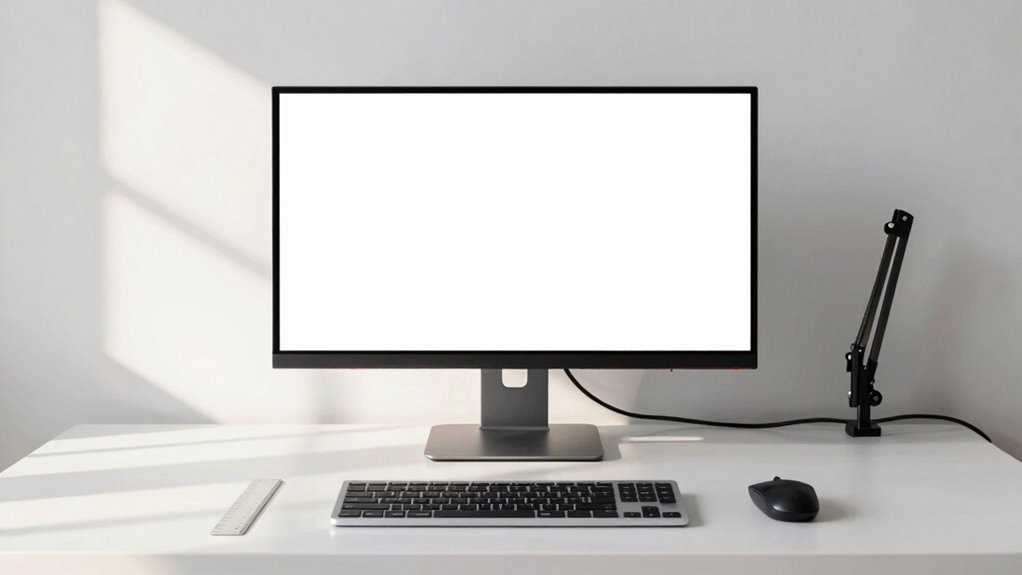
Set your monitor so the top is at eye level, then lean back—you should gaze slightly down, about 15°–20°, to the screen’s center. Sit an arm’s length away, feet flat, arms relaxed. Use a monitor arm or stack of books (no shame in the book-game!) to hit the sweet spot. Keep it centered, reduce glare with a tilt, and boom—your neck will thank you. There’s even more to fine-tune for total comfort.
Determine Your Ideal Monitor Height Based on Eye Level
Ever wonder why your neck feels like it’s auditioning for a tug-of-war team by mid-afternoon?
It’s probably your monitor playing hide-and-seek with your eye level.
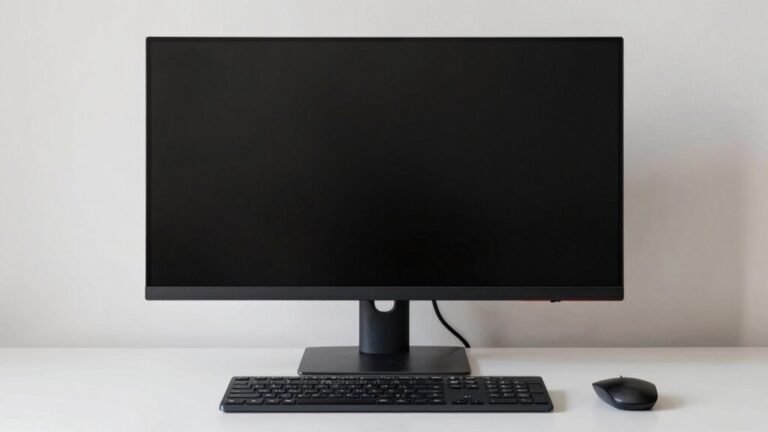
Here’s the fix: when you sit upright, the top of your screen should align with or slightly below your eyes.
Your gaze should naturally land 15°–20° downward, right at the screen’s center—think of it as your sweet spot.
If you wear bifocals, drop it another inch or two; your neck will thank you.
Sit with feet flat, arms extended so your middle finger almost touches the screen, and adjust from there.
Use a monitor arm or stack of books—no judgment!—to hit that ideal height.
Keep your head neutral, not tilted up or down.
Whether you’ve got an IPS, TN, or QLED panel, a quick tilt forward helps.
Proper monitor height recommendations based on user height ensure long-term comfort and prevent musculoskeletal strain.
Get it right, and say goodbye to sore shoulders and hello to cozy, crack-the-day-open comfort.
Measure Proper Viewing Distance for Comfort and Clarity
Finding your sweet spot for screen distance isn’t just about comfort—it’s your ticket to clearer vision and a happier workday.
Start by sitting an arm’s length away—yes, really, stretch out your arm and let your fingertip kiss the screen.
That’s around 50–75 cm, a great baseline.
If you’ve got a bigger monitor, say 27 inches, kick back a bit—aim for 27 to 40 inches away.
Higher resolution or snazzy text scaling? You can sit farther without squinting.
Check if you can read everything without leaning in, and make sure you’re not swiveling your head like you’re watching tennis.
Poor lighting or glare pulling you forward? Fix that first.
And hey, if you’re over 40, your eyes might crave a little extra space—no shame there.
Measure with a tape if you’re feeling fancy, then tweak till it feels just right.
Maintaining this distance helps prevent forward head posture.
Center the Screen Directly in Front of Your Seated Position

Now that you’ve nailed the perfect viewing distance, let’s get your monitor lined up like it’s laser-targeting your eyeballs—because, well, kind of!
Center the screen directly in front of you so your nose, eyes, and the middle of the display all line up.
This keeps your head straight and avoids awkward neck cranks that build up strain over time.
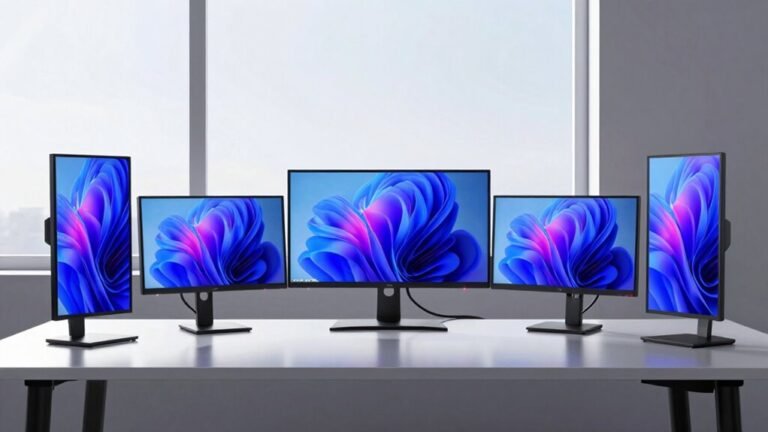
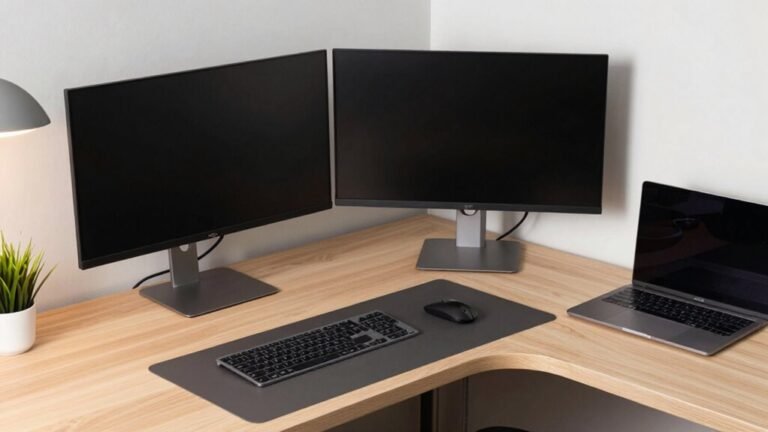
If you use multiple screens, put your main one dead center and angle the others gently like a smiley curve.
Sit in your usual spot and check that the screen’s center lines up with your chest—no twisting!
If your desk doesn’t allow perfect placement, rotate your whole chair instead of just your neck.
And remember, glare is a sneaky foe—point the screen perpendicular to windows so you’re not squinting like a confused owl.
Keep bright lights off the center to avoid ugly reflections that mess with your vibe.
Alignment isn’t fussy—it’s freedom for your neck and eyes.
Proper alignment supports natural body posture, reducing the risk of muscle imbalance caused by prolonged fixed postures.
Adjust for Seated, Standing, or Perched Work Postures
How’s your screen treating you when you switch between sitting, standing, or that half-standing “perched” pose you strike when inspiration hits?
When seated, keep your desk 25–27 inches high so your feet lie flat and elbows bend at 90 degrees.
Top of your monitor should hit eye level—so you’re gazing slightly down at the screen’s upper third.
Standing? Raise the desk to 42–44 inches (or use the formula: 0.47 × your height − 6.7) so wrists stay neutral and shoulders relaxed.
Perching? Set the desk between 38–47 inches, elbows at 90–110 degrees, and boost your monitor to eye level with risers.
No hunching, no neck craning—just smooth shifts between poses.
Your body will thank you, especially with anti-fatigue mats and proper support.
Work shouldn’t feel like a contortion act—keep it comfy, keep it fun.
Use Monitor Arms or Adjustable Desks for Precision

You’ve nailed the right heights for sitting, standing, or perching—now let’s get your screen moving with you, instead of making you crane your neck like a curious giraffe every time you shift positions.
Grab a monitor arm or adjustable desk that matches your setup—check weight limits, VESA patterns, and smooth adjustability so your screen stays put without wobbling.
Position the top of your screen at eye level and about an arm’s length away, fine-tuning with your arm’s tilt, swivel, or height controls.
Studies show these tweaks slash neck and back strain, with over half of users moving more comfortably.
Multi-monitor? Curve them around you to reduce head turns.
Lock the arm tension just right—solid, but still easy to adjust later.
With 99% user satisfaction and clutter-free cable management, you’ll wonder how you worked without one.
It’s not just smart—it’s a game-changer.
Minimize Glare and Optimize Lighting Conditions
Ever wonder why your screen sometimes turns into a blinding mirror for overhead lights or windows? You’re not imagining it—that glare strains your eyes and kills productivity. Position your monitor perpendicular to windows and lights, tilt it slightly down, and keep it at eye level to dodge reflections. Go matte instead of glossy; anti-glare screens scatter light and keep things clear, even when the sun’s peeking in.
| Lighting Tip | Why It Works | Pro Bonus |
|---|---|---|
| Use indirect lamps | Softens light, cuts glare | Looks sleek on your desk |
| Match room brightness to screen | Balances contrast | Fewer squints, more focus |
| Add an anti-glare filter | Blocks reflections | Traps fewer fingerprints |
| Enable dark mode | Reduces bright backgrounds | Easier on the eyes at night |
Tweak brightness, shift to warmer tones, and boom—your screen just got comfier.
Align Multiple Displays for Smooth Visual Transitions

Got your lighting dialed in and glare banished?
Now let’s get your screens playing nice together!
Smooth visual shifts mean less eye strain and zero “Where’d that window go?” panic.
Whether you’re a multitasking maestro or a deep-focus pro, alignment is key.
Here’s how to nail it:
Maintain Neutral Posture With Supporting Workstation Setup
How’s your chair *really* feeling after hours of screen time?
Let’s fix that.
Adjust your seat so your feet are flat on the floor (or a footrest) and your knees sit at or just below hip level—leave 2–4 inches between seat edge and knee backs.
Tilt the backrest to support your lower back, sitting nearly upright or slightly reclined.
Keep your elbows at 100–110 degrees, with wrists neutral and slightly below elbow height.
Forearms should rest comfortably, hands low, fingers pointing down.
Position your keyboard straight or with a slight negative tilt.
Keep your monitor arm’s length away (20–30 inches), top third at eye level.
Eyes should gaze slightly downward at the screen’s center.
Place often-used items right in front, match document holders to screen height—boom, you’re set!
You’ve just made comfort look cool.
Frequently Asked Questions
Can I Use Books to Raise My Monitor?
Yeah, you can totally use books to raise your monitor—lots of people do!
Just stack sturdy hardcovers evenly so they don’t wobble, and make sure the top book matches your monitor’s base.
Toss a rubber pad between the books and screen to keep it from sliding.
It’s a quick, cheap fix, but watch the height—too high and you’ll crane your neck.
And hey, your books might judge you for becoming office furniture!
How Often Should I Check My Monitor Height?
You should check your monitor height every time you sit down to work—it takes seconds and saves your neck!
If you tweak your chair, swap seats, or notice strain, adjust right away.
Feeling a crick in your neck or sore shoulders? That’s your body yelling, “Hey, fix the screen!”
Glare bugging you or wearing new glasses? Give it another peek.
Stay sharp, comfy, and a little sassy with daily check-ins—your spine will thank you!
Does Screen Size Affect Ideal Monitor Height?
Yes, screen size totally affects your ideal monitor height—bigger screens need more vertical real estate, so you’ve gotta lower them to keep the top at or below eye level. That way, you’re not craning your neck like a confused giraffe.
Aim for the top third of the screen right at eye height, especially with 27″ or larger displays.
It keeps your gaze relaxed, your posture happy, and your neck from throwing a daily tantrum.
Win-win!
What if I Share a Desk With Others?
You’re not flying solo at a shared desk—you’re part of a workspace relay race!
Set up your monitor eye-level with quick-release arms so swaps are a breeze, keep your gear labeled like lunchboxes in a breakroom, and stick to the shared checklist like it’s office gospel.
Use personal stickers for your sweet spot, and boom—everyone wins without the tug-of-war.
Is a Tilted Monitor Better for Ergonomics?
Yes, a tilted monitor’s better for ergonomics—you’ll love how it reduces glare and neck strain.
Tilt the top slightly back (10–20°), and you’ll keep your eyes happy while dodging annoying reflections.
It’s like giving your eyeballs a cozy chair!
Pair it with the right height and distance, and boom—your setup feels smooth, not stiff.
Your neck and eyes will thank you, probably with fewer “ow” moments and more “ahh.”
Conclusion
You’ve perched your monitor like a hawk on a branch—eyes level, screen centered, glare gone. Now it hums with you, not against you, lifting your gaze (and spirits) like sunrise over a calm lake. No more neck dives, just smooth sailing. With arms adjusted and light just right, you’re not just working—you’re gliding. Sweet spot? You’ve nailed it. Work feels light, bright, and, dare we say, fun. Boom.