Webcam vs. Laptop Camera: Best Choice for Home Offices
You’re tired of squinting at your blurry laptop camera, aren’t you? Swap it for an external webcam and boom—crisp 1080p or even 4K clarity, way better in dim light and backlit rooms. You’ll look sharp, sound clear, and finally stop ducking out of frame to dodge glare. With plug-and-play ease and a sweet spot under $50, why wouldn’t you level up? Oh, and there’s a fun surprise feature you’ll absolutely love.
Image Quality Comparison: Clarity and Performance in Different Lighting
While your laptop’s built-in camera might get the job done, it’s no secret that switching to an external webcam can seriously upgrade your video quality—especially when lighting gets tricky.
You’ll instantly notice sharper details, thanks to 1080p or even 4K resolution, while your laptop’s 720p cam still thinks it’s 2010.
Smooth 60 fps motion? Yes, please—no more robot-jerky hand gestures.
In dim light, external webcams shine (literally), with smarter sensors and noise control so you don’t look like a grainy shadow beast.
Backlit by a window? A good webcam balances the light, so coworkers finally see your face, not just a silhouette.
Placement freedom lets you cheat the lighting game—angle it right, and you’ll glow like a pro.
It’s not magic; it’s better tech, tuned right.
Your built-in camera’s not winning any beauty contests—time to upgrade and own the call.
Recent improvements in Windows laptop cameras have narrowed the gap, but MIPI vs USB still gives high-end external models a decisive edge in detail and dynamic range.
Advanced Features That Enhance Professional Video Calls
You’re on camera, and suddenly you feel like a movie director trying to nail the perfect shot—except you’re just in a meeting. Good news: advanced webcams make you the star without the effort. AI tracks your face, keeps you centered, and even boosts sound so you’re always heard clearly. Whether you’re pacing or leaning in, these smarts keep you looking pro. Dedicated webcams deliver superior performance compared to built-in laptop cameras, especially with features designed for professional use (The Limitations of Built-in Webcams).
| Feature | What It Does |
|---|---|
| AI Framing & Tracking | Keeps you in the center, even if you move around |
| 360° View | Captures everyone in the room, no blind spots |
| 4K HDR | Delivers sharp, vibrant video that impresses |
| Smart Audio | Picks up voices clearly, cuts out background noise |
You’re not just on camera—you’re *on point*.
Flexibility in Placement and Optimal Viewing Angles

When your camera’s stuck in one spot, you end up doing yoga just to stay in frame—tilting your head, lifting your chin, or awkwardly propping up your laptop with last year’s textbooks.
External webcams save you from the circus act.
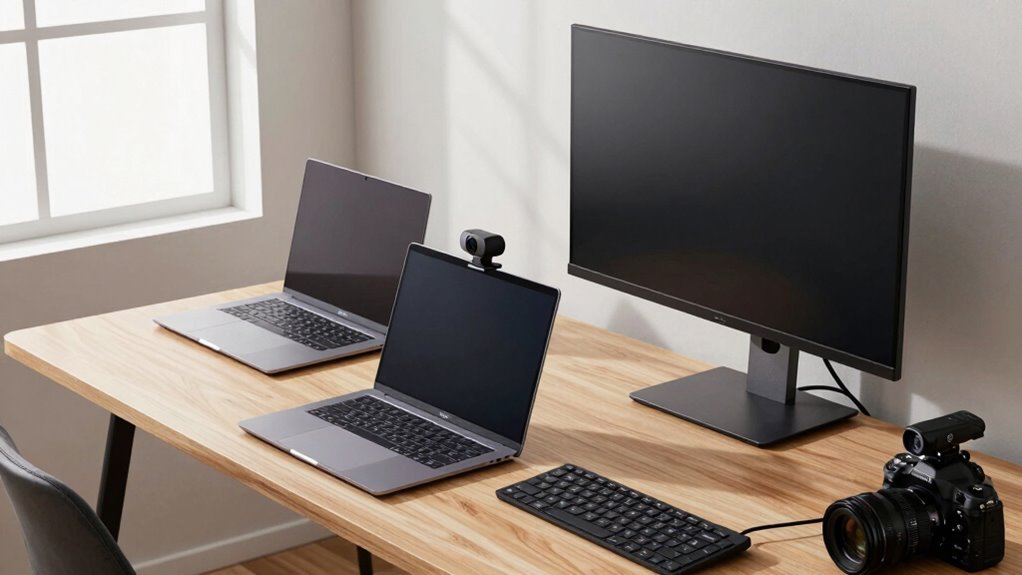
Clip them on your monitor, set them on a tripod, or swivel them for a better angle—no contortions needed.
You’ll love how placing the lens at eye level (or just above) makes you look natural and engaged, not like a double-chinned mystery guest.
A quick tilt down flatters your face and keeps focus on your eyes.
Unlike built-in cameras that trap you below the lens, webcams let you dodge backlights, chase natural light, and dodge glare like a pro.
Whether you’re waving a gadget, showing notes, or squeezing in a coworker, you’ve got the freedom to frame it right—every time.
This flexibility also supports wider Field of View options, making it easier to capture group shots or whiteboard content effectively.
Ease of Setup and Cross-Device Compatibility
If you’ve ever wrestled with drivers or stared helplessly at a blank camera preview, you’ll love how easy most webcams are to set up—just plug in via USB and go, no tech degree required.
They work across Windows, macOS, and Linux, often without installing a thing.
Need to jump on a call from your desktop, laptop, or tablet? Your webcam comes right along.
Meanwhile, your laptop’s built-in camera works instantly but only on that one device—no sharing allowed.
Even simpler, no cables, no fuss—but zero flexibility if you switch screens or dock your laptop.
- Webcams offer plug-and-play setup on multiple devices.
- Built-in cameras are ready at boot but locked to one machine.
- USB compatibility lets webcams adapt wherever you work.
Just don’t trip over the cord—seriously, we’ve all done it.
Cost Value and Long-Term Benefits for Remote Workspaces

You might love how easy it’s to plug in a webcam and start a flawless video call from any device, but when it comes to setting up a home office that truly works for the long haul, your wallet will want a say too.
Sure, built-in laptop cameras are free, but they cap out at 720p—kind of like watching a concert from the nosebleeds.
For under $20, you can grab a basic webcam, or go pro with a 1080p or even 4K model that makes you look sharp and polished.
These external gems last longer, handle tons of calls, and pack cool tricks like autofocus and low-light correction.
Think of it as a tiny investment that pays off every time you wow your boss or charm a client.
Over time, that crisp image and reliable performance don’t just save face—they save you from awkward “can you restart?” moments.
Who knew looking this good could be so smart—and affordable?
Frequently Asked Questions
Can Webcams Work With Older Laptops?
Yeah, webcams totally work with older laptops!
Just plug one into a USB-A port, and you’re usually good to go—no extra software needed.
If it doesn’t pop right up, try a different port or check your updates.
Even if your laptop’s seen better days, a webcam’ll boost your video quality fast.
Think of it like giving your old machine a slick new eye!
Do Laptop Cameras Support External Microphones?
Nope, your laptop camera’s mic is stuck in a lonely little bubble, like a hermit with no doorbell—no external mic jack in sight!
You’re stuck with built-in audio unless you plug a mic straight into your laptop’s port.
But hey, that’s a pro move!
Use a headset or USB mic for crisper sound.
Your meeting’s audio’ll thank you—goodbye, keyboard clack symphony!
Are Webcams Compatible With All Video Conferencing Apps?
You’re in luck—most webcams work with all the big video apps, no sweat.
Just plug in your USB cam, and Zoom, Teams, or Google Meet will spot it fast.
Yeah, they’re basically plug-and-play magic.
Sure, Google Meet caps at 720p on the web, but everyone else rocks 1080p.
And with fun tools like ManyCam or YouCam, you can spice things up with filters or virtual backgrounds.
Can I Use a Webcam on a Tablet?
You can use a webcam on your tablet, but it’s not quite plug-and-play like on a laptop.
Your tablet needs USB host support and a UVC-compatible webcam—otherwise, it’s a no-go.
Grab the right OTG adapter, check your Android version (9.0’s ideal), and use a solid camera app.
Some tablets power up great; others?
They’ll give you a sad “no signal” stare.
Power limits and app quirks might fuss, but when it works—boom—it’s like giving your tablet superhero vision!
Do Webcams Require Drivers for Macos?
You probably won’t need drivers for your webcam on macOS—most just plug in and work instantly, thanks to built-in UVC support.
If it’s an older model or has fancy features, you *might* chase down a driver, but you *might*
good luck finding one that doesn’t crash.
Honestly, skip the headache: grab a modern plug-and-play webcam and let macOS do its magic.
Easy, breezy, no PhD required!
Conclusion
So, which wins: webcam or laptop camera? Think of it like upgrading from sneakers to stilettos—for your face. A external webcam sharpens your look, adjusts to light like magic, and lets you angle it just right. Sure, your laptop cam works, but a standalone one gives you control and crisp clarity. It’s a small move, big impact—like turning a chat into a spotlight moment. Plus, setting it up? Easier than picking a Netflix show.