Home Office Network Security Basics
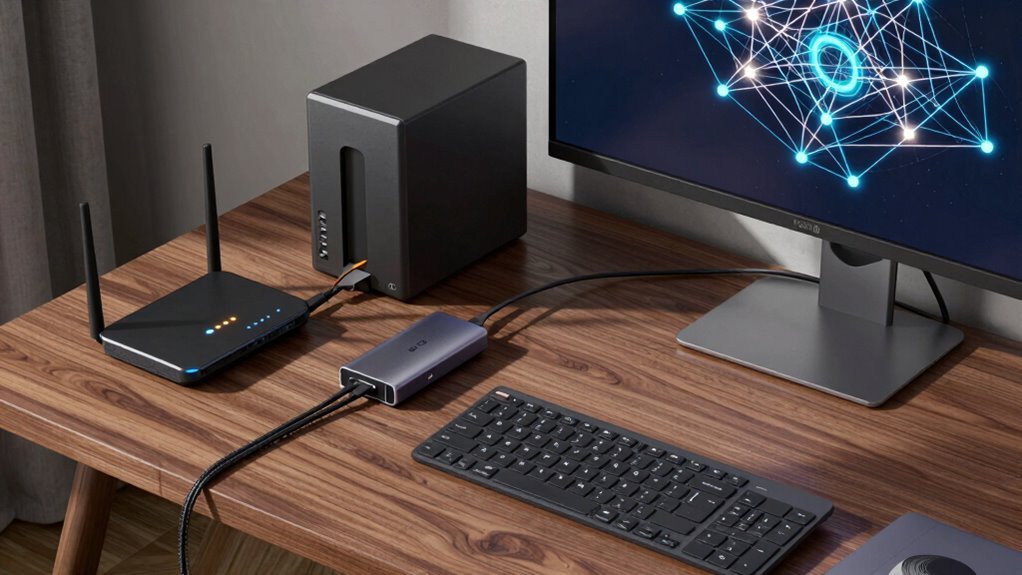
You’re in charge of your home office security, so start by locking down your router with a strong, unique password and enabling multi-factor authentication—think of it as a seatbelt for your network. Use WPA3 encryption for Wi-Fi, create separate network zones for devices, and keep everything updated automatically. Add hardware keys or biometrics for login power, and keep an eye out for sneaky intruders. You’ve got this—and there’s even more to supercharge your setup.
Secure Your Router and Network Devices

Ever wonder how hackers sneak into home networks? They often start by guessing default router passwords—yes, those factory “admin/password” combos are still a thing, and yep, people still use them.
Don’t be that person.
Immediately change your router’s admin login to a long, unique passphrase, and for extra credit, use a different one than your Wi-Fi password.
If your router supports it, turn on multi-factor authentication—because why not add a bouncer to the door?
Create regular user accounts for the household (no one needs admin rights to check email), and audit logins now and then.
After firmware updates or resets, refresh those passwords like you’re changing socks after a long day.
It’s not glamorous, but it keeps the digital creeps out.
Your router’s the boss of your network—treat it like one.
Home routers are now primary target for cyberattacks due to their weak protections and role in remote work.
Configure Wi-Fi With Strong Encryption
Lock in your Wi-Fi with armor-grade encryption—because “open network” shouldn’t mean “open invitation” for hackers.
You’ve got options, but go for WPA3 if your gear supports it; it’s like giving your Wi-Fi a superhero cape.
It stops sneaky password attacks, keeps old sessions safe even if your password leaks later, and blocks eavesdroppers like a pro.
- Pick WPA3-Personal for simpler home setups—it uses slick tech (SAE) that laughs at brute-force hacks
- Fall back to WPA2 only if needed, but *never* use old junk like WEP or WPA—it’s like locking your door with spaghetti
- Use a strong, unique passphrase—think random words mashed up, not “password123” or your dog’s name
Enable Protected Management Frames too—it’s a must! Your devices will thank you, and your stream stays safe, secure, and seriously slick.
WPA3 provides stronger data encryption with personalized keys for each session, making it much harder for hackers to intercept your data.
Segment Your Home Network

Slice up your home network like a pro pizza chef—neat, intentional, and with just the right amount of spice.
You’re not just organizing—you’re building mini fortresses.
Split devices into zones: work laptops stay safe from sketchy IoT gadgets, guests can’t wander where they shouldn’t, and that smart fridge won’t touch your files.
Use VLANs and subnets to separate traffic, then lock things down with firewall rules—allow only what’s needed, block the rest.
Think of it as bouncer rules for your data: no VIP pass, no entry.
It’s easier to spot trouble when devices behave oddly in their own lanes.
Plus, naming segments clearly (like “Work Stuff” or “Guest Zone”) keeps you sane during setup.
A little planning now saves headaches later—because really, no one wants a hacked toaster ruining their Zoom call.
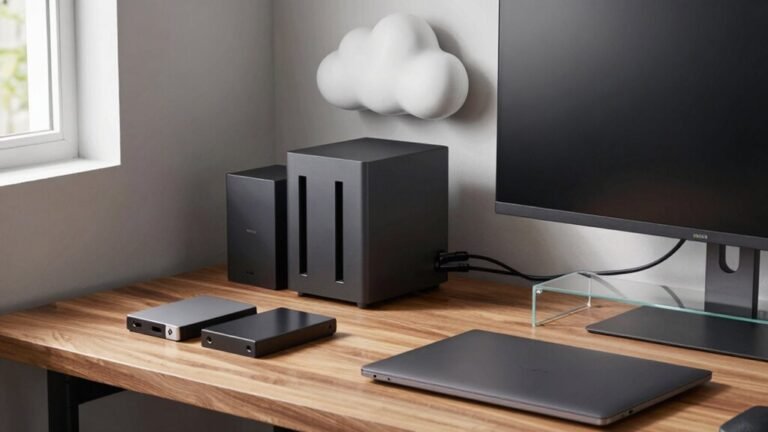
Keep high-speed traffic efficient by placing critical devices like PVE and Synology on a dedicated 10G path isolated from slower IoT networks.
Enforce Strong Authentication Practices
When you’re keeping the digital baddies out, your password alone won’t cut it—think of it like locking your front door but leaving the window wide open.
Step up your game with stronger, smarter ways to prove it’s really you.
Go beyond just passwords and lean into methods that even sneaky phishing scams can’t crack.
- Use hardware keys like YubiKey or built-in biometrics—they’re tough to beat and super easy once you set them up.
- Try apps like Microsoft Authenticator or Authy that generate codes right on your phone, so hackers can’t intercept them.
- Set up passkeys or Windows Hello—they use your face, fingerprint, or a PIN tied to your device, making logins fast and safe.
You’ve got better tools than “P@ssw0rd123”—use ‘em, and sleep easier knowing your home office is locked down tight.
Protect and Update Endpoints Regularly

Keep your devices sharp and savvy by staying on top of updates—because letting software slide is like leaving a trail of digital breadcrumbs for trouble. You’ve got laptops, phones, even smart coffee makers chatting on your network, so track them all and update that list often. New devices? Rogue gadgets? Nip those in the bud.
Patch fast—those updates plug sneaky security holes hackers love. Automate patches so you never miss a beat, even when life gets busy. Run regular audits to see who’s on your network and what needs a refresh.
Use EPP and EDR tools like digital bodyguards that block, detect, and respond. Limit apps to only the ones you trust—whitelist good guys, ban the sketchy ones. Monitor activity nonstop so weird behavior gets caught early.
It’s not paranoia; it’s peace of mind. Stay quick, stay safe, and keep your home office fortress strong!
Enable Encryption for Data and Communications
You’ve locked the doors and updated all your gadgets—great job tightening the defenses! Now, let’s wrap your data in a cozy, unbreakable blanket: encryption. You’re not just hiding info, you’re scrambling it so only the right key can decode it—like a vault with a secret handshake.
- Lock your Wi-Fi with WPA3 (or WPA2 if older devices visit), use a 20+ character passphrase, and enable protected management frames—skip WEP, it’s basically a screen door on a submarine.
- Fire up a VPN when hitting corporate networks or browsing on public hotspots; it’s like giving your data a private tunnel instead of walking through a crowded mall.
- Turn on full-disk encryption (think BitLocker) and use AES or Twofish for files—your laptop won’t spill secrets if it goes rogue.
Use Secure Remote Access Methods

Even if you’re miles from your home office, you can still swing open the digital door—but only if you do it the smart way.
Use MFA everywhere, preferably with authenticator apps or hardware keys, because “Did you get that code?” shouldn’t be a daily chat with your phone.
Embrace ZTNA instead of old-school VPNs—it’s like giving someone a key to one drawer, not your whole house.
Limit access with least privilege, and check devices for health before letting them in.
Think of it as a bouncer for your network: no updates, no entry.
Use encrypted tunnels, not exposed RDP or SSH ports waving at the internet like a neon sign.
Lock sessions with timeouts and logging, and keep an eye on failed logins—your future self will thank you, probably over coffee, while marveling at how nothing’s been hacked.
Stay safe, stay in control, and remember: remote work should be easy, not risky.
Monitor and Respond to Security Events
What if your home network could talk?
It’d probably shout, “Hey, that’s not supposed to be here!”
Monitoring keeps you in the loop so you’re not left guessing.
You spot sneaky logins, weird traffic, or that smart toaster chatting with a server in another country (really?).
Set it up right and you’ll sleep better—promise.
- Keep an eye on all devices, Wi-Fi, and guest traffic with tools that alert you to odd behavior
- Create “normal” baselines so alerts pop up only when something’s actually fishy—not just your kid streaming memes
- When trouble hits, reboot, isolate affected devices, and check logs like a digital detective solving a cozy mystery
You’re not just watching; you’re ready.
With smart alerts and simple steps, you’ll catch issues fast and keep your home office safe, sane, and slightly smarter than your smart fridge.
Frequently Asked Questions
How Often Should I Change My Wi-Fi Password?
You should change your Wi-Fi password at least once a year if things are quiet, but every three months is smarter if lots of people come and go or you’re itching for extra security.
Skip monthly changes—they’ll just make you pick weaker passwords.
Use a long, unique phrase, lock it in a password manager, and only panic-reset if something feels off.
Think of it like changing locks after a houseguest leaves—peace of mind, not overkill.
Can I Use a Public Wi-Fi Hotspot Securely?
Yes, you can surf public Wi-Fi like a pro—just pack your digital superhero cape (a good VPN).
Avoid logging into bank accounts or sharing passwords, ’cause hackers love eavesdropping.
Double-check the network name with staff—no rogue “Free Coffee & Wi-Fi” traps!
Keep updates current, turn off auto-connect, and let your phone stay unattached.
Stay sharp, stay safe, and enjoy that caffeine-powered browsing!
What Should I Do if My Router Is Compromised?
You’ve got this!
First, unplug your router’s internet cable to stop sneaky traffic, then power it down.
Isolate dodgy devices and use your phone’s hotspot for urgent stuff.
Snap pics of router settings and reset it like new—wipe that digital slate clean!
Update firmware, strengthen passwords, and turn off unused features.
Scan all gadgets, and set up WPA3 Wi-Fi.
It’s like giving your network a superhero upgrade—secure, shiny, and ready for action!
Is It Safe to Share My Home Network With Family?
Yes, sharing your home network with family is safe—if you set it up right.
Imagine little Timmy’s hacked smart toy snooping on your work calls.
Creepy, right?
But here’s the fix: create a guest network for visitors and IoT gadgets.
Keep your laptop and work stuff on the main Wi-Fi.
Use strong passwords and MFA everywhere.
Boom—your family stays connected, but risks stay contained.
Easy, peasy!
Do Smart Home Devices Need Antivirus Software?
No, your smart home gadgets don’t need antivirus like your computer does—they’re too quirky for that.
But don’t just shrug it off!
You’ve got to lock them down. Change default passwords, update firmware, and split your network so they can’t chat with your laptop.
Think of it like putting rowdy pets in their own room—safer, saner, and way less likely to ruin movie night.
Conclusion
You’ve got this! Lock down your home network like a pro, and remember: 60% of cyberattacks target small networks—yours could be next if you’re not careful. Update devices, use strong passwords, and keep Wi-Fi encrypted. Think of it like locking your front door at night—easy, smart, and way better than a digital break-in. Stay safe, stay connected, and enjoy that peace of mind!